22 | 4.2 Die-Cut Label Printing Instructions
DuraLabel.com | 800.788.5572
CONFIGURING PRINTER DRIVERS
4.2.2 DRIVER SETTINGS
Your printer driver has been preset to reduce the number of steps to be completed
manually. You can change settings by following these steps:
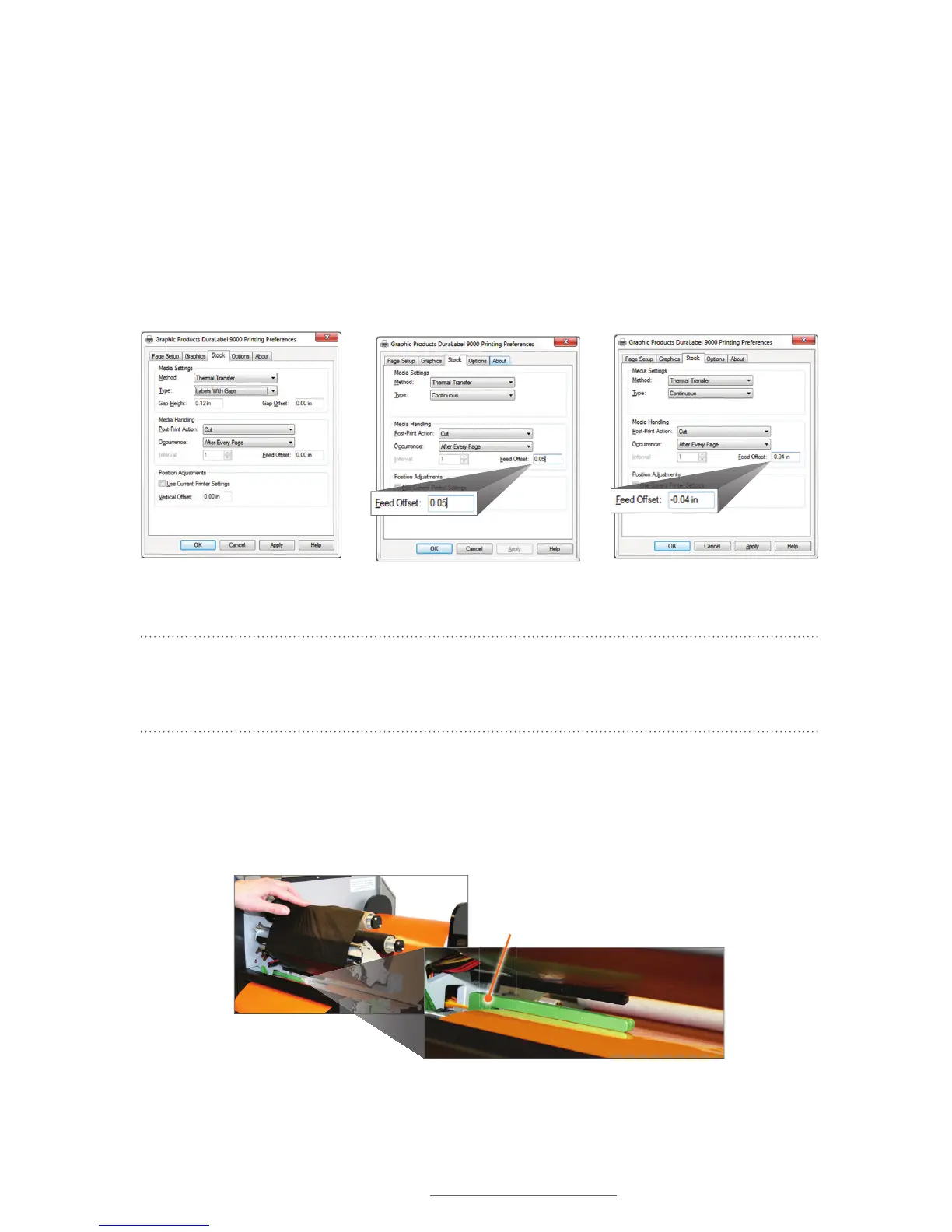
A. For die-cut labels, select Labels With Gaps from the Type drop-down menu.
B. Set Gap Height to 0.12 inches and Gap Offset to 0 inches (default).
C. Click Apply, then OK.
NOTE: Ensure the printer cuts directly in the center of the gap by adjusting Feed Offset
on the Printing Preferences dialog box Stock tab. The 0 default setting works best for
most label supply.
4.2.3 MEDIA SENSOR ADJUSTMENT FOR DIE-CUT LABELS WITH HEADERS
For optimum printing on die-cut labels, the media sensor needs to be adjusted either to
the right or left.
Printing Preferences dialog box, with
Type set to “Labels With Gaps” on the
Stock tab
If the printer does not cut correctly, adjust Feed Offset up or down.
DuraLabel 9000 adjustable media sensor
Media Sensor



 To Next Page