DuraLabel.com | 800.788.5572
7.2 Graphics | 31
LABEL DESIGN
7.1.2 POSITIONING TEXT BOXES
To position a text box on a label canvas, place the cursor
anywhere along the text box’s border, but not on a
handlebar. Your cursor will become a 4-headed arrow. You
can now drag the text box to another location.
If you don’t want the text box border to print on your label,
double-click on a corner of the text box. A Format tab
opens on your computer’s menu bar
*
. Click Shape Outline,
then select No Outline from the options that appear.
*
Describes Word 2007 or Word 2010 procedure
The text box disappears.
NOTE: If you choose not to use a text box for your text, you will still be able to print your
label, although you will not be able to move your text or graphics freely. Consult your
word processor’s help Àle for more detailed information about using the text box tool.
7.2 Graphics
To insert a symbol on your Word document, select Picture from your Insert tab, browse
for the symbol you want to add, select it, then click Insert. The symbol now appears on
your Word document. Move and resize symbols
as necessary.
NOTE: Graphic Products provides you with
industrial safety symbols in the DL9000
Templates and Symbols folder on your
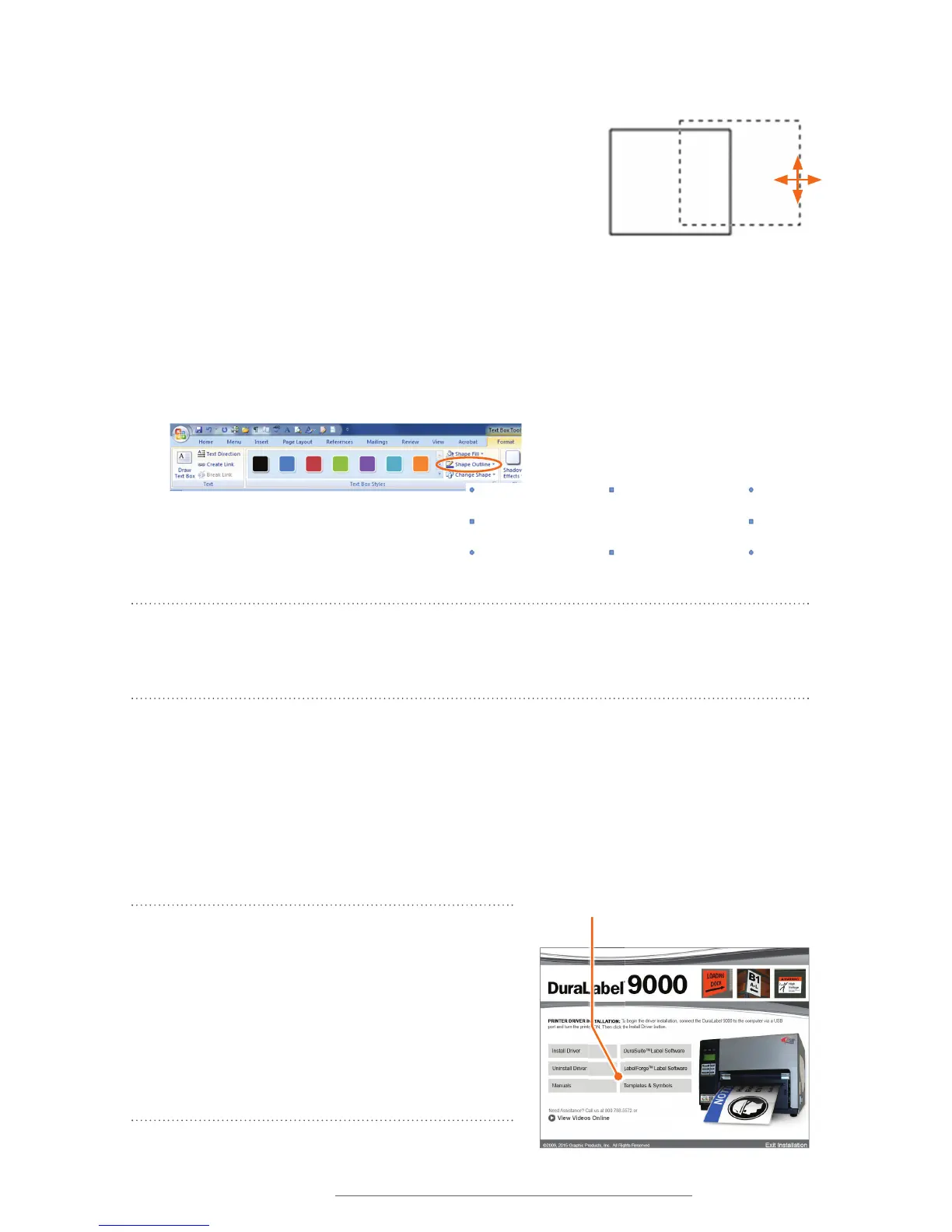
DuraLabel 9000 CD. Run the CD, then click on
Templates & Symbols on the DuraLabel 9000
Startup Screen that opens. You can store the
Templates and Symbols folder in any convenient
location on your computer.
Click Shape Outline from the Format tab, then
No Outline.
Text box with its border removed
Placing your cursor along a text box
border creates a 4-headed arrow. You
can now move the text box by dragging
it with your mouse.
Access Templates and Symbols by clicking
the Templates & Symbols button on your
DuraLabel 9000 Startup Screen.



 To Next Page