32 | 7.3 Merging Information, Sequencing Labels
DuraLabel.com | 800.788.5572
LABEL DESIGN
HINT! When determining a symbol’s size, make it large enough to be recognized from a
reasonable distance and check regulatory requirements to ensure compliance.
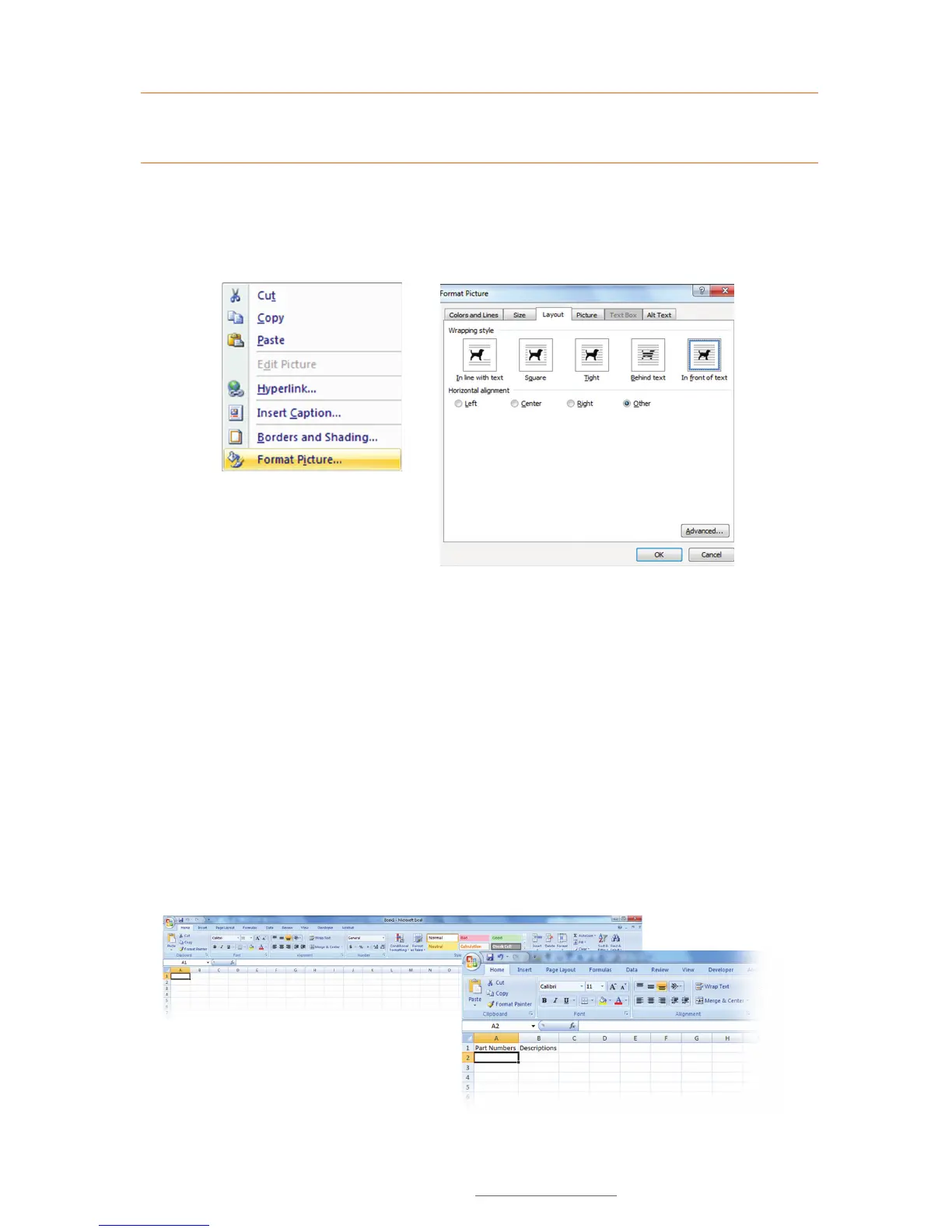
To freely position an image or symbol, right-click on it and select Format Picture from
the context menu that appears. Select the Layout tab on the Format Picture dialog box
that now appears and choose the “In front of text” text wrapping option.
Context drop-down menu, with
Format Picture selected
Position an image on a document by choosing “In front of
text” from the Format Picture dialog box.
7.3 Merging Information, Sequencing Labels
Follow these steps to effectively create and efficiently organize labeling projects.
7.3.1 CREATING AN EXCEL SPREADSHEET
Successful labeling projects often involve merging Microsoft
®
Word and Excel documents
to produce well-coordinated, sequentially organized groupings of labels.
Start by opening an Excel document, placing column headers in the first row (Fig. 1).
For this example we use Part Numbers and Descriptions (Fig. 2).
FIGURE 1 Blank Excel document
FIGURE 2 Excel document with headers



 To Next Page