30 | 7.1 Text Boxes
DuraLabel.com | 800.788.5572
7. Label Design
7.1 Text Boxes
Text boxes let you position text anywhere on a document. They can have borders and
be filled with color, or have no borders and be transparent. They’re ideal for grouping
text and graphics. You can format text within the text box to whatever size and style you
choose.
Add a text box by clicking Insert on the Word toolbar, then click Text
Box. A menu appears displaying several text box templates. Click
Draw Text Box at the bottom of the menu , then draw a square on
the blank page where you would like the text box to appear.
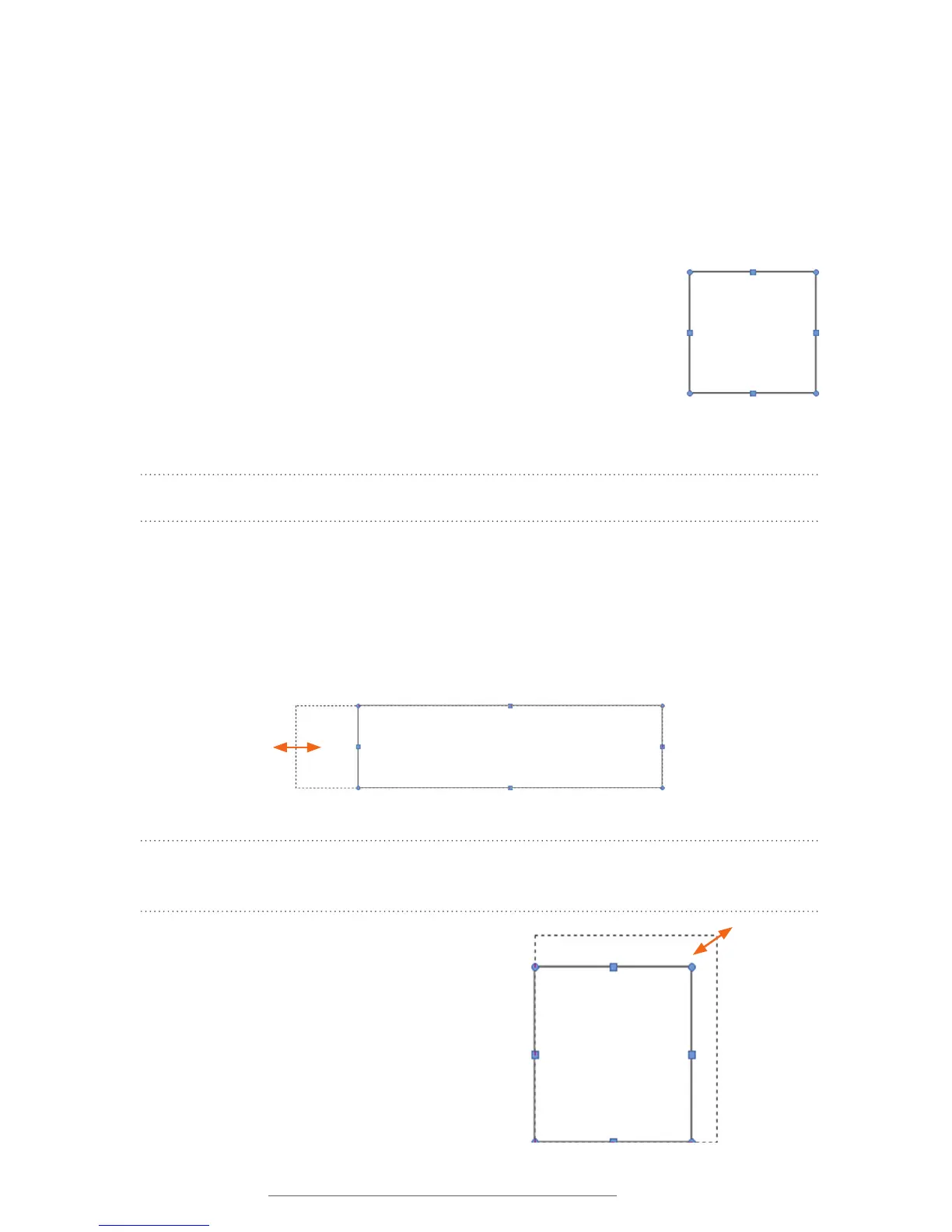
A text box with eight small boxes (handlebars) along its border
appears at the location you clicked. You can begin entering text
immediately. The text box expands as you enter text.
NOTE: Right-clicking on a text box allows you to edit some of its properties.
7.1.1 CHANGING TEXT BOX SIZE
The “handlebars” let you change text box size. Click on a handlebar and drag it until the
text box is the desired size. Dragging a middle-top or middle-side handlebar changes the
width or height of the text box. Dragging a corner handlebar lets you change width and
height simultaneously.
NOTE: Pressing the Shift Key while dragging a corner handlebar changes a text box’s
width and height proportionately.
Text box with eight
“handlebars”
Text box lengths and widths can be changed by dragging a handlebar
until the text box is the size you want.
Text boxes can be resized proportionately by holding
down the Shift Key while dragging a corner box
(handlebar). This text box is being enlarged by
dragging a corner handlebar while pressing the Shift
Key.



 To Next Page