DuraLabel.com | 800.788.5572
6.1 Label Creation with Your Word Processor | 29
LABEL CREATION
6.1.2 SETTING UP A MICROSOFT WORD DOCUMENT
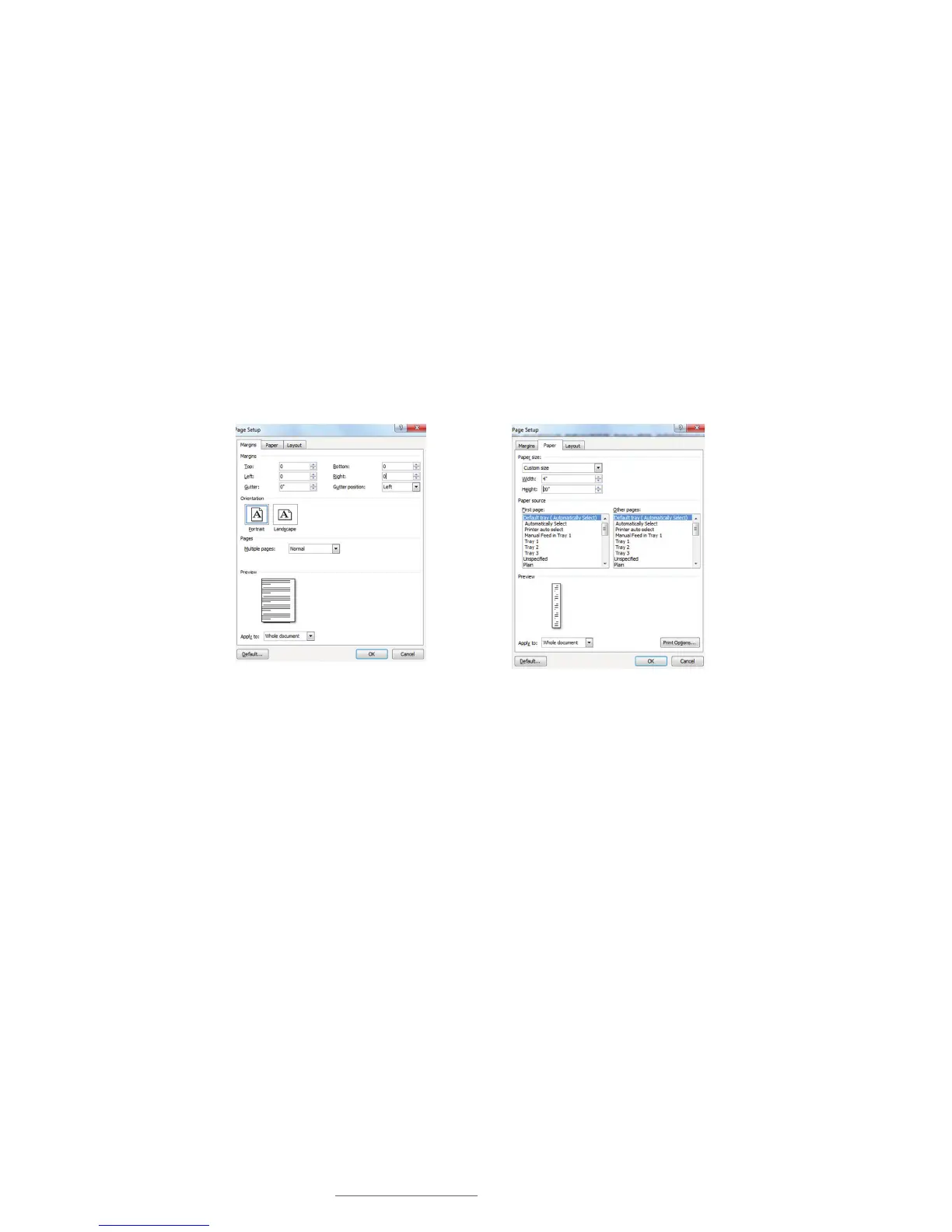
When opening a document, change size and margins to match your label’s size. (Word
processors default to 8.5" x 11".) Click on the File menu, then Page Setup. Click the
Margins tab on the Page Setup dialog box that appears. Set all Margins to 0 to print
on the entire supply.
Set Orientation to Portrait if label width is the same dimension as the supply width
loaded in your printer. Set orientation to Landscape if label height is the same as the
supply width loaded in your printer. Click OK when done.
Now select the Paper tab and set the Paper size to the size label you want to create.
Either the Width or Height should match the width of supply loaded in your printe
Page Setup dialog box, with Margins
tab selected
Page Setup dialog box, with Paper
tab selected



 To Next Page