16 | 3.3 Using a Parallel Cable
DuraLabel.com | 800.788.5572
CONNECTING THE PRINTER
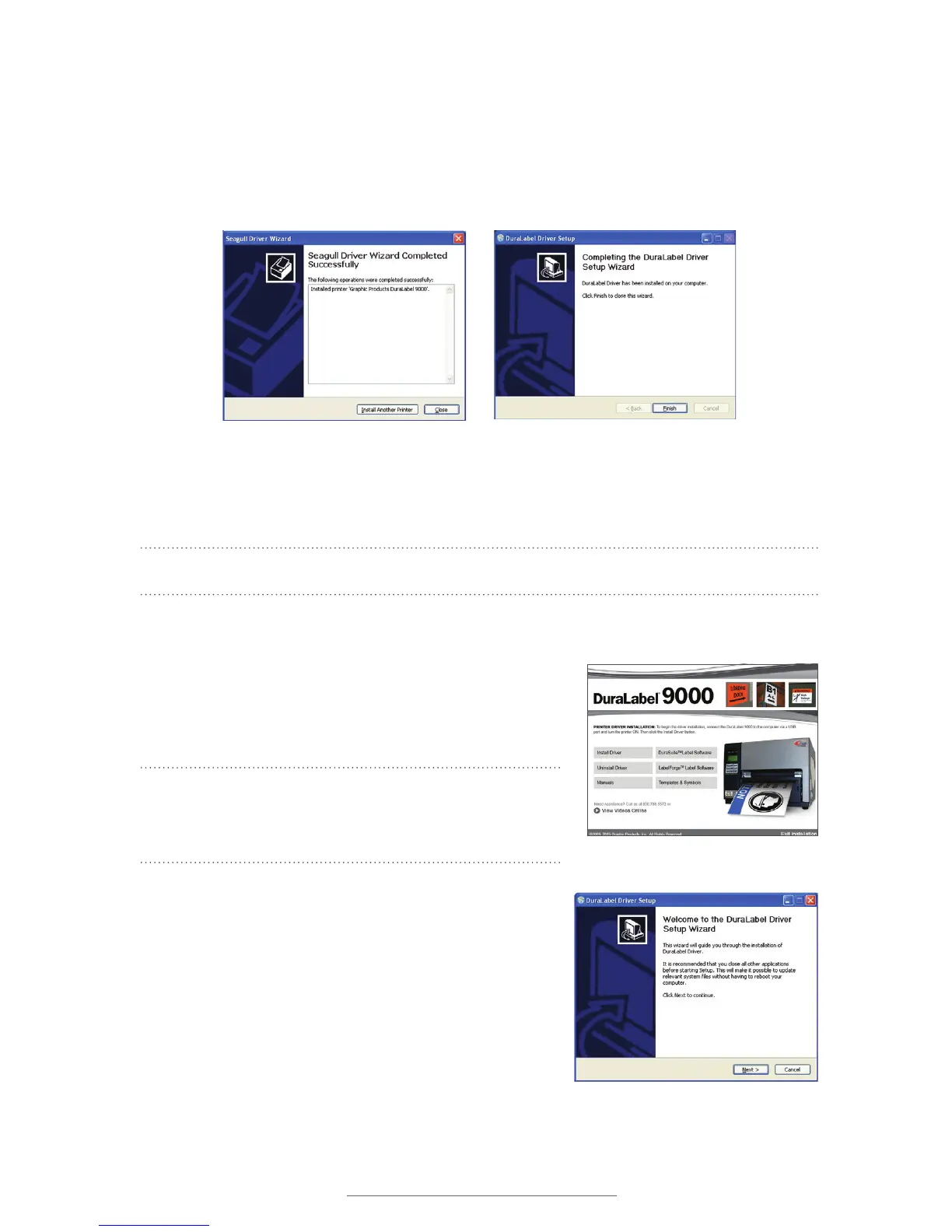
J. A Driver Wizard Completed Successfully window appears, confirming the printer
driver installation was completed successfully. Now click Close.
K. The previous window closes and a Completing the DuraLabel Driver Setup Wizard
window appears. Click Finish to complete the new driver installation.
3.3 Using a Parallel Cable
NOTE: You may need IT administrative privileges to install a driver.
The following instructions are only for those using a parallel cable:
A. Insert the DuraLabel 9000 Installation CD in your
computer’s disk drive. A DuraLabel 9000 startup
screen appears.
NOTE: If the CD does not run automatically, go to
Start > Computer and double-click on your CD/DVD
Drive, which should display the DL icon.
B. Click on Driver Wizard, then click Next on the
Driver Setup Wizard window that appears.
C. Click I Agree on the Windows Printer Driver
License Agreement window that appears.
Driver Wizard Completed Successfully Window
Click Finish on the Completing the DuraLabel
Driver Setup Wizard window. The driver
installation is now complete.
DuraLabel 9000 Startup Screen
DuraLabel Driver Setup Wizard



 To Next Page