Customer Support 800.537.6070 25
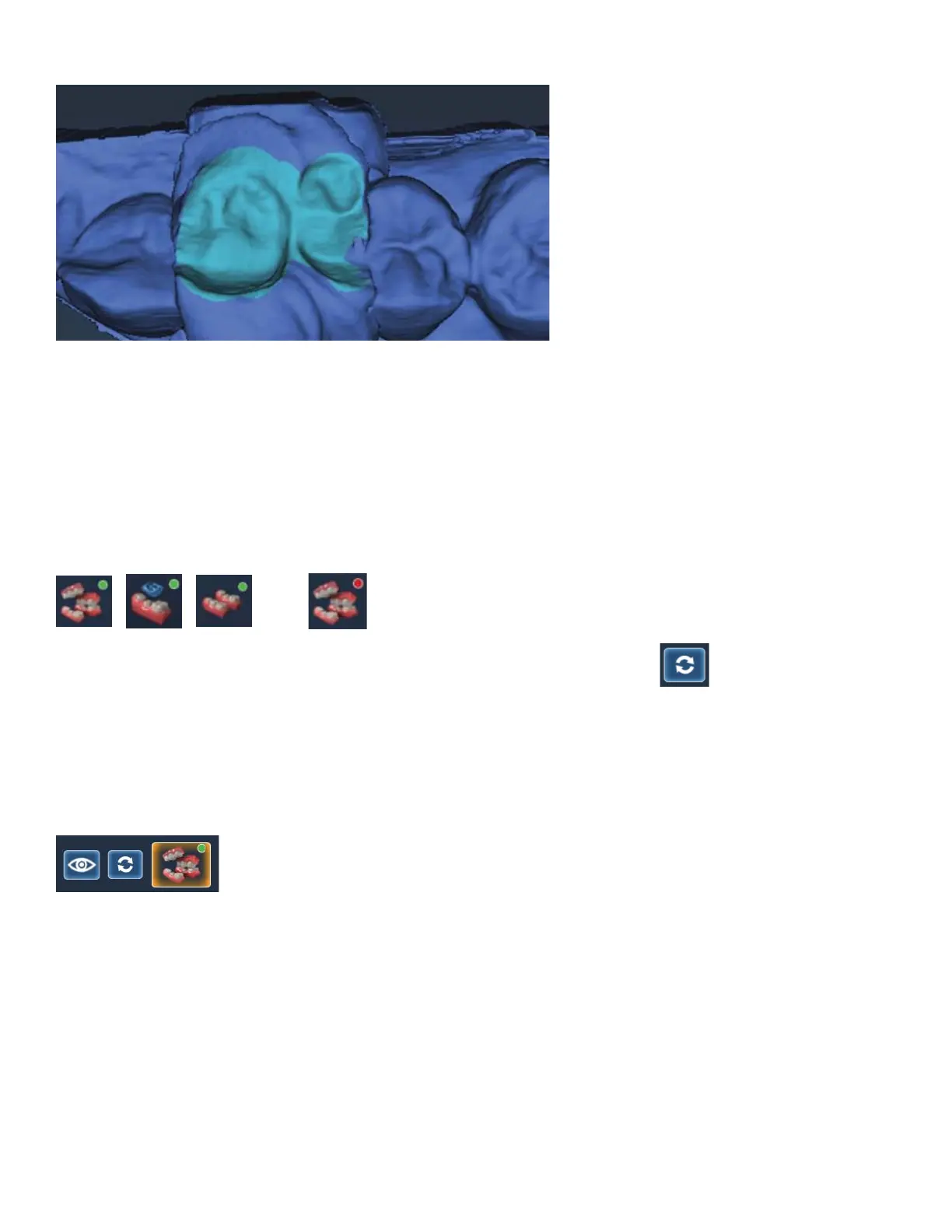
Your nished highlighting should resemble the following.
3. Click Bite Selection again to deactivate it.
Model Alignment
Alignment now occurs on the Scan tab. There are no tools to rotate the models. It is important to start your
scanning in the same orientation for each scan. Rescan the model if you scanned something in backwards.
The alignment icons are on the right side of the screen. There is a di erent icon for each alignment type:
Buccal Bite, Pre-op, and Bite Registration. The system attempts to automatically align the models as they are
generated. A green dot means the scans are aligned. A red dot means they are not aligned.
Click the icon to view the alignment. All of the alignment icons have a Refresh button. Click Refresh to
reset the alignment and manually align the models. Automatic alignment should be used in most cases.
If there is extra data that might be interfering with the scans (tongue, cheek, etc.), try trimming the extra
data before manually aligning.
The buccal bite has an extra Show/Hide Buccal option. This enables you to hide the buccal bite model and
evaluate the opposing and prep models.



 To Next Page