28 E4D NEVO Version 5.0 10822801.C
4. Select a tooth in the bridge and choose the Library, Material, and Shade. This will set the material and
shade for the remaining restorations in the bridge.
5. Select the remaining teeth in the bridge and designate the Restoration Type and Library. Ensure each
pontic is designated as such. Library must be chosen for each restoration before you can continue to the
Scan Tab.
Note: If Library, Material and Shade are chosen before linking the bridge, the software will
replace the Material and Shade of the remaining restorations with that of the highest tooth
number after the link.
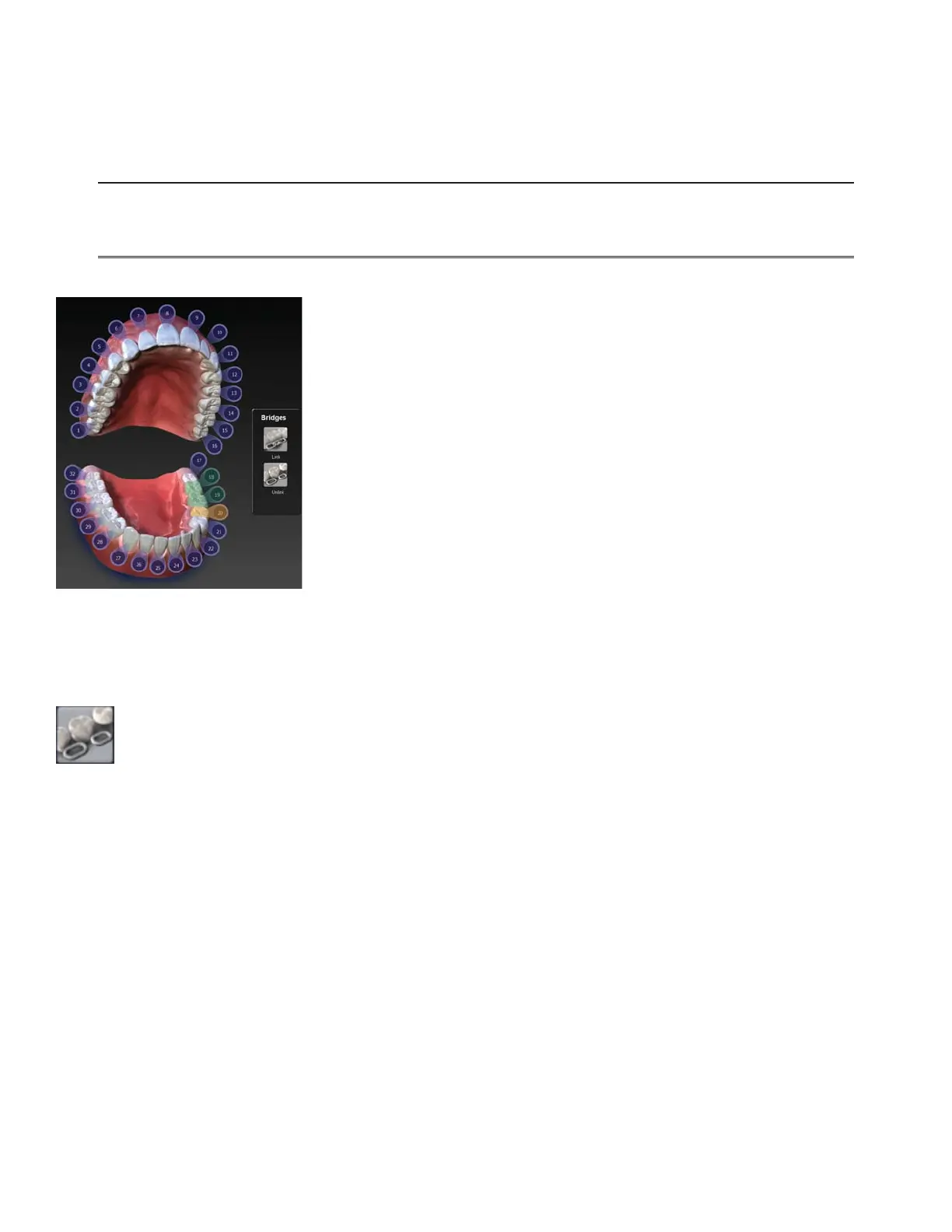
Your anatomical model will resemble the following:
Multiple bridges can be created on the same arch. Repeat the steps above to create another bridge.
Unlinking a Bridge
If there is an error in how the bridge was linked, click Unlink and click on any of the teeth in the bridge.



 To Next Page