34 E4D NEVO Version 5.0 10822801.C
Version Compatibility
Cases from previous versions can be opened in NEVO, but the Scan tab is disabled. Older models cannot be
trimmed or aligned.
Milling Center Changes
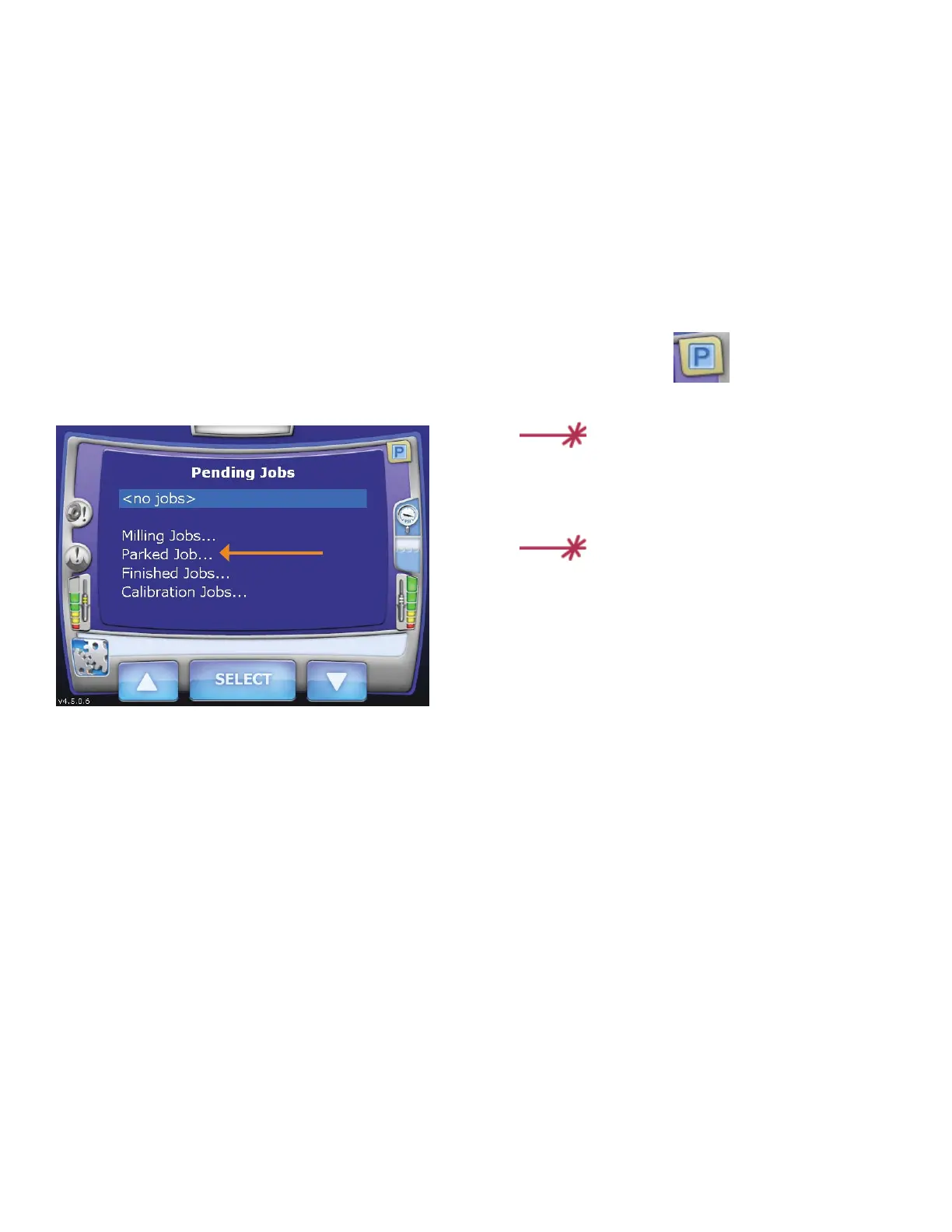
New Icon for a Parked Job
The Parked Job feature was introduced in Version 4.5. In this update, a new icon has been added to indicate
that a job has been saved.
When a job is interrupted by an error message or a manual cancellation of the job, it is saved in Parked Job.
Only the most recent job is available in Parked Job.
When a job has been saved, an icon will appear in the corner to notify you.
1. To restart the interrupted job, touch Parked Job...
2. Touch Select.
3. Reinsert the partially milled block if it had been removed.
4. Follow the on-screen instructions.
The milling restarts from where it was cancelled.
Jobs interrupted by a power failure
are not parked.
Do NOT insert a new block for a
Parked Job. A new block will result
in broken tools. To restart the job
with a new block, use Pending Jobs.



 To Next Page