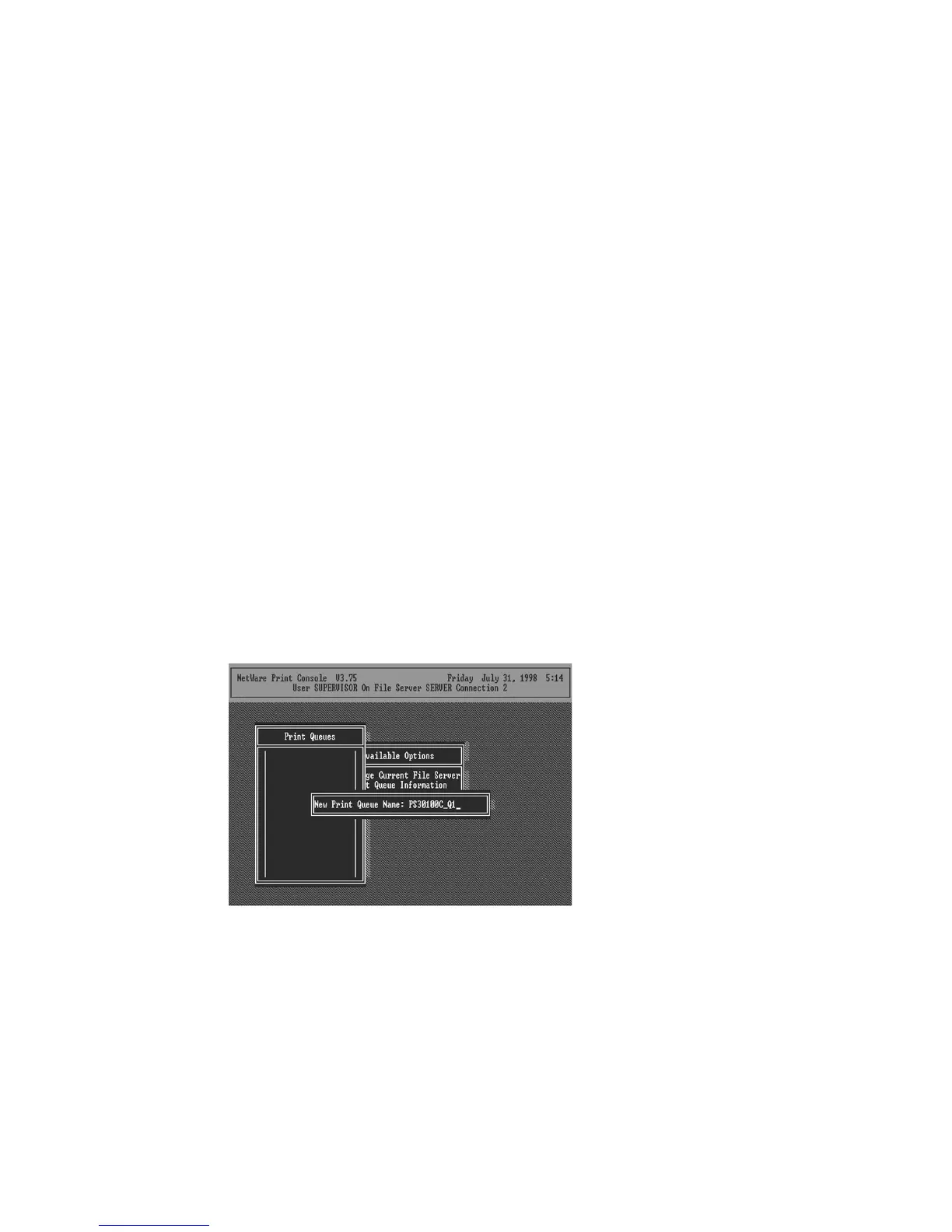
8. Press Escape to exit the Print Server Configuration
screen, confirm that the changes should be saved, and exit
PSETUP.
At this point the print server setup is complete, and you
can begin setting up the NetWare print server and print queue
objects:
9. Run the NetWare PCONSOLE program.
10. Change the current file server, if necessary, using
the Change Current File Server menu selection.
11. Choose the Print Queue Information menu selection.
12. Press the Insert key to add a new print queue.
13. Type in a print queue name, such as “PQ” or “Q1”.
14. You have now successfully created the print queue
that your print server will serve. Press the Escape key until
the Available Options main menu is displayed.
15. Select Print Server Information.




 To Next Page