21Installation and Service Guide: Color Controller E-46A
Installing Hardware
To connect the E-46A to monitor, keyboard, and mouse (optional)
Note: Monitor, keyboard, and mouse are included with the optional Fiery NX Station kit. For information about the
monitor, keyboard, and mouse, see the documentation that accompanies those products.
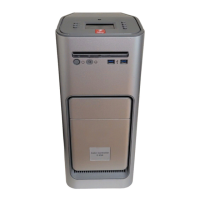
1 Make sure that the E-46A is installed in the Fiery NX Station furniture and the monitor is securely attached to the
top of the E-46A.
2 Connect the monitor cable to the DVI port on the connector panel.
3 Connect the monitor power cable to a power outlet on the wall.
4 Place the keyboard and mouse on the furniture table top.
5 Connect the wireless adapter for the keyboard and mouse to one of the USB ports.
Use the USB ports attached at the front of the furniture.
6 Power on the mouse by using the power switch on the bottom side of the mouse.
To connect the E-46A to power
1 Locate the E-46A power cable that is shipped with the E-46A.
Be sure to use the appropriate power cable for your regional outlet type.
2 Connect the recessed end of the E-46A power cable to the power outlet at the customer site.
3 Connect the other end to the E-46A power connector (see Figure 5).
Connecting the E-46A to printer and network
Connect the E-46A to the printer and the network to enable print and network connectivity.
To connect to the printer
1 Make sure that the E-46A and the printer are powered off.
2 Locate the printer interface (crossover Ethernet) cable that is shipped with the E-46A.
The straight-through Ethernet cable at the customer site and the crossover Ethernet cable
shipped with the E-46A look similar, but are not interchangeable. Make sure that you connect the
printer interface (crossover Ethernet) cable shipped with the E-46A.


 To Next Page