7. Product Description CC300 Operator Panel – User Guide
By pressing the “Tilt in” button, the CC300 operator panel tilts back (with the lower edge ahead) in the
direction of the vertical mounting position until the button is released. When the vertical mounting
position is reached, the tilt-in process will also be stopped.
The “Tilt out” and “Tilt in” buttons, as well as their symbols, are backlit white. During being pressed, the
particular button and the corresponding symbol are backlit blue.
7.1.6. Touch Display
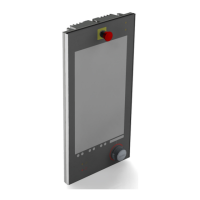
The CC300 operator panel is equipped with a 21.5” TFT display and a capacitive touch (PCAP) with multi-
touch capability (see also Fig. 8, Pos. 3). The surface of the display and the touch is protected by the front
glass. The touch display responds to the light touch of a finger or glove (the touch display is factory-
calibrated for operation with the PU-coated glove types Solidstar 1327 and Camapur Cut 620) and offers
the same degree of user comfort as a computer mouse.
For technical specification of the touch display refer to the chapter 9 “Technical Data”.
Do not use a hard or a pointed object (like a screw driver) to operate the touch screen or
the capacitive buttons, since it can scratch or damage the front glass.
7.1.7. Touch Display Care and Cleaning
The front panel and the touch screen are protected by a continuous glass plate that should
be handled with care and cleaned regularly.
Use a lint-free cloth with mild detergent (e.g. glass cleaner) and water for cleaning the glass front. Do not
use strong or abrasive detergents or solvents, which could attack plastic parts (e.g. the rotary/push button)
or scratch the front glass.
The capacitive touch screen is factory-calibrated and needs no recalibration.
22 Preliminary Version 0.2


 To Next Page