Projector Parts and Functions
17
Name Function
C
Rear feet When the projector is set up on a surface such as a
desk, turn to extend and retract the feet to adjust the
horizontal tilt.
D
Security cable
attachment point
Pass the theft-prevention wire lock through here and
lock it in place.
You can also attach the safety wire here to prevent the
projector from falling from the ceiling or wall.
gg Related Links
• "Adjusting the Image Height" p.50
• "Installing a Security Cable" p.120
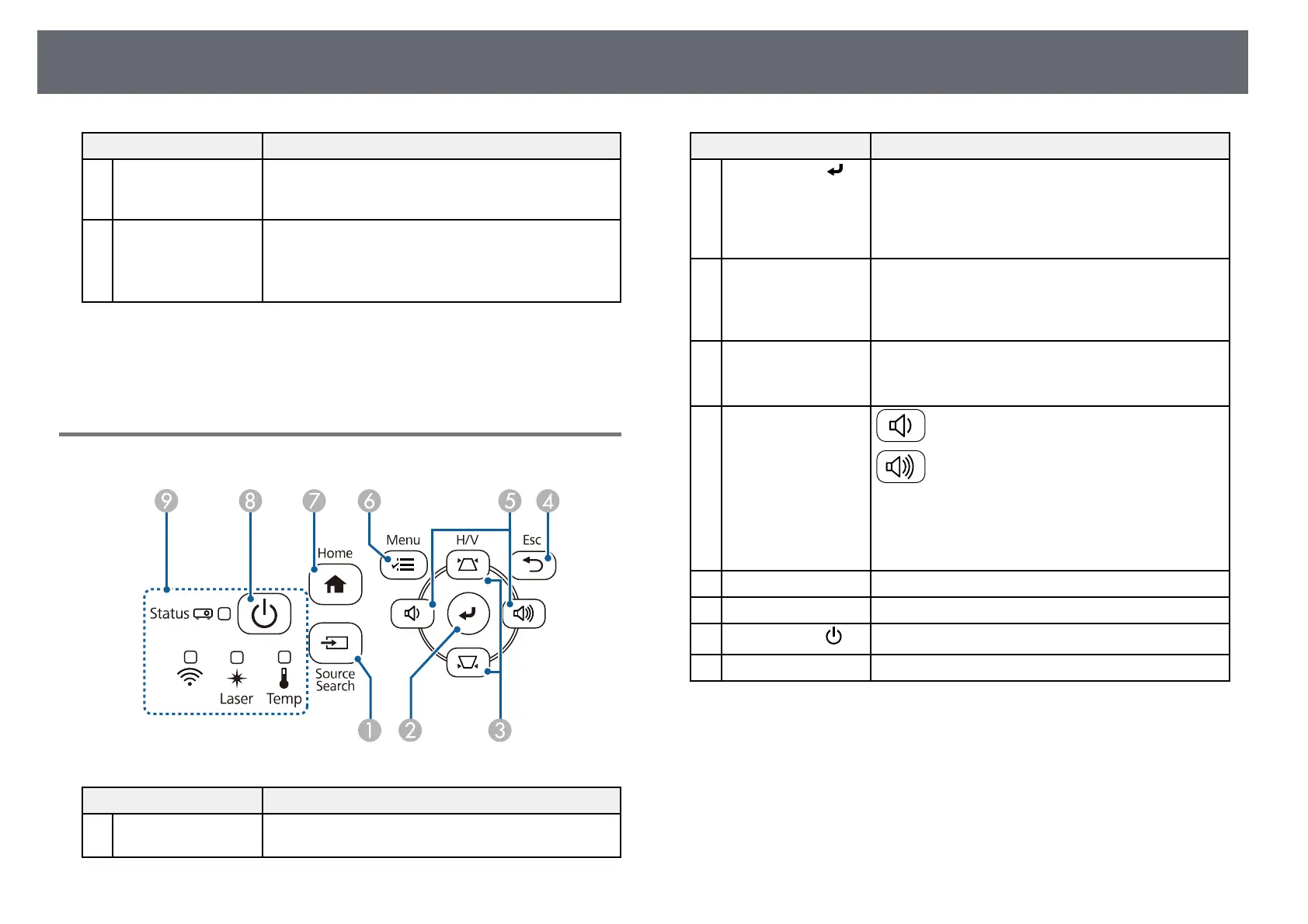
Projector Parts - Control Panel
Name Function
A
[Source Search]
button
Changes to the next input source.
Name Function
B
[Enter] button [ ] Enters the current selection and moves to the next level
while displaying the projector's menu.
When projecting an analog RGB signal from the
Computer port, optimizes the Analog Signal
Adjustment settings (Tracking, Sync., and Position).
C
Keystone adjustment
buttons and arrow
buttons
Displays the Keystone screen allowing you to correct
keystone distortion.
Selects menu items while displaying the projector's
menu.
D
[Esc] button Stops the current function.
Moves back to the previous menu level while
displaying the projector's menu.
E
Volume buttons and
arrow buttons
: Decreases the volume.
: Increases the volume.
Corrects keystone distortion in the horizontal direction
when the Keystone screen is displayed.
Selects menu items while displaying the projector's
menu.
F
[Menu] button Displays and closes the projector's menu.
G
[Home] button Displays and closes the Home screen.
H
Power button [ ]
Turns the projector on or off.
I
Indicators Indicates the projector's status.
gg Related Links
• "Home Screen" p.37
• "Projector Indicator Status" p.206
• "Correcting the Image Shape with the Keystone Buttons" p.52
• "Selecting an Image Source" p.62
• "Controlling the Volume with the Volume Buttons" p.79
• "Adjusting the Menu Settings" p.165





 To Next Page