Projector Connections
26
a
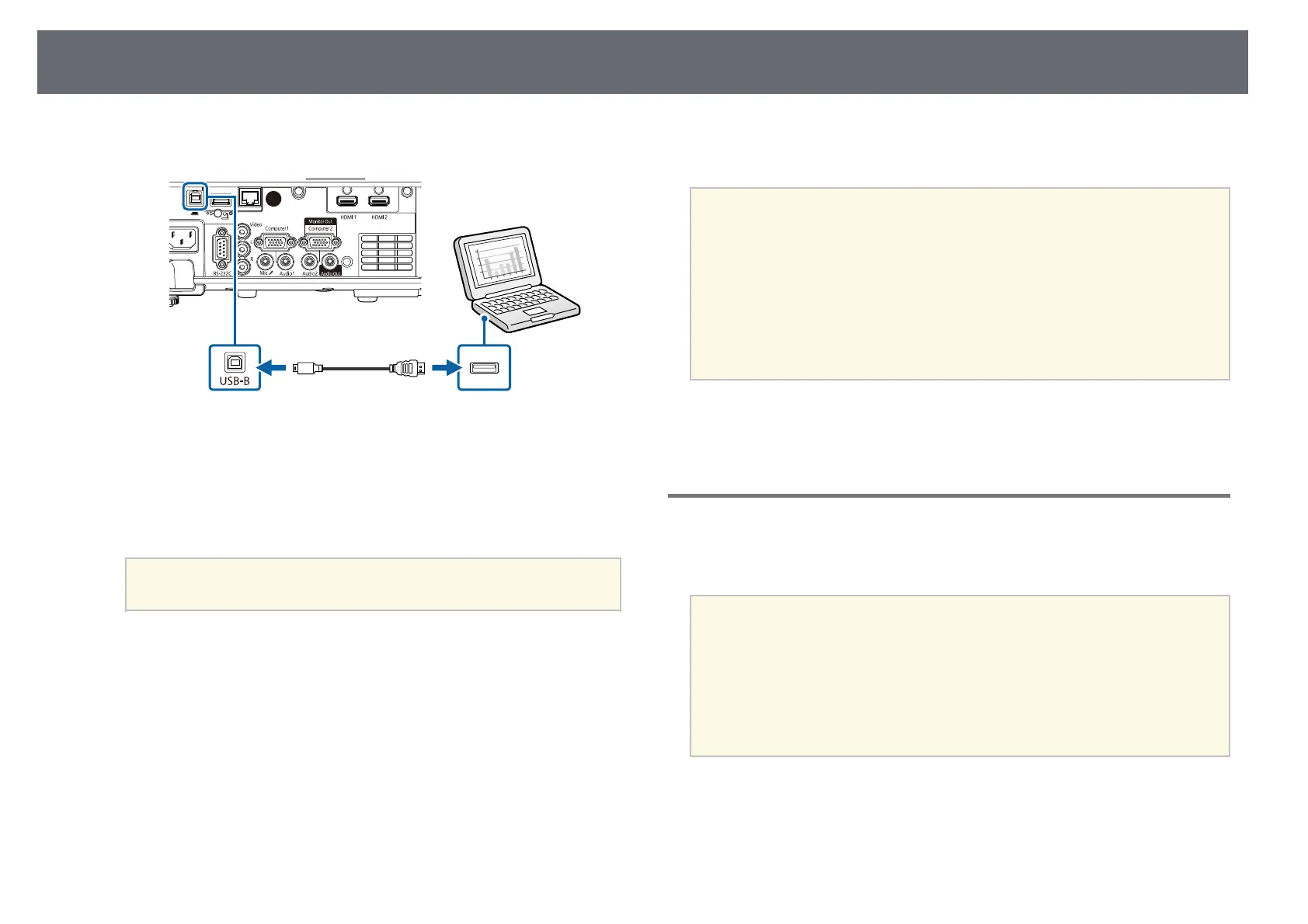
Connect the cable to your projector's USB-B port.
b
Connect the other end to any available USB port on your computer.
c
Turn on the projector and your computer.
d
Do one of the following to install the Epson USB Display software:
a
You only need to install this software the first time you connect
the projector to the computer.
• Windows: Select Run EMP_UDSE.EXE in the dialog box that is
displayed to install the Epson USB Display software.
• Mac: The Epson USB Display setup folder is displayed on your
screen. Select USB Display Installer and follow the on-screen
instructions to install the Epson USB Display software. If the USB
Display Setup folder is not displayed automatically, double-click
EPSON_PJ_UD > USB Display Installer.
e
Follow any on-screen instructions.
Do not disconnect the USB cable or turn off the projector until the
projector displays an image.
The projector displays the image from your computer's desktop and outputs
sound if your presentation contains audio.
a
• If the projector does not project any images, do one of the following:
• Windows: Click All Programs > EPSON Projector > Epson USB
Display > Epson USB Display Ver.x.xx.
• Mac: Double-click the USB Display icon in the Application folder.
• When you finish projection, do one of the following:
• Windows: Disconnect the USB cable. You do not need to operate
Safely Remove Hardware.
• Mac: Select Disconnect from the USB Display icon menu on the
menu bar or Dock, and then disconnect the USB cable.
gg Related Links
• "USB Display System Requirements" p.237
Connecting to Video Sources
Follow the instructions in these sections to connect video devices to the
projector.
a
• If the port on the device you connect has an unusual shape, use the
cable supplied with the device or an optional cable to connect to the
projector.
• The cable differs depending on the output signal from the connected
video devices.
• Some video devices are capable of outputting different types of
signals. See your video device manual to confirm what type of signals
can be output.
gg Related Links
• "Connecting to an HDMI Video Source" p.27
• "Connecting to a Composite Video Source" p.27



 To Next Page