Chapter 3: DS850 User Interface 29
EVS5200_DOC_SOP_DS850
Software Version 2.10
Published: February 26, 2014
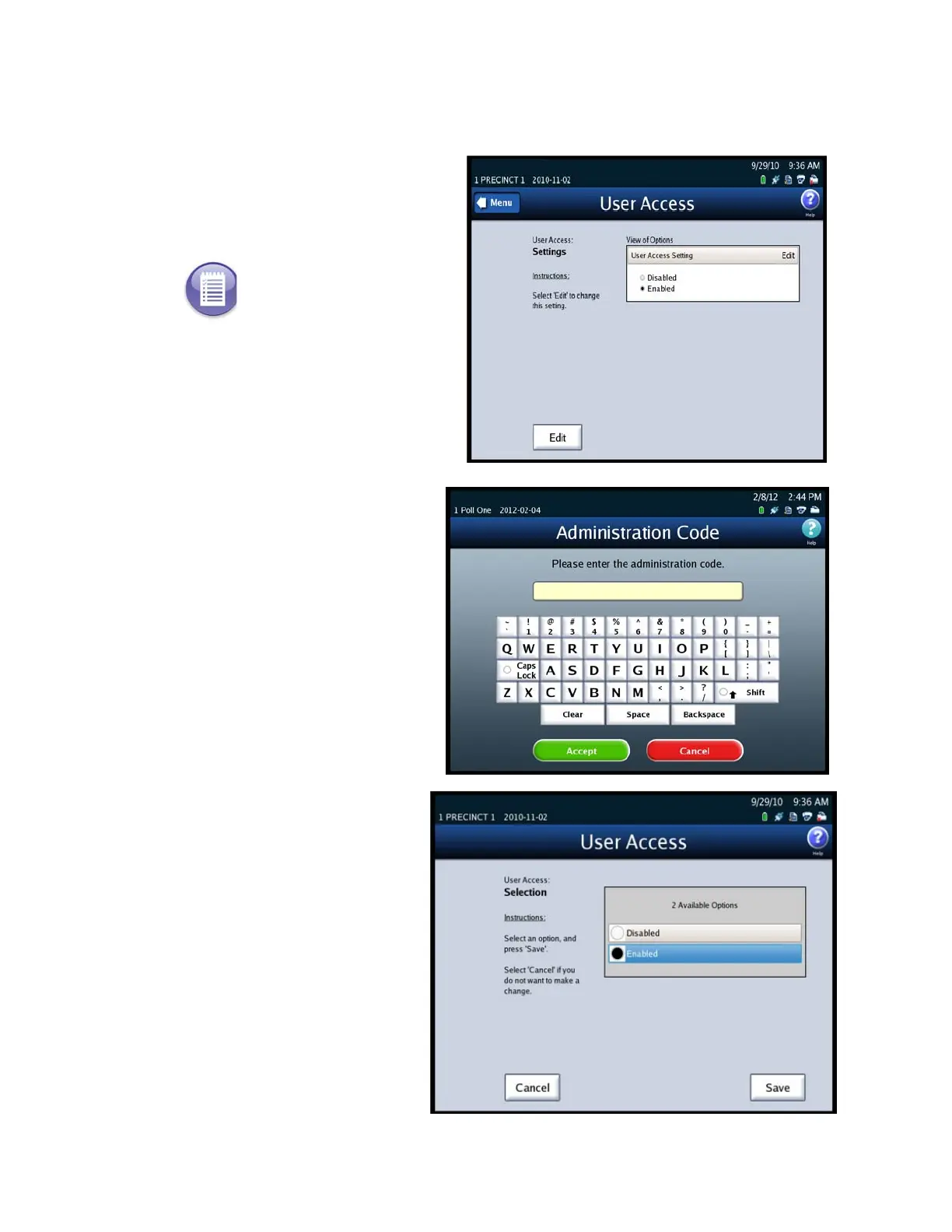
Follow the steps listed below to change the User Access setting:
1. Press User Access on the
System menu to display the
User Access settings screen.
2. Press Edit on the User Access
settings screen to change the
user access setting.
3. When prompted, enter the
Administration Code and
press Accept.
4. When the User Access
selection screen appears,
highlight the desired option
(Disabled or Enabled) by
pressing on it. Then press
Save to save the change, or
press Cancel to cancel it.
Note: If an election definition
has not been loaded onto the
scanner and you press User
Access on the System menu, a
pop-up screen will appear
indicating that an election
must be loaded in order to
access this screen.



 To Next Page