Chapter 5: Pre-Election Day Tasks 57
EVS5200_DOC_SOP_DS850
Software Version 2.10
Published: February 26, 2014
Starting the Scanner
To start the scanner, flip the power switch on the left side of the DS850 to the on
position. A pop-up screen will display telling you to touch the screen if you want to
calibrate it. The next screen that displays depends on whether an election definition has
been loaded into the DS850, and if an election definition has been loaded, whether
User Access is enabled or disabled.
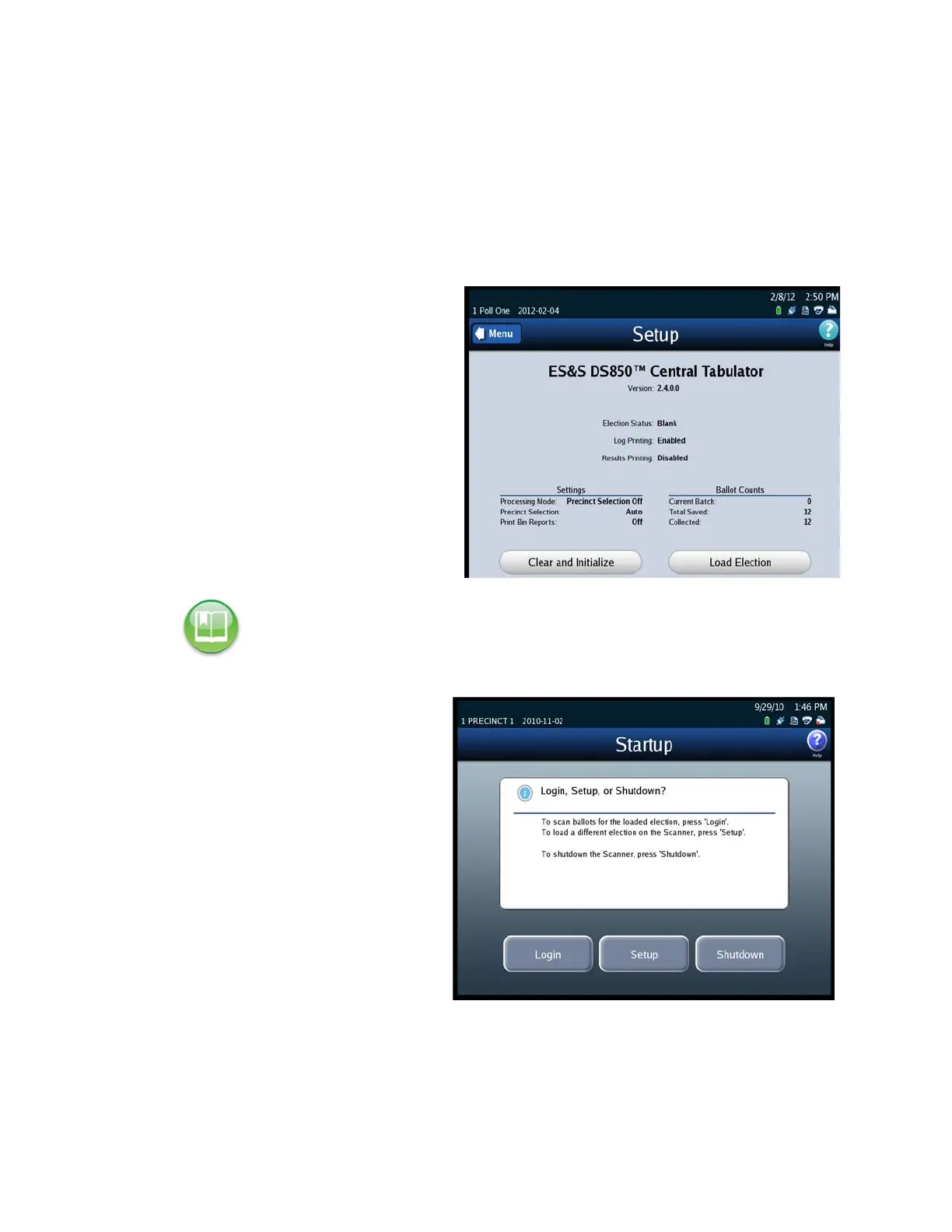
If an election definition has not
been loaded on the scanner, the
screen that appears when the
scanner is started is the Setup
screen. The Setup screen allows
you to either clear and initialize
the scanner or load an election
definition. The following is an
example of the Setup screen.
If an election definition has
been loaded on the scanner
and User Access is enabled, the
screen that appears when the
scanner is started is the Startup
screen. From the Startup
screen, press Login if you are
ready to scan ballots for the
loaded election, press Setup to
load a different election
definition, or press Shutdown
to shut down the scanner. The
following is an example of the
Startup screen.
If you press Login from the
Startup screen, you will be
prompted to enter the Election Code. Enter the Election Code and then press
Accept. The next screen that is displayed is the Scan Ballots screen.
Reference: See Clearing and Initializing the Scanner and Loading the Election Definition for
the steps to follow to perform these procedures.



 To Next Page