Chapter 5: Pre-Election Day Tasks 66
EVS5200_DOC_SOP_DS850
Software Version 2.10
Published: February 26, 2014
Setting the Date/Time
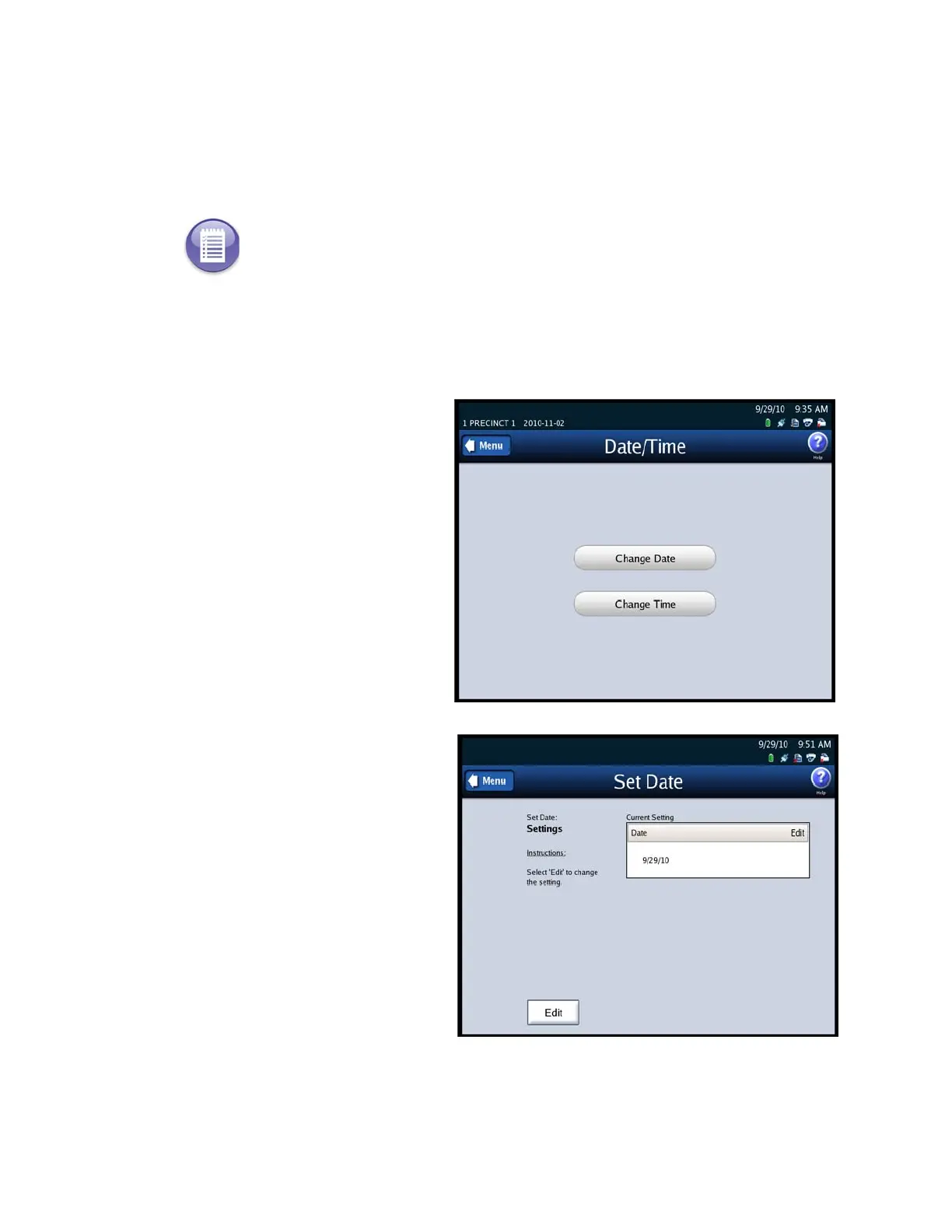
The Set Date/Time option allows you to change the date, time, or both on the DS850.
Follow the steps listed below to change the date on the DS850:
1. Press Set Date/Time on the System menu to access the Date/Time screen.
2. Press Change Date to change
the date on the scanner. The
Set Date settings screen
appears displaying the current
system date.
3. Press Edit on the Set Date
settings screen to change the
current system date.
Note: The scanner’s date and time settings cannot be changed when the scanner contains
ballot data. Therefore, if the scanner’s date and time are incorrect, change them before you
begin scanning ballots.



 To Next Page