Chapter 5: Pre-Election Day Tasks 67
EVS5200_DOC_SOP_DS850
Software Version 2.10
Published: February 26, 2014
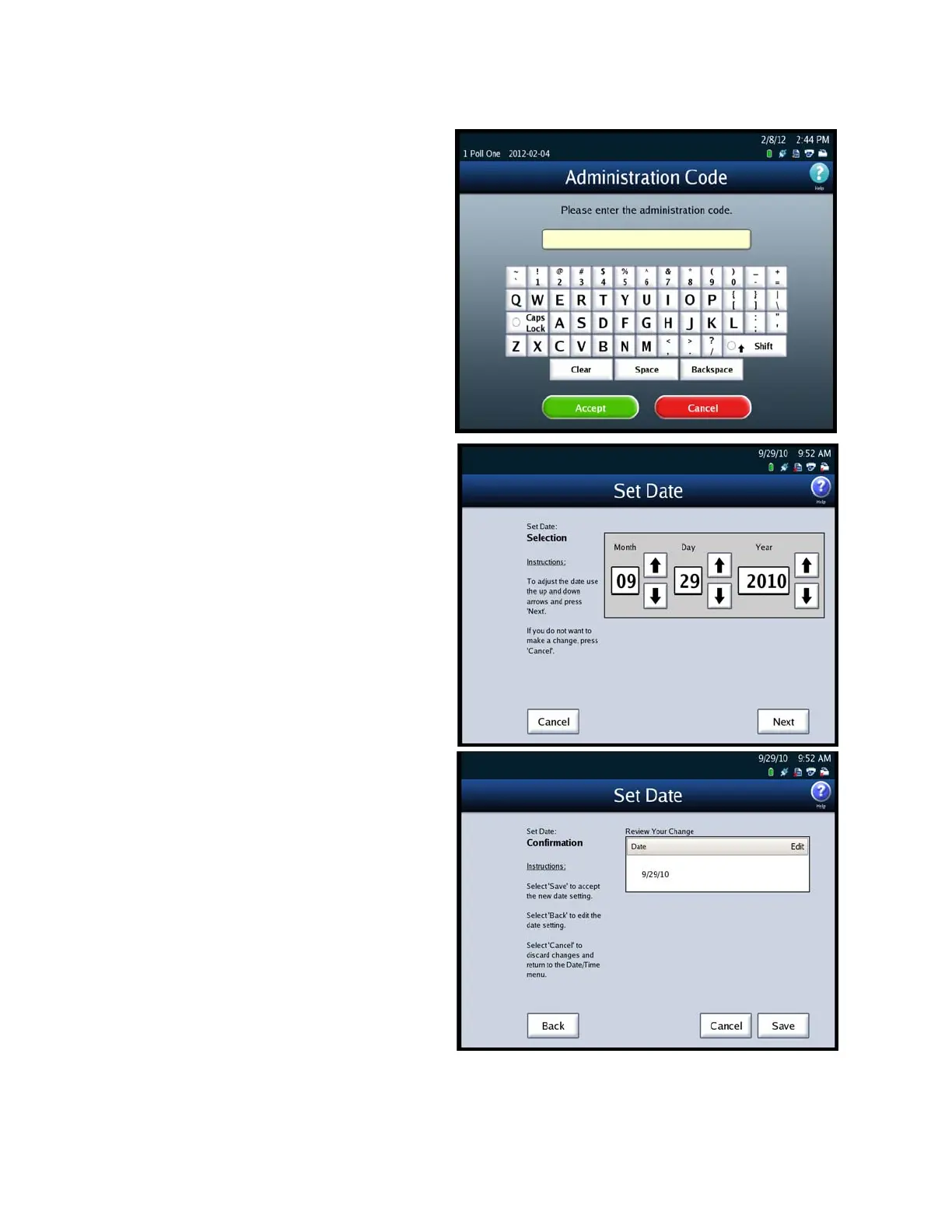
4. When prompted, enter the
Administration Code and then
press Accept.
5. When the Set Date selection
screen appears, use the up and
down arrows to modify the
settings for month, day, and
year.
6. After you have modified the
system date settings, press
Next to display the Set Date
confirmation screen, or press
Cancel to cancel the change.
7. On the Set Date confirmation
screen, review your changes.
Then press Save to save the new
settings, Cancel to cancel them,
or Back to return to the previous
screen.
Follow the steps listed below to change the time on the DS850:



 To Next Page