208 Element User Manual
Magic Sheet List
Double pressing {Magic Sheet} or CTRL+S on an external keyboard will open the magic sheet list.
The magic sheet list displays a list of all created magic sheets, their labels, and how many views
have been saved for each magic sheet. See Display Tools for more information about views.
To label a magic sheet, use the syntax {Magic Sheet} [#] [Label] <name> [Enter].
Pressing [Label], when a label has already been applied to a magic sheet, will display the label on
the command line for editing. Pressing [Label] a second time will clear the label, or you can press
[Clear] to remove the label one character at a time.
Display Tools
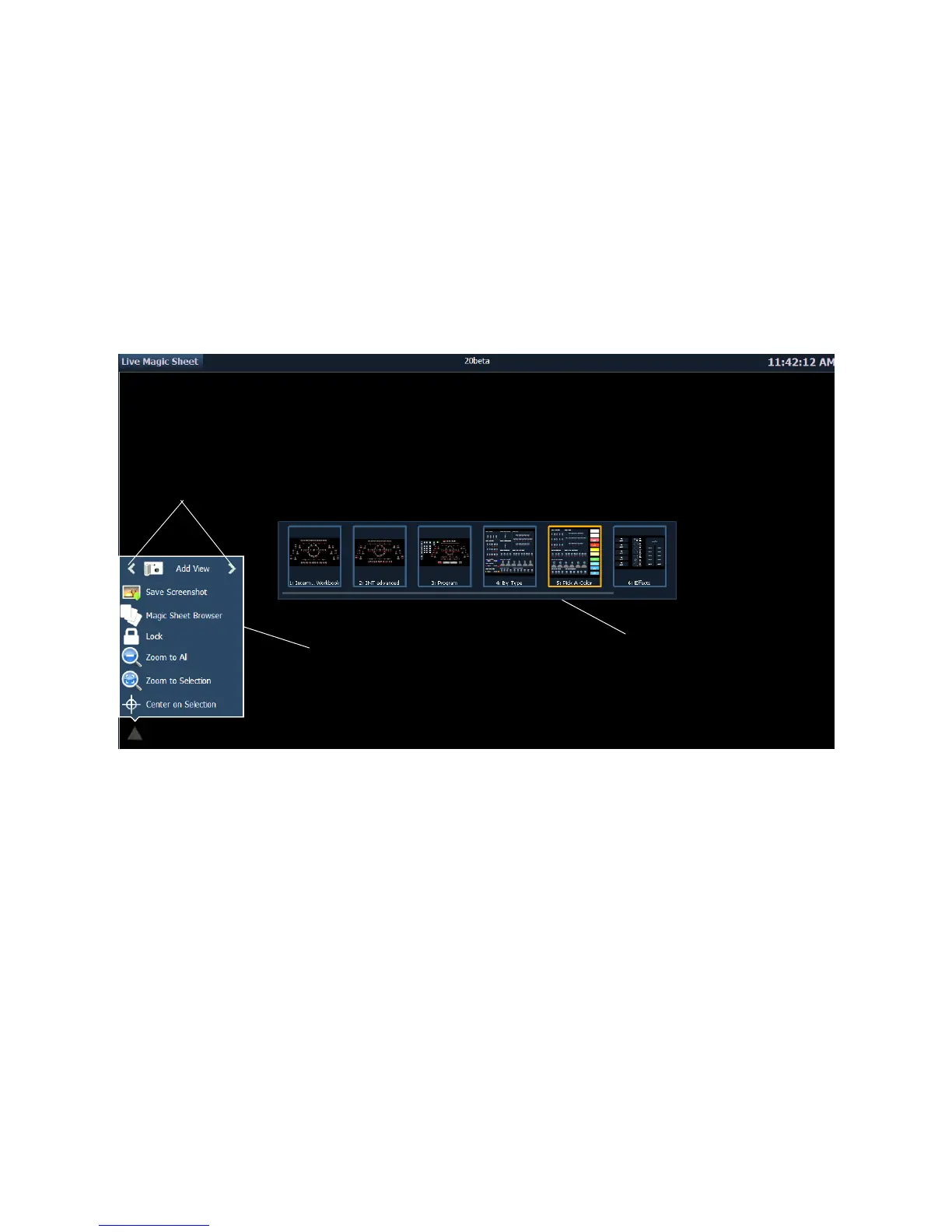
Clicking on the triangle in the bottom left corner of the magic sheet display will open a list of the
display tools.
These tools include:
• Add View - different views of the same magic sheet can be saved and recalled. Zoom and pan
the display to change the view, and then click {Add View} to save. To change views, you can
use the arrows in the display tools or multi-touch gestures. You can also press {Magic Sheet}
[1] [/] [2] [Enter] to view Magic Sheet 1, View 2. See “Multi-Touch Gestures” on page 209.
• Save Screenshot - saves a .png screenshot of the magic sheet to an attached USB drive.
• Magic Sheet Browser - opens the magic sheet browser, which displays thumbnail images
and labels for the created magic sheets. The browser can also be opened using multi-touch
gestures. See “Multi-Touch Gestures” on page 209.
• Lock - locks the magic sheet so it cannot be zoomed or panned. This is useful for a
customized direct select layout, where you want the buttons to always be in the same spot.
• Zoom to All - zooms to show all objects.
• Zoom to Selection - zooms to show all selected objects.
• Center on Selection - centers the display on the selected objects without changing the zoom
level.













 To Next Page