6 Patch 79
To add steps to a lamp control:
Step 1: Use the [Page] keys to navigate to a control slot.
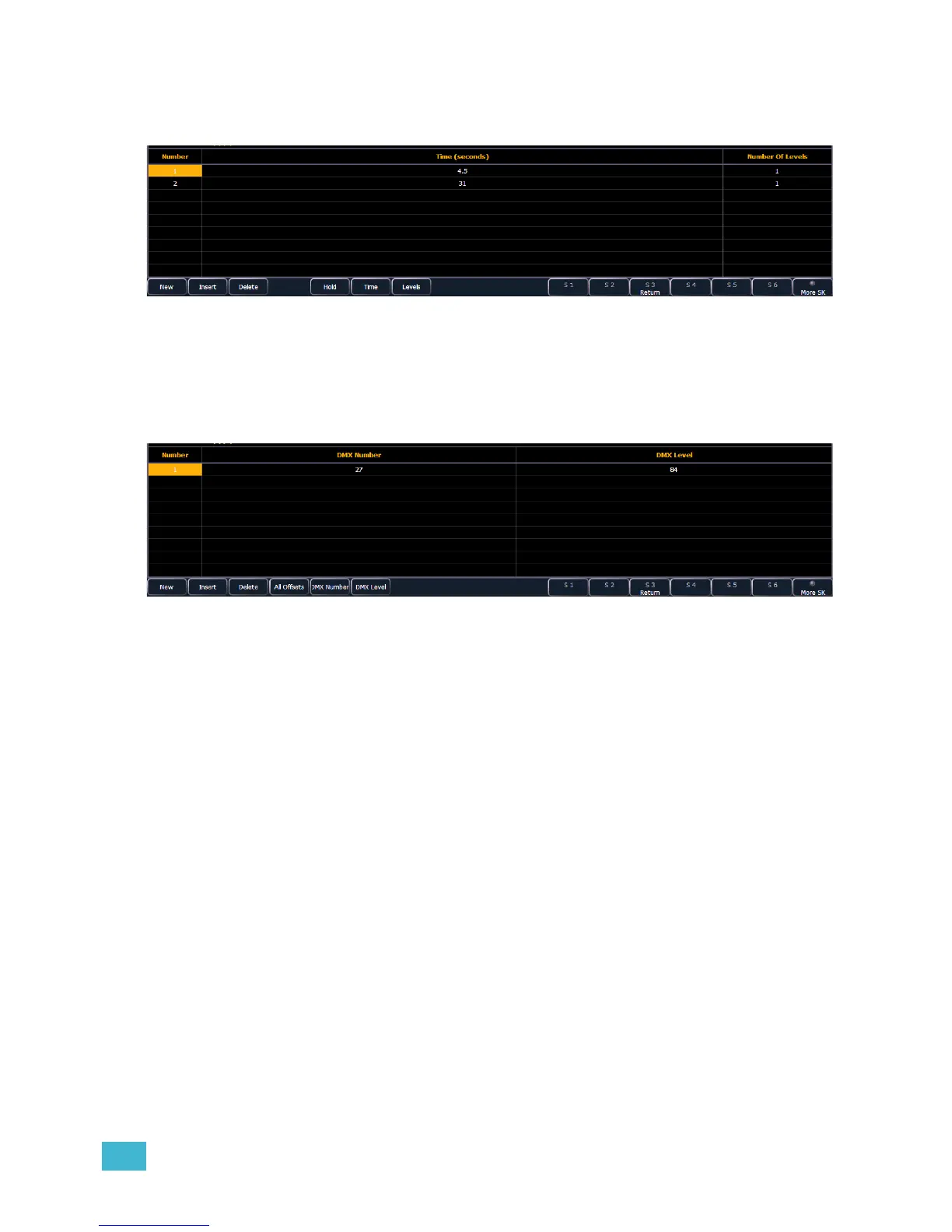
Step 2: Click {Steps} to add steps. The steps list will open.
Step 3: Determine the total number of steps required for the control.
Step 4: Click {New} to add steps. Repeat this step until you have as many steps as are
required by the number determined in step 3.
Step 5: Use the [Page] keys to select the step.
Step 6: Use the {Hold} or {Time} keys to assign a time to the step. Times are entered in
seconds.
Step 7: Use the {Level} key to assign a level to the step. The levels list will open.
Step 8: Determine the total number of levels required for the step.
Step 9: Click {New} to add levels. Repeat this step until you have the number of levels
required by the number determined in step 8.
Step 10: Assign a DMX number by clicking {DMX Number} or {All Offsets}.
Step 11: Assign a DMX level value by clicking {DMX Level}.
Step 12: Click {Return} when you have finished editing the levels.
Step 13: Click {Return} when you have finished editing the steps.
Copying a Fixture
It is possible to copy an existing fixture and then edit its parameters. In the fixture editor, there is a
{Copy} button. Pressing {Copy} when a library fixture is selected will create a copy of that fixture
and will assign it a new name. This new fixture can then be edited.
Merging Custom Fixtures into a New Show File
Custom fixtures are saved with your show file and not in the fixture library. If you want to use custom
fixtures in a different show file, you will need to use the advanced merge function while in the new
show file.
For more information, see Partial Patch Merging, page 32
Importing a Custom Fixture
You can import custom fixtures from an ASCII show file, see Importing Show Files, page 35.













 To Next Page