20 Using Magic Sheets 209
Navigating a Magic Sheet
Magic sheets can be navigated using a mouse, a keyboard, a touchscreen, or a multi-touch
touchscreen. The drag and drop function for placing objects is a single touch action or done using
a mouse.
Additional mouse commands include:
• Left Click - selects an object.
• Right Click - pans the display.
• Wheel - zooms the magic sheet.
• [Shift]+ Wheel - provides a fine zoom of the magic sheet.
Multi-Touch Gestures
The following multi-touch gestures can be used with an external multi-touch touchscreen.
• Scroll - touch with two fingers to move around the page.
• Zoom Out - touch with two fingers and then move your fingers toward each other.
• Zoom In - touch with two fingers and then move your fingers away from each other.
• Zoom to All - double tap with two fingers.
The following multi-touch gestures can be used with monitors that support 3 or more simultaneous
touches:
• Jump to Previous View - use three fingers to swipe upwards or to the right.
• Jump to Next View - use three fingers to swipe downwards or to the left.
• Magic Sheet Browser - tap with three fingers to open the browser.
Note:
If a magic sheet contains a channel object, you will need to press [Escape]
instead of [Live] to go to the live channel display.
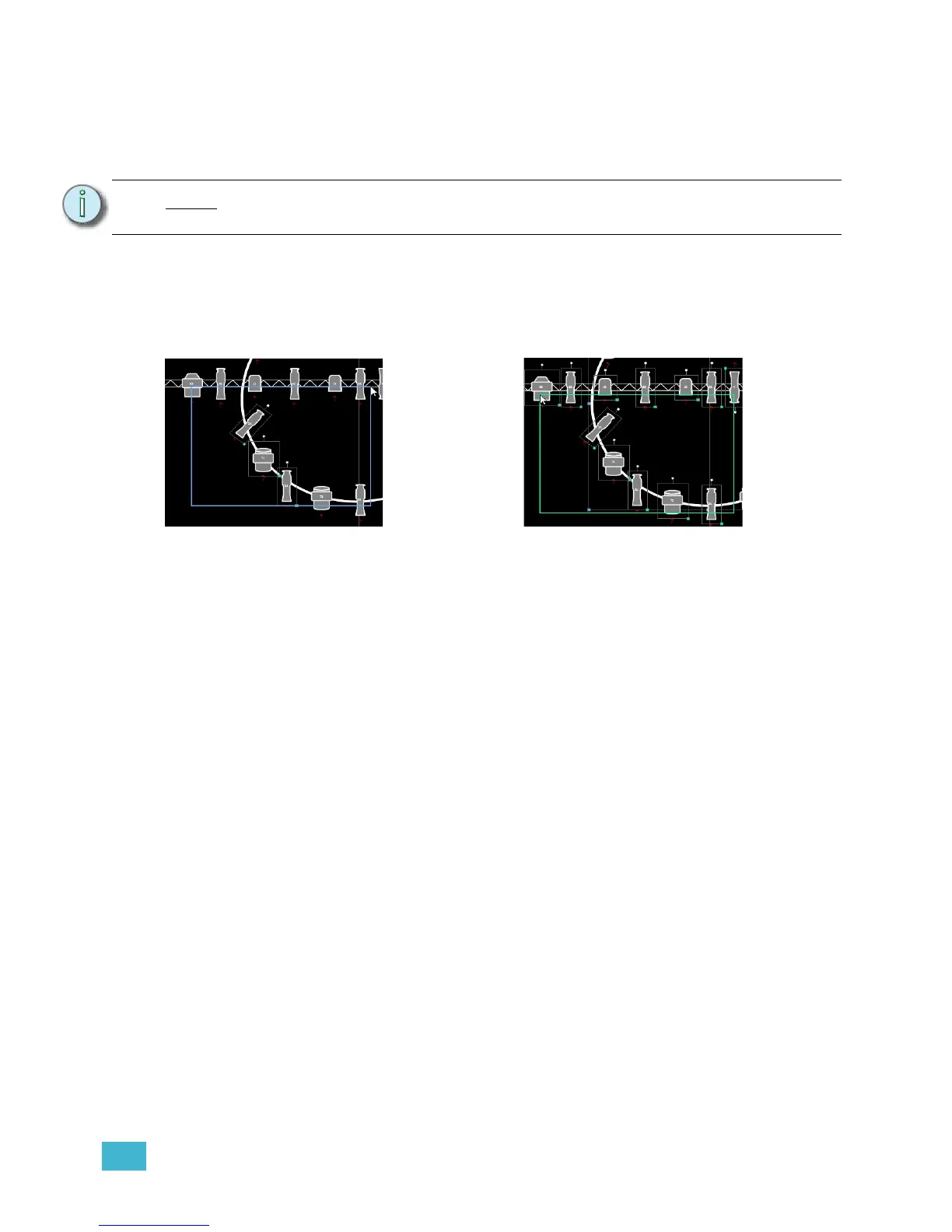
Selecting from right to left will open the green
crossing selection box. This selects any
object that either crosses the boundary line of
the box or is completely inside of it. This can
be done with a single touch or using a mouse.
Selecting from left to right will open the blue
window selection box. This selects any object
that is completely inside of the box. This can
be done with a single touch or using a mouse.













 To Next Page