20 Using Magic Sheets 219
The orientation of fields around the object can be adjusted by pressing the field orientation
icon. You can also choose to keep text upright by pressing the icon to the right of the
orientation icon.
There are three options for orientation.
• Position - shows the position of the object on the magic sheet. Position can be manually
entered here.
• Size - shows the size of the object. Size can be manually entered here.
• Rotation - shows the rotation of the object. Rotation can be manually entered here.
• Items - refers to the number of objects selected for editing. Multiple objects can be edited at
the same time.
Editing Objects on the Magic Sheet
In addition to using the editing tools, objects can be manipulated on the magic sheet using a
touchscreen or a mouse. For selection methods for multiple objects, see Navigating a Magic Sheet,
page 209.
Note:
If multiple fields have the same justification, they will be stacked in field order.
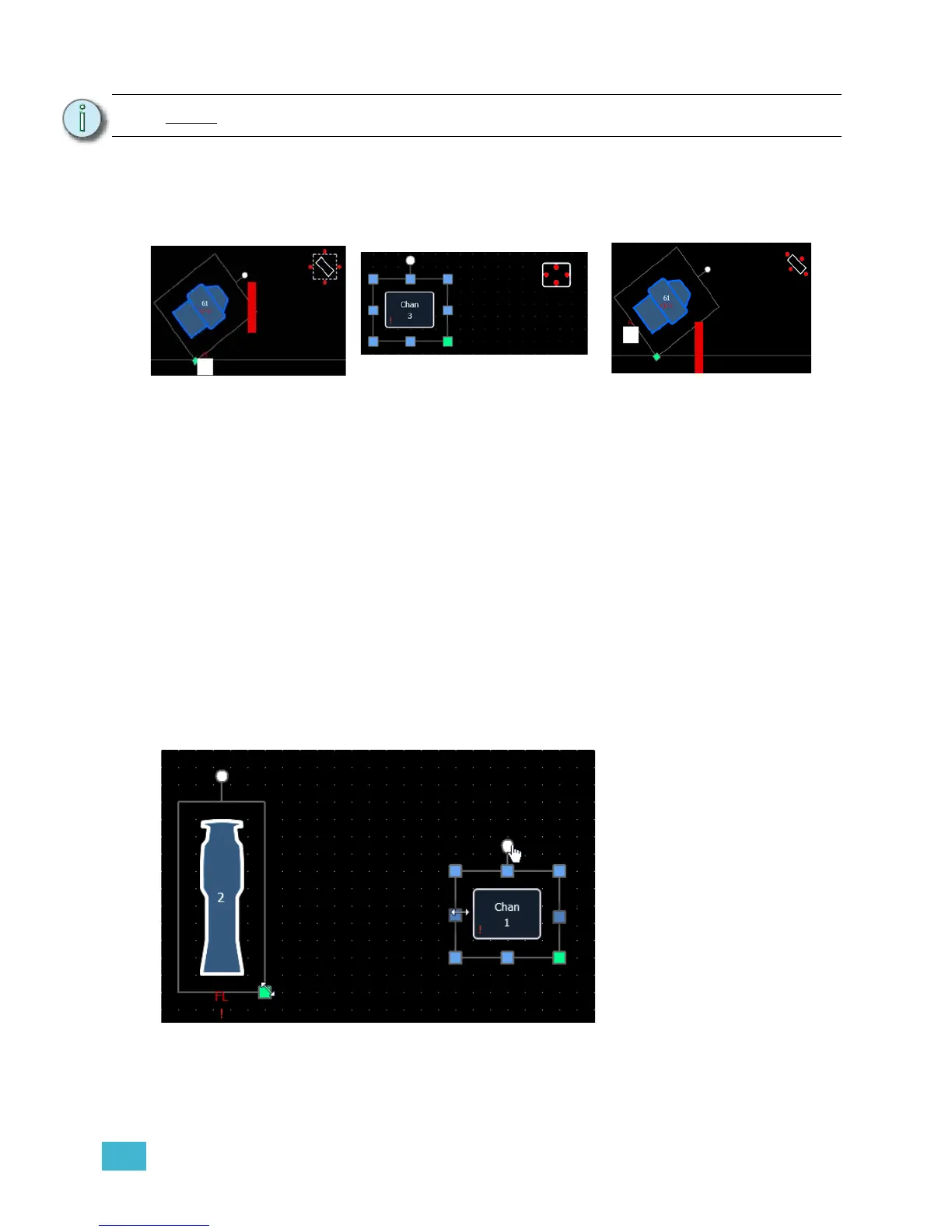
Exterior
Bounds
Exterior
Shape
The fields will be exterior to
the object and will remain at
a position regardless of the
rotation of the object.
The fields will be in the
interior of the object. This
orientation is useful for desk
buttons.
The fields will be exterior to
the object and will move in
relation to the object’s
rotation.
Interior
The blue handles are used to
resize objects without keeping
the object’s aspect ratio.
The green handles are used to
resize the object preserving the
object’s aspect ratio.
The white handles are used to
rotate the object.













 To Next Page