20 Using Magic Sheets 213
Alignment
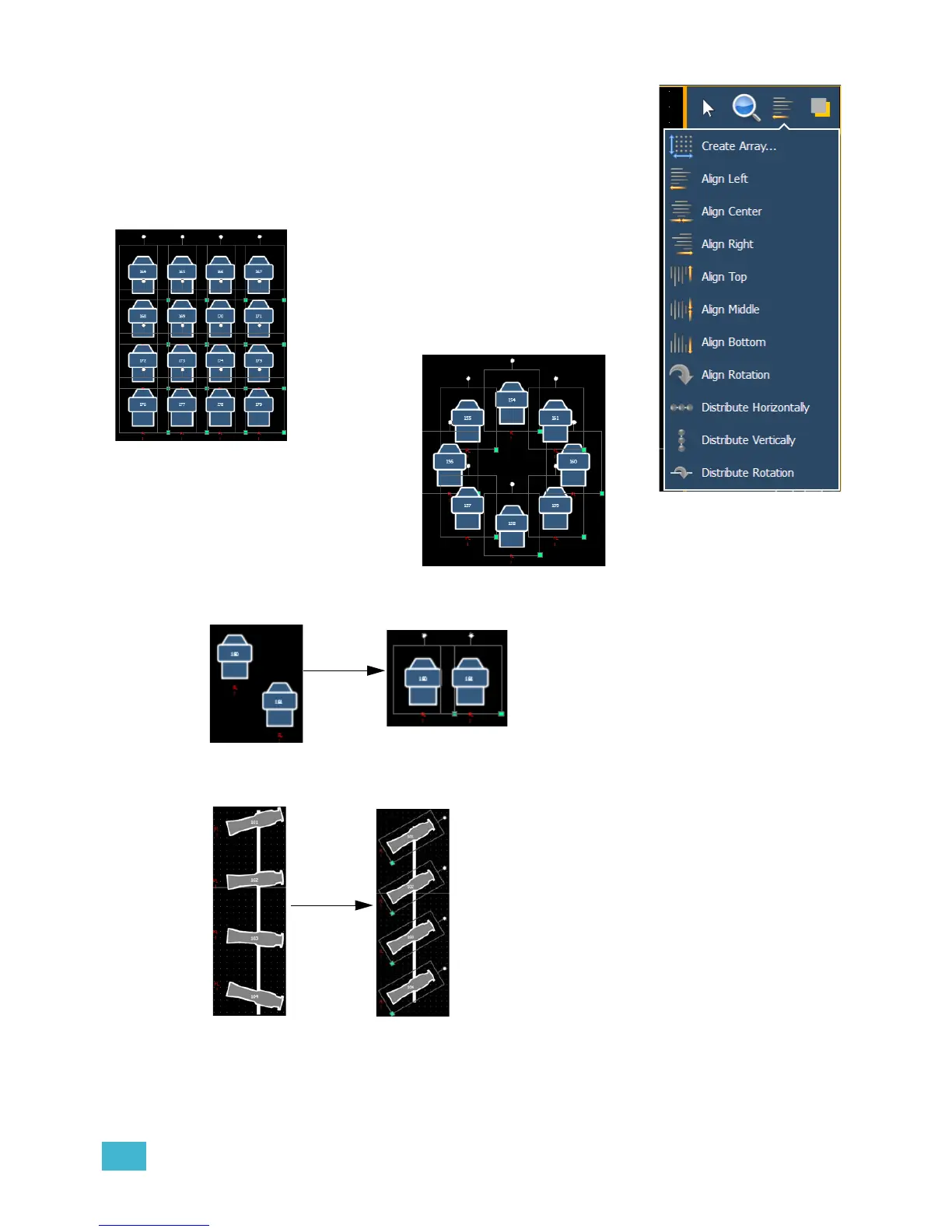
Clicking on the alignment icon will open the alignment options, which
include:
• Create Array - allows you to create arrays of objects. After
placing one object of your choice, click on {Create Array} to
open an additional window for choosing what array type you
want to use.
• Align Settings - allows you to align objects either to the left, right, center, or top, middle,
bottom.
• Align Rotation - allows you to select multiple objects and align their rotation to the first object
selected.
• Distribute Horizontally -allows you to distribute objects horizontally at an equal distance
apart between two objects. Set the distance you would like by placing the first and last objects.
Then with all objects selected that you wish to distribute (including the first and last ones you
positioned), click the {Distribute Horizontally} button.
• Rectangle - will layout a rectangle array of
objects. You can define how many rows,
columns, and the spacing.
• Circle - will layout a circle array of the
objects. You can define the number of
objects and the size of the circle.













 To Next Page