4 Managing Show Files 29
Select the specific show file
• Navigate within the specified storage location and select the show file you wish to open, press
[Select].
• If the selected show has multiple time stamps and you wish to load an older version, navigate
to the desired revision and press [Select].
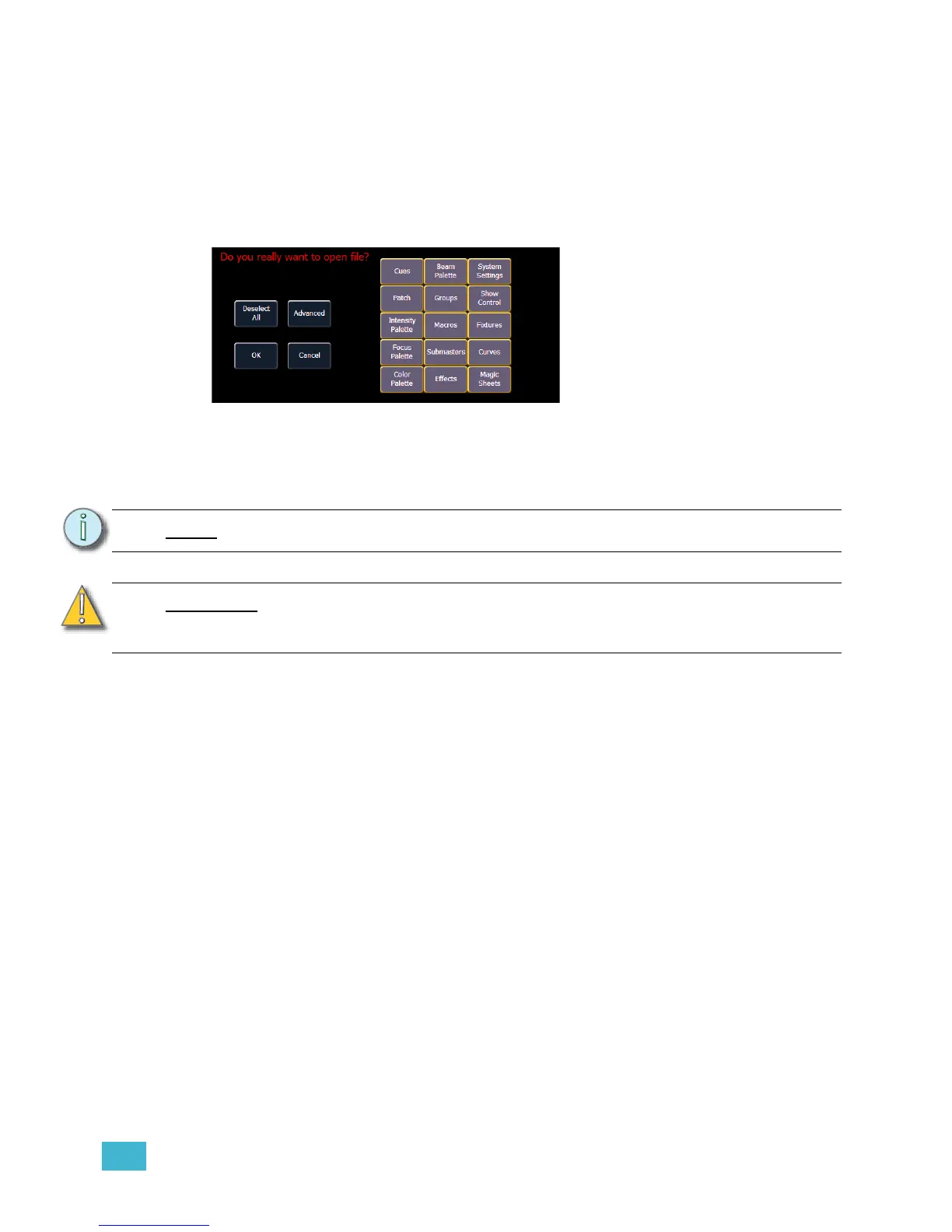
This will open the partial show loading screen in the CIA.
From this screen you can select which components of the show file you wish to load. The buttons
at the center of the CIA represent all of the show components that you can choose to load. By
default all components are selected (gray) and will be loaded. To withhold any show components
from loading, simply deselect them in the CIA by clicking the respective button.
To reselect all show components, click the {Reset} button and all buttons will return to gray
(selected). To stop the show load process, click the {Cancel} button.
When you have selected or deselected all of the show components you require, press [Select] or
click {OK}.
Element loads the selected show to the console.
Note:
You will need a mouse, keyboard, or touchscreen to deselect options.
CAUTION:
On a partial show open, if any record targets are not opened, any existing data of
that type will be cleared from the console.To merge show data, merge should be
used. See “Merging Show Files” on page 31.













 To Next Page