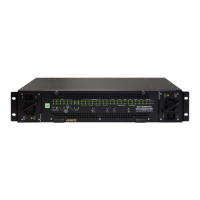
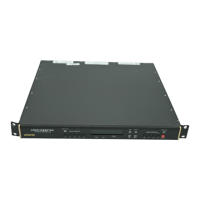
5700ACO
Automatic Changeover
Revision 1.0 Page 31
4.5.2. Terminal Program Setup
1. Connect the serial cable to the COM DB9 connector on the rear panel or the DB9 on the PCB
inside the front panel.
2. Connect the 9 pin connector on the end of the serial update cable to the PCs’ RS-232
communications port.
3. Move the jumper J14 to the UPGRADE position.
4. Start the terminal program.
5. Configure the port settings of the terminal program as follows:
6. An alternative to moving the jumper in step 3 is to enter the upgrade via the menu system.
4.5.3. Initiating Firmware Upgrade Mode from the Terminal Program
The following is a list of possible reasons for failed communications:
• Defective Serial Upgrade cable.
• Wrong communications port selected in the terminal program.
• Improper port settings in the terminal program. (Refer to step 4 for settings). Note that
HyperTerminal will not change port settings while connected. Click on HyperTerm’s “Disconnect”
Button then click the “Reconnect” button to activate changes to the port settings.
1. Apply power to the unit. After the unit powers up, a banner with the boot code version information
should appear in the terminal window, followed by “UPLOAD FILE NOW, CONTROL-X TO
CANCEL”
For example:
EVERTZ MCF5272 MONITOR 2.3 BUILD 3 (66 MHZ)
COPYRIGHT 1997, 1998, 1999, 2000, 2001, 2002 EVERTZ MICROSYSTEMS LTD.
28F160C3B FLASH DETECTED
BRD=5700ACO
MODEL=BA5700ACO
PROD=5700ACO
FRAME=7700FR
UPGRADE JUMPER INSTALLED
UPLOAD FILE NOW, CONTROL-X TO CANCEL



 To Next Page