1.
In GUI mode, press and hold the [ENT/MODE] button on the control unit to switch
to remote control mode.
2.
The gain mode is changed each time you briefly press the [GAIN/WB] button on
the control unit.
The brightness that can be adjusted varies depending on the types of gain mode. See
"Adjusting brightness " (page 34) for details. This function is not available when the
image is frozen.
4.5.3 Adjusting white balance
1.
In GUI mode, press and hold the [ENT/MODE] button on the control unit to switch
to remote control mode.
2.
Press and hold the [GAIN/WB] button on the control unit.
Adjusts white balance. This function is not available when the image is frozen.
4.5.4 Zoom (magnifying images)
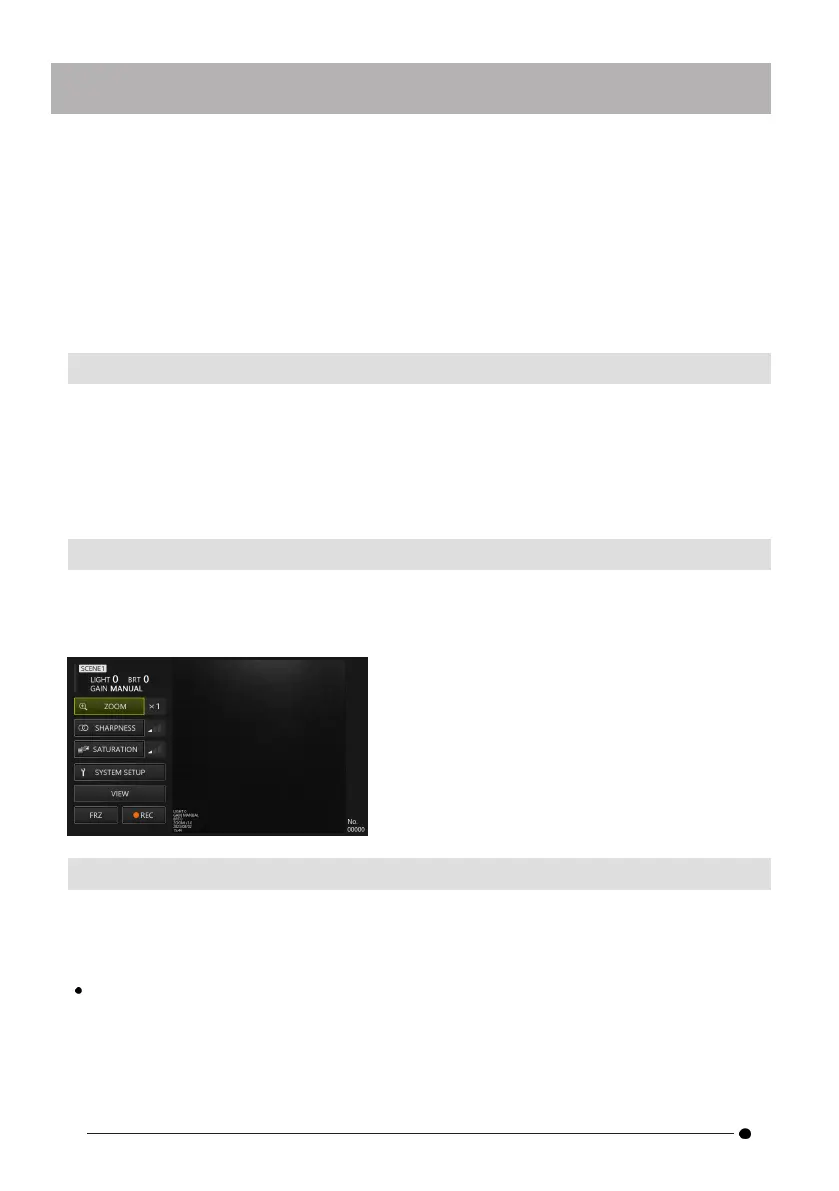
With the <ZOOM> button selected with the d-pad on the control unit, press the [ENT/MODE]
button briefly, or click/tap the <ZOOM> button on the tablet to switch display magnification.
Two levels of magnification (1x and 2x) are available.
4.5.5 Adjusting brightness
In GUI mode, press and hold the [ENT/MODE] button on the control unit to switch to remote
control mode.
Adjusting light intensity/turning on light/turning light off with the d-pad [L] or [R]
Adjust brightness when changing the overall brightness of a live image under observation.
Each time the d-pad [L] is pressed briefly, the image becomes darker by one level, and finally
the light goes off.
34



 To Next Page