4.5.8 Saving and switching scene settings
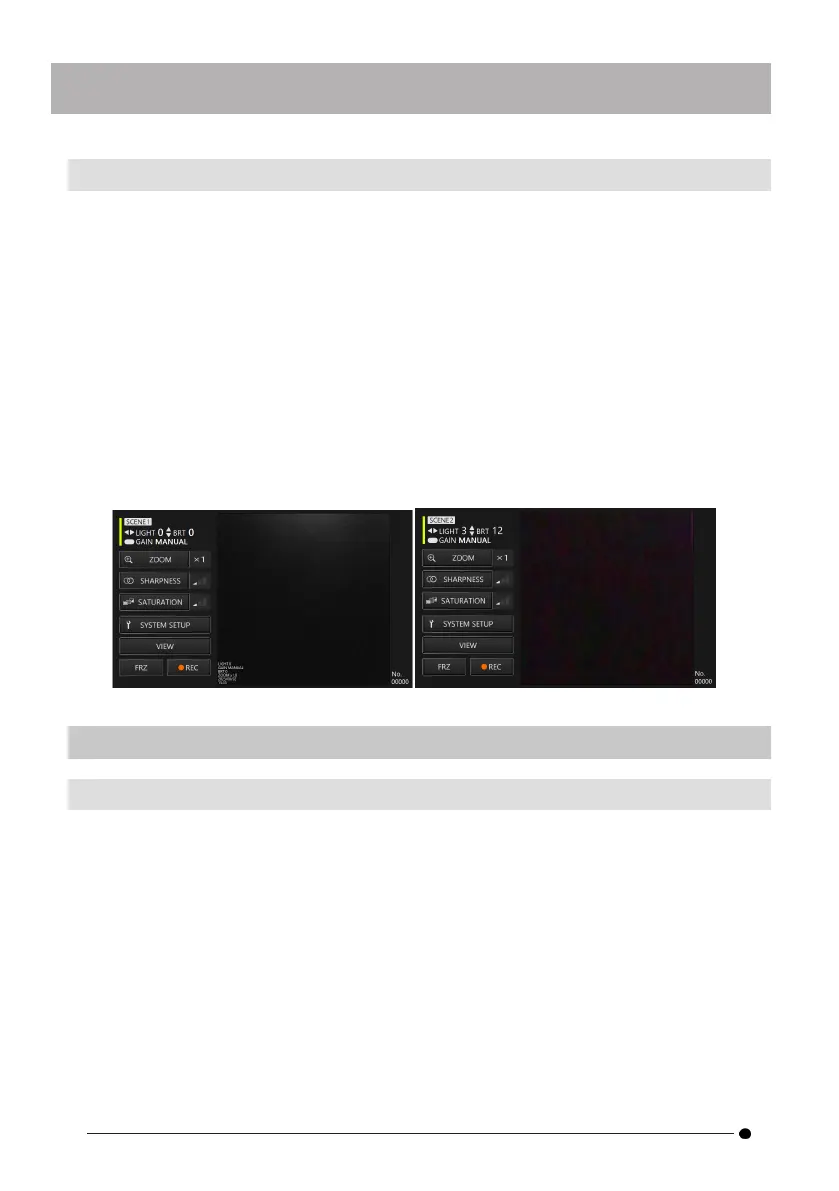
Scene settings retain light intensity, brightness, gain mode, zoom, sharpness, and color
adjustment settings, and update them when you change each setting.
1.
In GUI mode, press and hold the [ENT/MODE] button on the control unit to switch
to remote control mode.
2.
Each time the [SCENE/DUP] button on the control unit is pressed briefly, it
toggles between <SCENE1> and <SCENE2>.
There are <SCENE1> and <SCENE2> scene settings, with <SCENE1> selected by default.
3.
Each time you press and hold the [SCENE/DUP] button on the control unit, scene
settings are duplicated.
(Example) When the scene setting is <SCENE1>, press and hold the [SCENE/DUP] button
on the control unit and then the scene setting of <SCENE1> is duplicated to <SCENE2>.
4.6 System settings
4.6.1 Displaying the system settings screen
With the <SYSTEM SETUP> button selected with the d-pad on the control unit, briefly
press the [ENT/MODE] button or click/tap the <SYSTEM SETUP> button on the tablet.
A system screen appears. To return to the previous screen, with the close button selected
with the d-pad on the control unit, press [ENT/MODE] briefly, or click/tap the close button (x
button) on the tablet.
36



 To Next Page