TLP Pro x25 Series and TLS x25 Series • On-screen Menus 18
Disable LinkLicenses
The Disable LinkLicenses feature is available from the Status screen.
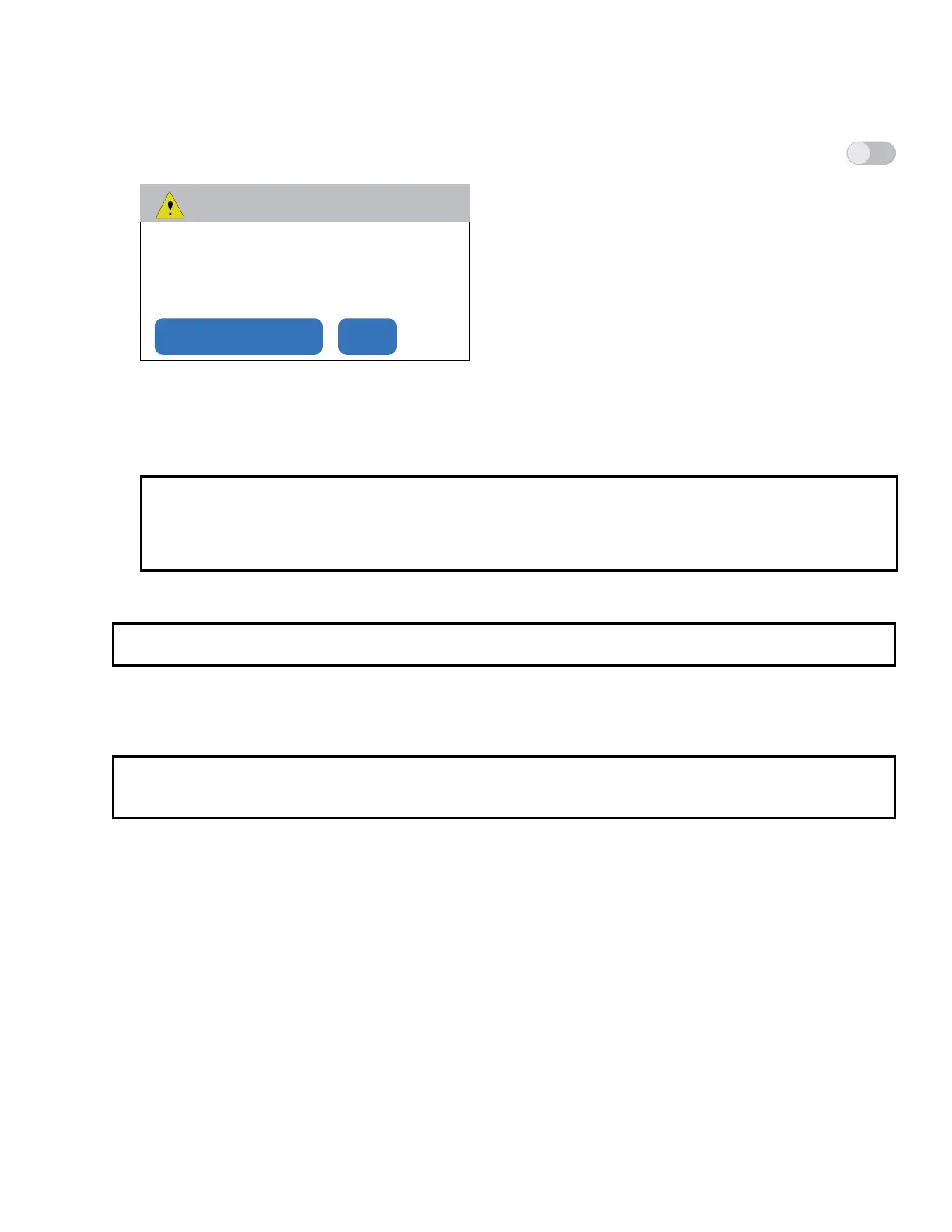
1. To disable LinkLicences, set the LinkLicense switch to off by moving the toggle switch in the System
Information pane to the left (see image to the right). A dialog box opens.
Disable LinkLicenses
Disabling LinkLicenses will remove all user
loaded project les and reboot the device.
Disable LinkLicenses Cancel
Figure 9. Disable LinkLicenses
2. Click Disable LinkLicenses.
The dialog text changes to Waiting to Reboot.
The screen goes blank as the touchpanel reboots.
NOTES:
• All projects that were on the touchpanel have been removed and need to be reloaded.
• When the LinkLicense for the unit is enabled, the device name changes to Model Name and the part
number for the device changes to 60-xxxx-02 (see figure 7 on page 16).
System Information
NOTE: TLS models do not need to be connected to a control processor. This section applies only to TLP Pro
models.
With a LinkLicense, the TLP Pro device is a control processor. Without a LinkLicense, it is a touchpanel and must
be connected to primary control processor. The process of connecting the touchpanel to a control processor is
called pairing and is carried out from the System Info section of the Status tab without requiring another build and
upload of the GCP file.
NOTE: When the touchpanel is in LinkLicense mode, it is the controller and cannot be paired with another
control processor. In LinkLicense mode, the Primary Controller Address and System ID information
are not shown.
X



 To Next Page