TLP Pro x25 Series and TLS x25 Series • Conguration Software 30
Updating the Firmware
Firmware for the TLP Pro 725 series touchpanels can be upgraded using Toolbelt. Before starting, consult your IT
team and ensure that the touchpanel has a unique IP address.
Power on a computer that is connected to the same network as the touchpanel.
1. On the Extron home page, select the Downloads tab (see figure 20,
1
, on page 26).
2. Click Firmware in the Downloads list (
2
).
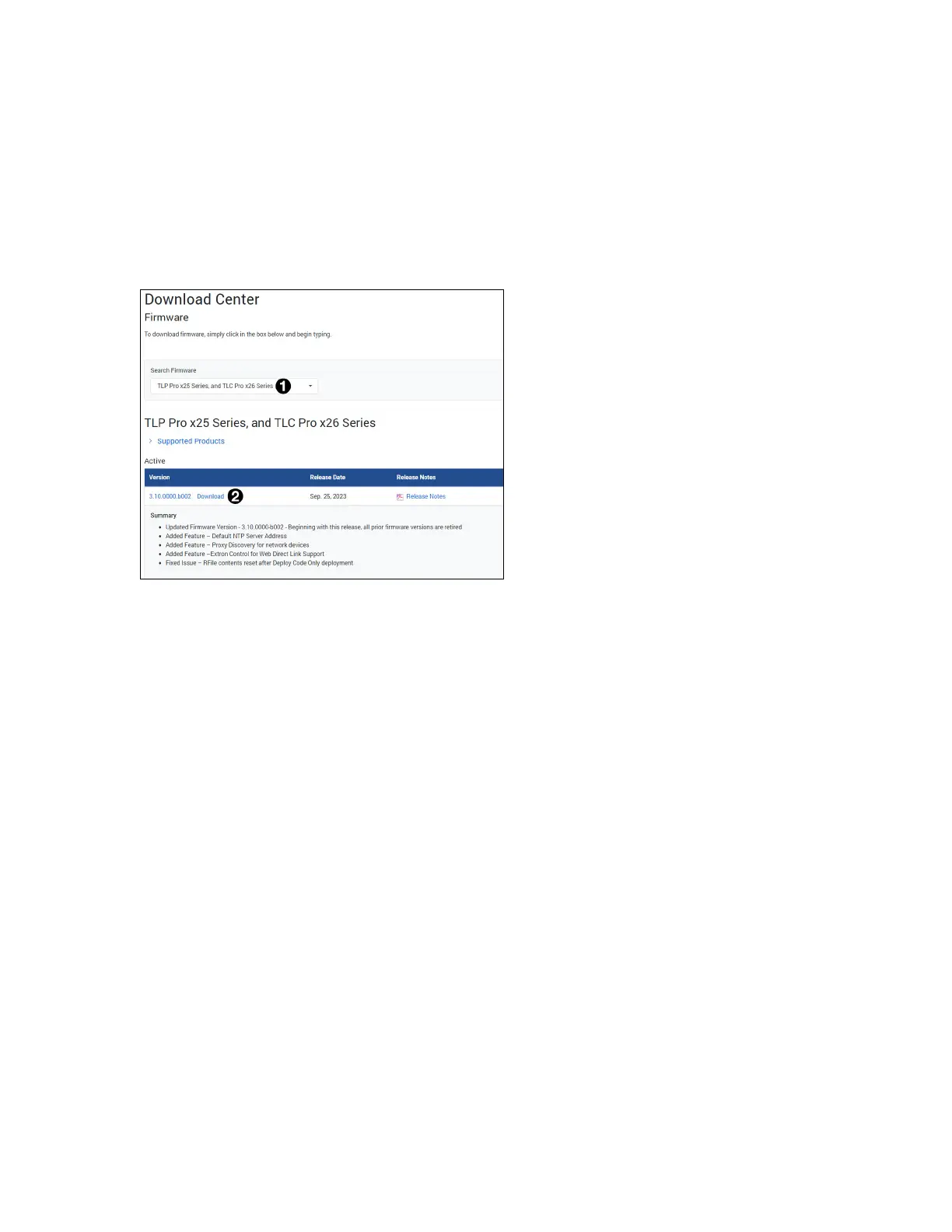
3. Start typing the product name for the firmware in the Search Firmware text box (see figure 26,
1
).
The name of the firmware appears in a drop-down list.
Figure 26. Firmware Download Center
4. Click the Firmware name.
Information about the software appears under the Search Software text box.
5. Click Download (
2
).
6. Enter the required information and click the download button.
7. Go to the Downloads folder and click on the file to install the firmware on the PC. By default, it is stored at
C:\\Program Files (x86)\Extron\Firmware\<product name>\<firmware version>.
8. Upload this file to the touchpanel using Toolbelt. For information about using Toolbelt to update the firmware,
see the Toolbelt Help File.



 To Next Page