TLP Pro x25 Series and TLS x25 Series • Conguration Software 27
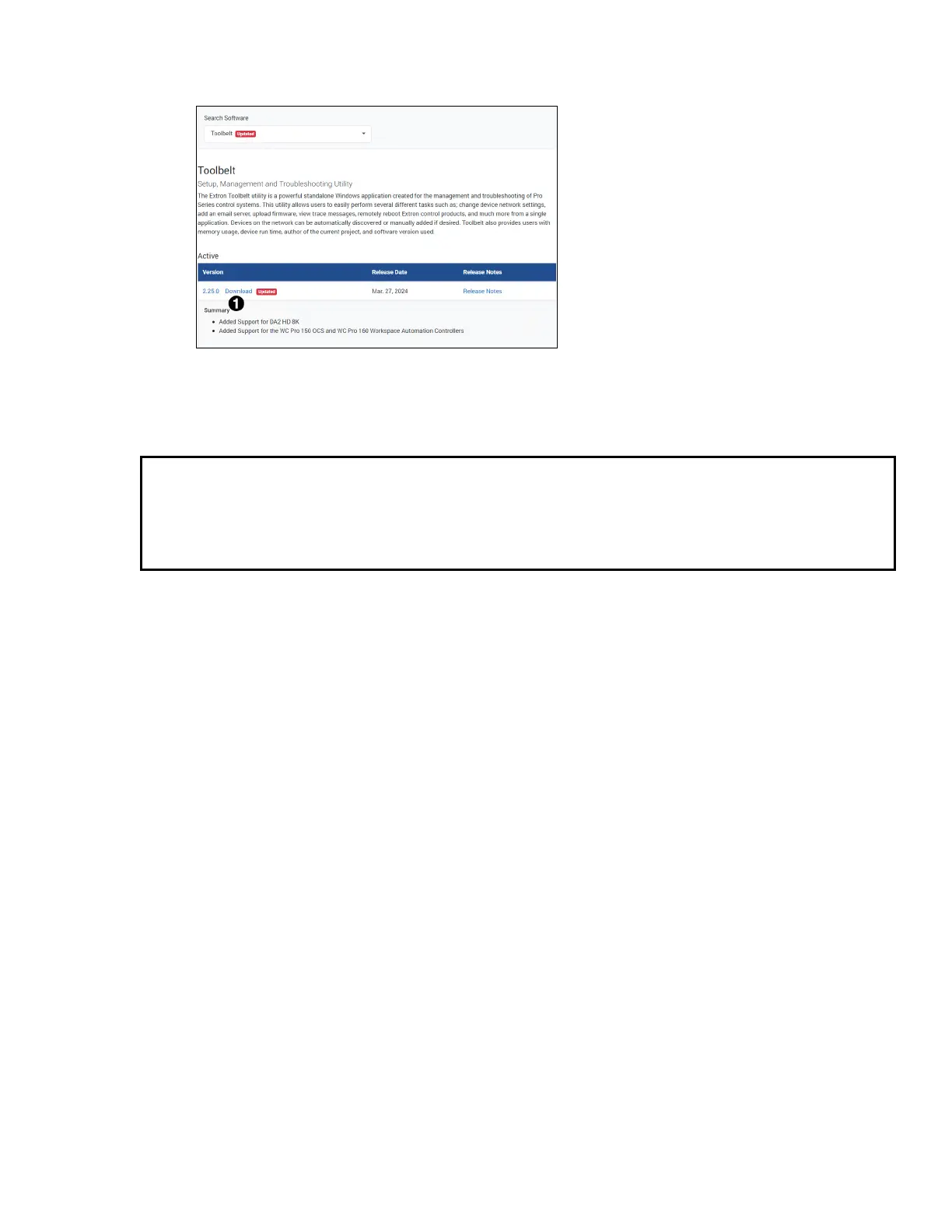
Information about the software appears under the Search Software text box (see figure 23).
Figure 23. Software Product Information
3. Click Download whether you are on the Software Product page (see figure 21,
1
, on page 26) or the
Software Search page (see figure 23,
1
).
An executable file (.exe) is placed in your default Downloads folder.
NOTES:
• You may need an Extron Insider account to run some of these software programs. To obtain one,
contact the Extron Sales Department.
• Ensure you are downloading the correct software. TLP Pro touchpanels are not compatible with
Global Configurator 3 or GUI Configurator.
4. Run the executable file to install the software. By default, your computer creates a new folder at C:\Program
Files\Extron or C:\Program Files (x86)\Extron.
Using the Software
User Room Agent to configure the TLS touchpanels and connect them to calendar servers.
Use GUI Designer and Global Configurator Plus and Professional to design and configure a graphical user
interface (GUI) for the TLP Pro touchpanels.
1. Design the layout of the screen text and graphics using GUI Designer, which is a Windows-based application.
You can either customize an existing template or create an entirely new interface. GUI Designer offers several
templates.
2. After the user interface has been designed, the project is saved, built, and imported into Global Configurator
Plus and Professional.
3. Use Global Configurator Plus and Professional to assign functions to the text and graphics of the interface.
4. After assigning the control functions, the project is rebuilt and uploaded to the control processor and
touchpanel.
Alternatively, instead of using Global Configurator Plus and Professional, use ControlScript Deployment Utility
to program control functions for the text and graphic items of the interface.



 To Next Page