TLP Pro x25 Series and TLS x25 Series • On-screen Menus 21
Display
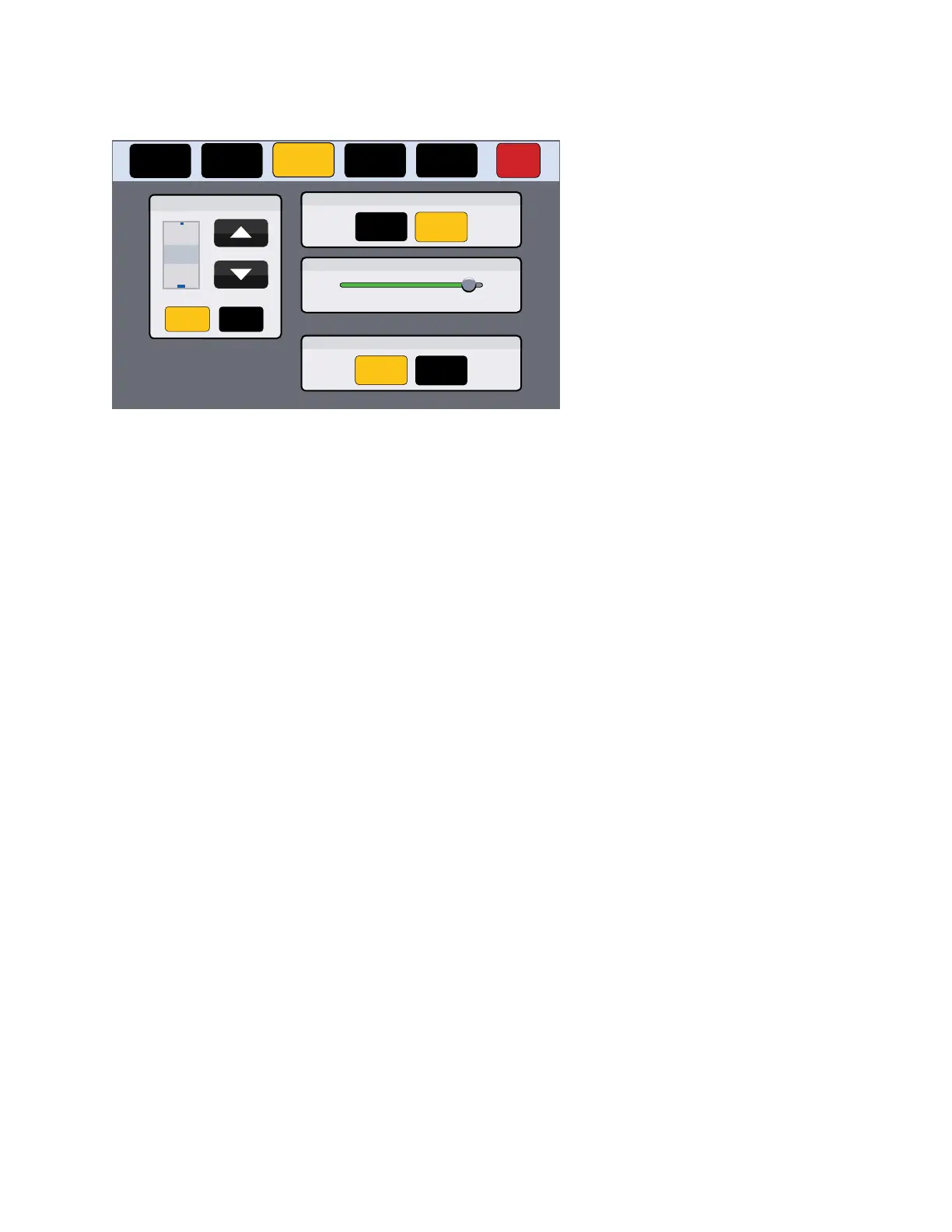
Press the Display button in the navigation panel at the top of the screen to open the Display screen.
Status
Display Audio Advanced Exit
Network
Auto Brightness
On Off
Wake on Motion
On Off
LCD Brightness
2
3
4
Minutes
Sleep Timer
On Off
050100
Figure 15. Display Screen
The Display screen allows you to set the Sleep Timer, Auto Brightness, LCD Brightness, and Wake on
Motion.
• Sleep Timer — Toggle between On and Off.
• If the Sleep Timer is on, after a period of inactivity, the screen goes dark to save power (Sleep mode).
Use the up and down arrows to set how long the period of inactivity should be. The value can be between
1 and 120 minutes.
• If the Sleep Timer is off, the panel does not enter sleep mode.
• Auto Brightness — Toggle between On and Off.
• If Auto Brightness is on, the light sensor (see figure 3,
D
, on page 9) monitors the amount of ambient
light detected and automatically provides a suitable amount of screen backlighting for the situation.
• If Auto Brightness is off, the screen brightness is not affected by changes in the ambient light.
• LCD Brightness — Use the slider control to adjust the screen brightness between 0 and 100.
• Wake on Motion — Toggle between On and Off. For this to work, the touchpanel must be in sleep mode.
• If Wake on Motion is on, and the touchpanel is in sleep mode, any motion detected by the motion sensor
(
B
) wakes the panel from sleep mode. The screen lights and all buttons become functional.
• If Wake on Motion is off, the panel does not wake in response to nearby motion and the touchpanel can
be activated by pressing anywhere on the screen.
Configuring the Motion Sensor
The Motion Sensor (
B
) detects motion between three to five feet from the touchpanel, and at least 15° from the
center axis.
• If the Sleep Timer has been set and no motion has been detected for a user-defined period of time, the
touchpanel enters sleep mode.
• If the Sleep Timer has not been set, the touchpanel does not enter sleep mode.
• If Wake on Motion has been set and motion is detected by the sensor while the screen is in sleep mode, the
screen display is restored and active.
• If Wake on Motion has not been set and the screen is in sleep mode, touch the screen to restore it to an
active state.



 To Next Page