TLP Pro x25 Series and TLS x25 Series • On-screen Menus 19
To pair the touchpanel with a control processor, follow these instructions:
1. Click Edit in the System Information panel of the Status page (see figure 7). The System ID dialog box
opens.
System ID
Select eld to edit
Primary Controller Address
System ID
1234567890
asdfghjkl
qwertyuiop
-zxcvbnm.
x
CancelSave
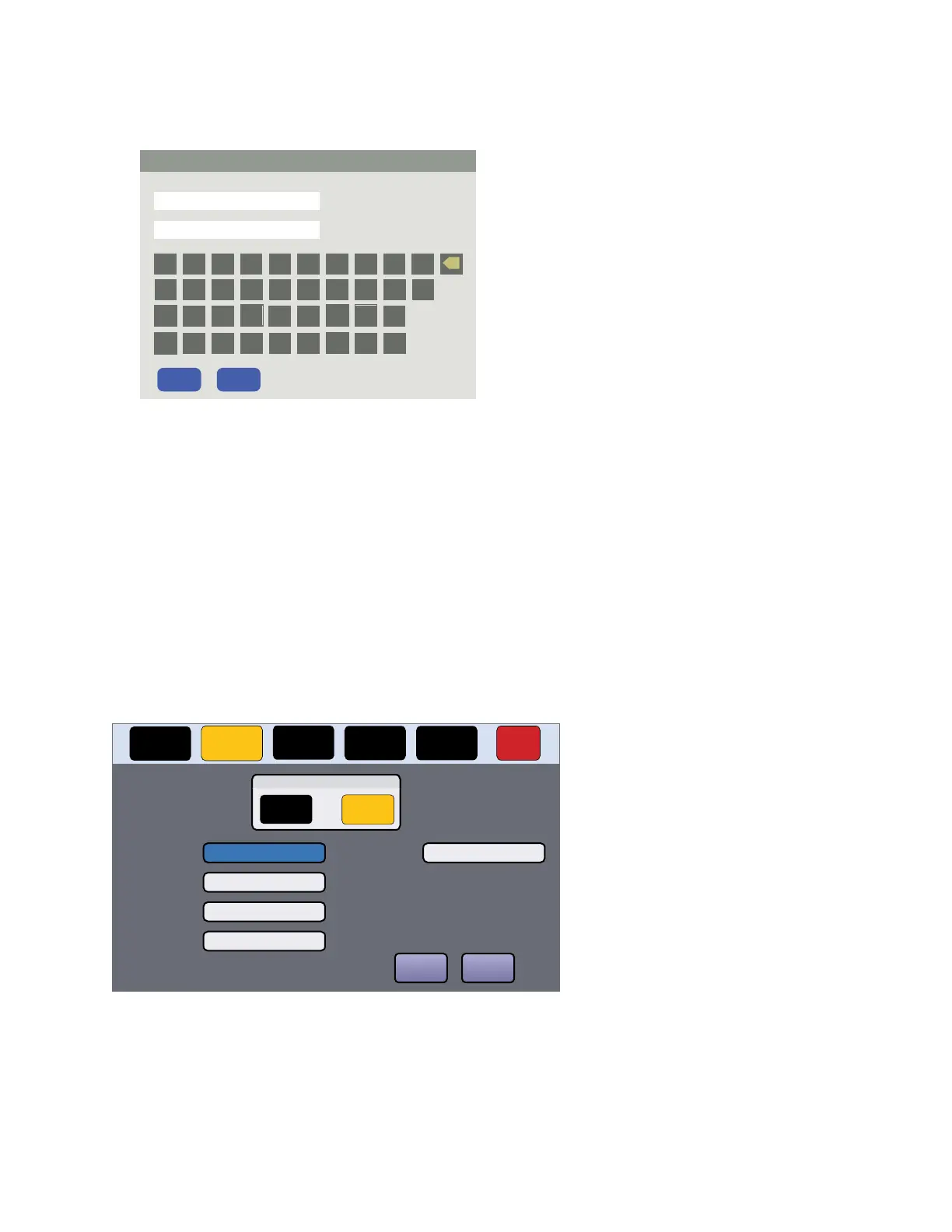
Figure 10. System ID Dialog Box
2. Enter the Primary Controller Address.
3. Enter the System ID. This is a four digit number generated by ControlScript Deployment Utility or Global
Configurator Plus and Professional and needed to link the touchpanel to a control processor. For more
information, see the ControlScript Deployment Utility Help File or Global Configurator Plus and Professional
Help File.
The dialog box closes and the Primary Controller Address and the System ID are displayed in the System
Information pane.
Network
Verify with your network administrator whether the IP address for the touchpanel is assigned by Dynamic Host
Configuration Protocol (DHCP) or set manually. If they are set manually, you need to obtain an IP address, a
subnet mask, a gateway address, and a Domain Name Server (DNS) from the network administrator.
Press the Network button in the navigation panel at the top of the screen to open the Network screen.
Status
Display Audio Advanced Exit
Network
DHCP
On Off
Host Name:DNS Primary:
IP Address:
Subnet Mask:
Domain Name:
Gateway:
MAC Address:
TLP-AB-CD-EF
192.168.254.251
255.255.255.0
0.0.0.0
00-05-A6-AB-CD-EF
Revert Apply
127.0.0.1
Figure 11. Network Screen
1. If IP addresses are assigned by DHCP, press On. If IP addresses are assigned manually, press Off.
When DHCP is On, the Host Name can be edited. The addresses are grayed out and cannot be edited
because they are set by the DHCP server (see figure 11).
When DHCP is Off, the Host Name is grayed out and cannot be edited. All addresses can be edited.
gure 11



 To Next Page