TLP Pro x25 Series and TLS x25 Series • On-screen Menus 22
Audio
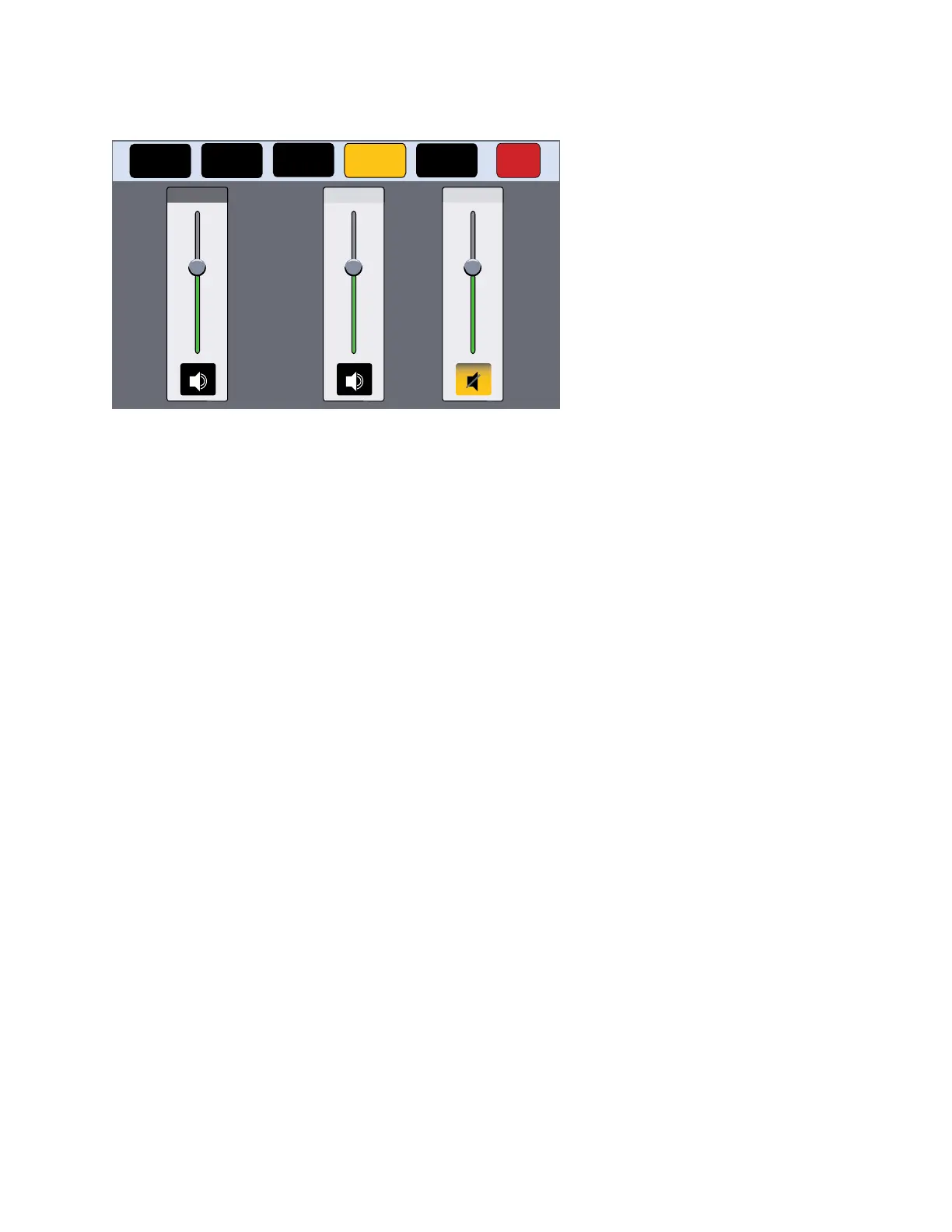
Press the Audio button in the navigation panel at the top of the screen to open the Audio screen.
Status
Display Audio Advanced Exit
Network
Click
100
50
0
Sound
100
50
0
100
50
0
System
Figure 16. Audio Screen
On the Audio screen, use the slider controls to adjust the System, Click, and Sound volume settings.
• System — Sets the maximum volume for all the other sound volume settings. For example, if the System
volume is set to 80 (80 percent of maximum), when the sound volume is set to 90, it is equivalent to 90
percent of 80, which is 72 percent of maximum.
• Click — Sets the volume for audible feedback that accompanies events such as a screen button being
pressed.
• Sound — Sets the volume of audio from any audio file playback.
• Speaker icon — Click on the Speaker icon at the bottom of each panel to toggle between audio on and
audio mute. The sound audio is muted in figure 16, above.



 To Next Page