7
EN
6
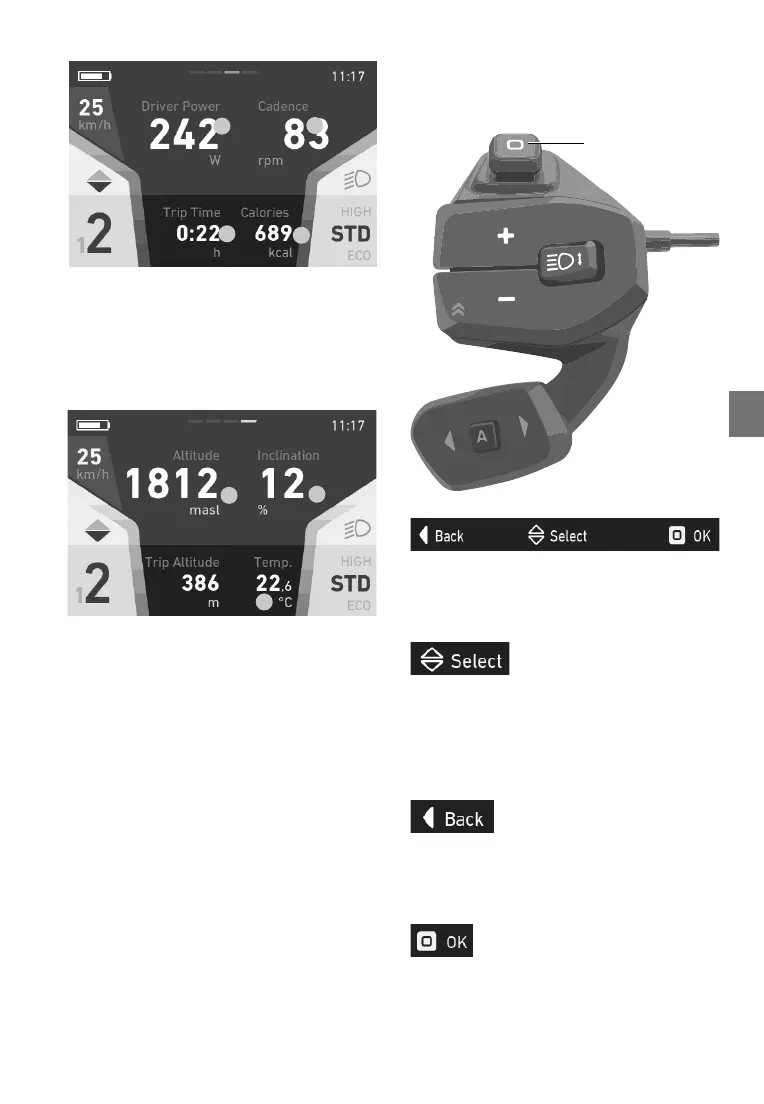
Fitness
1.
2.
3.
4.
1. Rider’scurrentpower
2. Rider’scurrentcadence
3. Ridetimeoncurrenttour(trip);ridetime
alone is measured (no speed/standstill =
not added to ride time)
4. Energyconsumedinkilocalories
Data
1.
2.
3.
1.Elevation
2.Route gradient in per cent
3.Ambienttemperature
5.3 Menunavigationandsettings
Usethejoysticktonavigatethroughthemenu.
Thenavigationbarthatappears(gure1indi-
cates
whichjoystickmovementtriggerswhich
action.
Figure1:Navigationbar
5.3.1 Selectmenu
Movethejoystickupanddowntoselectthecor-
responding
menu.
Figure2:Symbolformovingthejoystickupanddown
5.3.2 Quitmenu
Movethejoysticktothelefttoreturntothepre-
vious
menu.Movingthejoysticktotheleftinthe
main menu will close the settings menu and the
datascreenwillbedisplayed.
Figure3:Symbolformovingthejoysticktotheleft
5.3.3 Selectmenuitem
Pressthecentreofthejoysticktojumptothese-
lected
menu.
Figure4:Symbolforpressingthejoystick
Joystick


 To Next Page