FlipAlbum
®
6 65
Printing Photos with PRINT Image Matching II
FlipAlbum
®
6 now supports PRINT Image Matching II. When used in combination, PRINT
Image Matching II enabled digital still cameras, printers and software, help photographers
to produce images more faithful to their intentions.
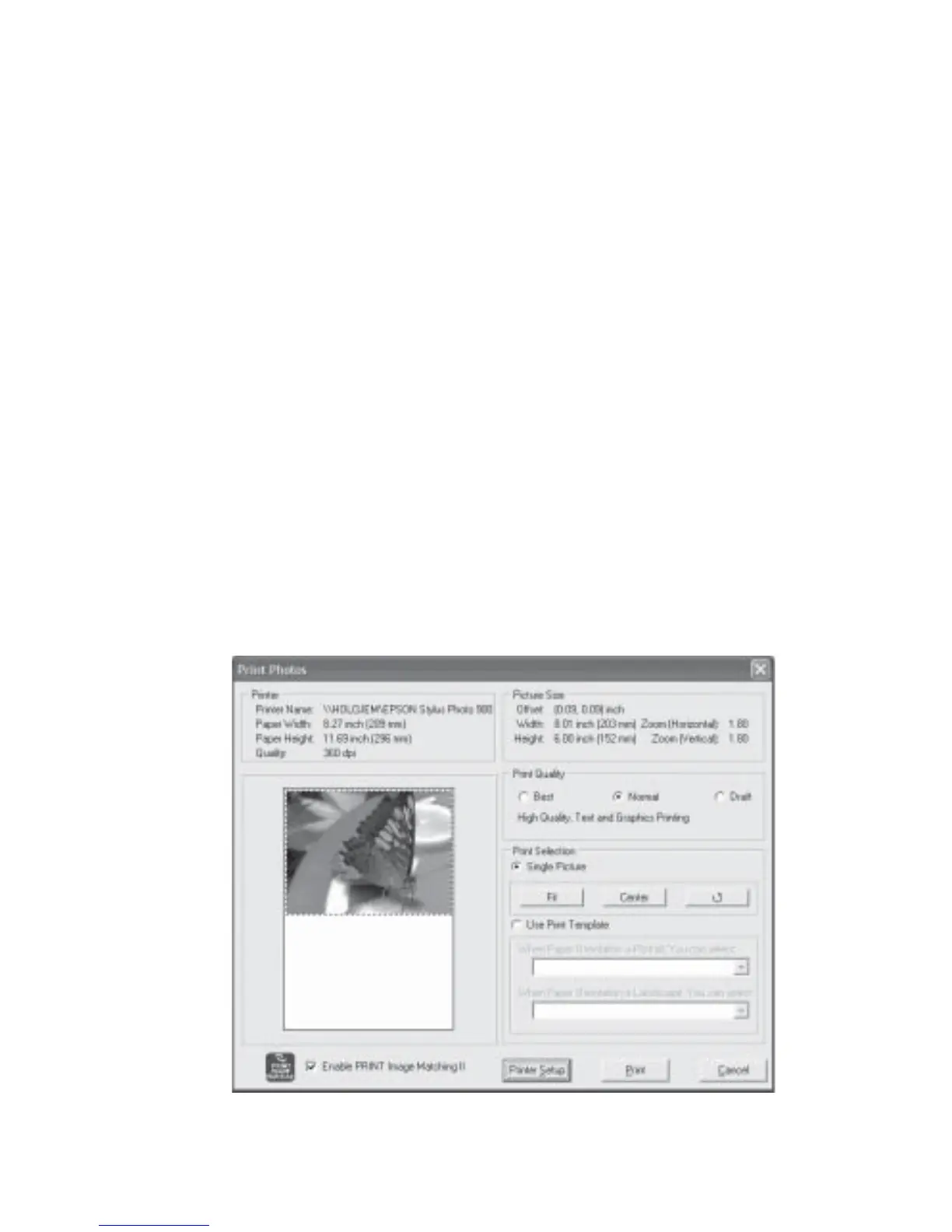
To print PIM II-enabled Images:
1. Turn to the page you want to print.
2. Move your mouse cursor over the image you want to print, click your right mouse
button and select Print. The Print Photos dialog box will be displayed (Fig 4.14.4).
3. If the image is PIM II-enabled, you will see the PRINT Image Matching logo.
4. To be able to achieve PIM II-enabled printout, you would need to have a PIM-II enabled
printer. Click the Printer Setup button to select a PIM-II enabled printer. The check box
Enable PRINT Image Matching II will be enabled if you are connected to a PIM-II
enabled printer.
5. Select print template, if desired.
6. Click Print.
Fig 4.14.4 Print Photos - PRINT Image Matching II Enabled



 To Next Page