Page 64CWT S5 Installation & Maintenance ManualIssue 5
Maintenance
7.1.4.2 Replacing the Lead-acid battery
To replace the lead-acid battery, follow the steps below:
1. Shut down the external power supply if any.
2. Lift out the battery from the pedestal. Be careful to not short-cut the contacts.
3. Unscrew the cable.
4. Connect the cable to the new battery. Make sure the red wire is connected to
the [+] pole
5. Place the new battery in the pedestal
6. reconnect the external power
7.2 Flowbird printer
7.2.1
Correcting paper jams in the printer
1. Remove the end of the ticket roll from the printer.
2. Remove the potential paper scraps stuck in the printer.
if needed open the paper guide to remove any stuck in the printer
close the paper guide
3. Cut the end of the ticket roll damaged by the paper jam.
4. Insert the end of the ticket roll in the paper guide and gently push the paper
until it reaches its end stop.
5. push the red button on the back of the printer for 1 second to print a test ticket
to check the operation of the printer and adjust the first ticket position
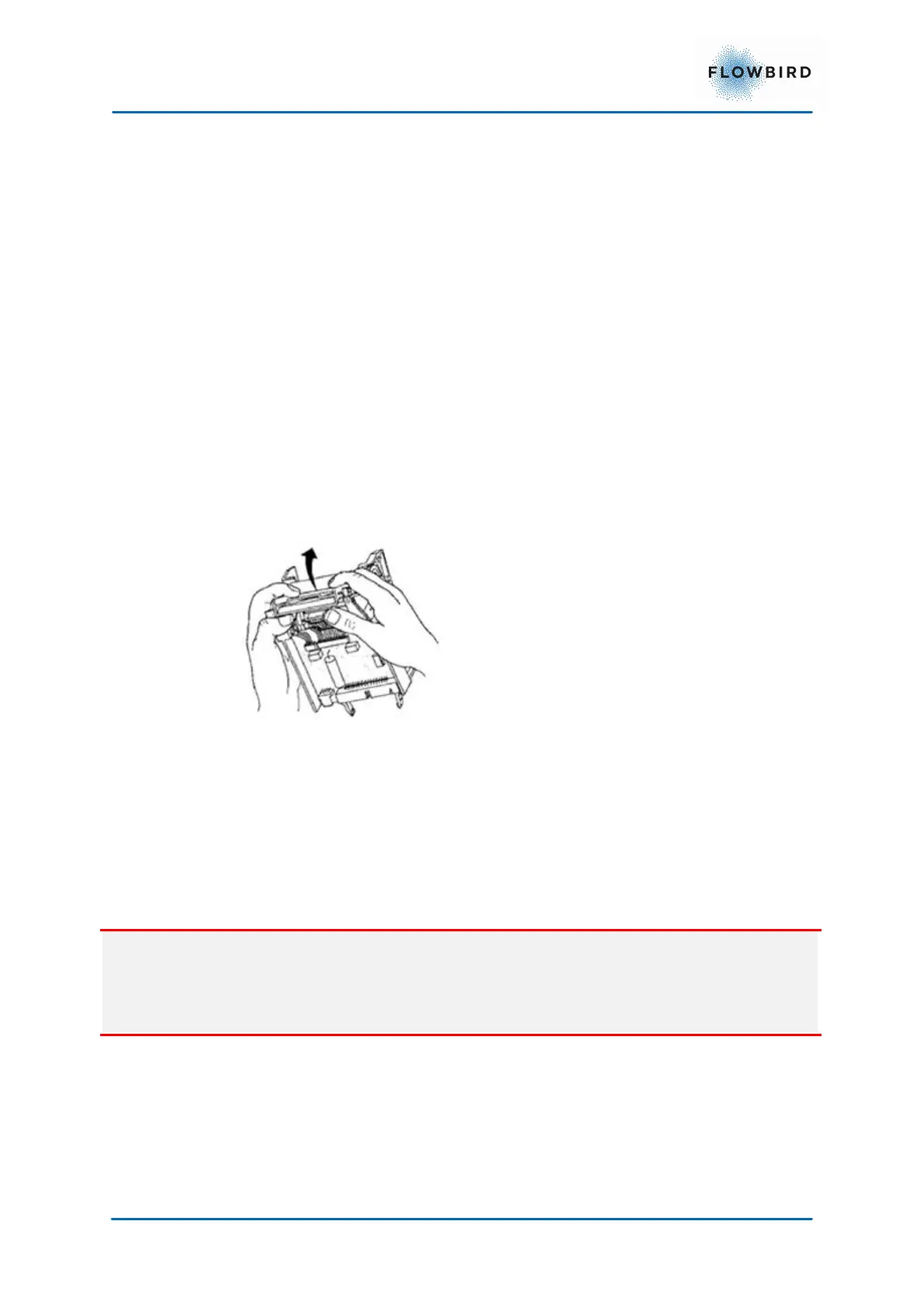
7.2.1.1 Correcting paper jams and cleaning the print head in the printer
Important:
The paper guide must only be disassembled in case of a significant paper jam or
during the print head cleaning.
The clips on the paper guide are fragile: open and remove them with care.
1. To remove the printer module, pull the printer to the front of the terminal.



 To Next Page