Using The Scope
Navigating a Menu
1
9
Navigating a Menu
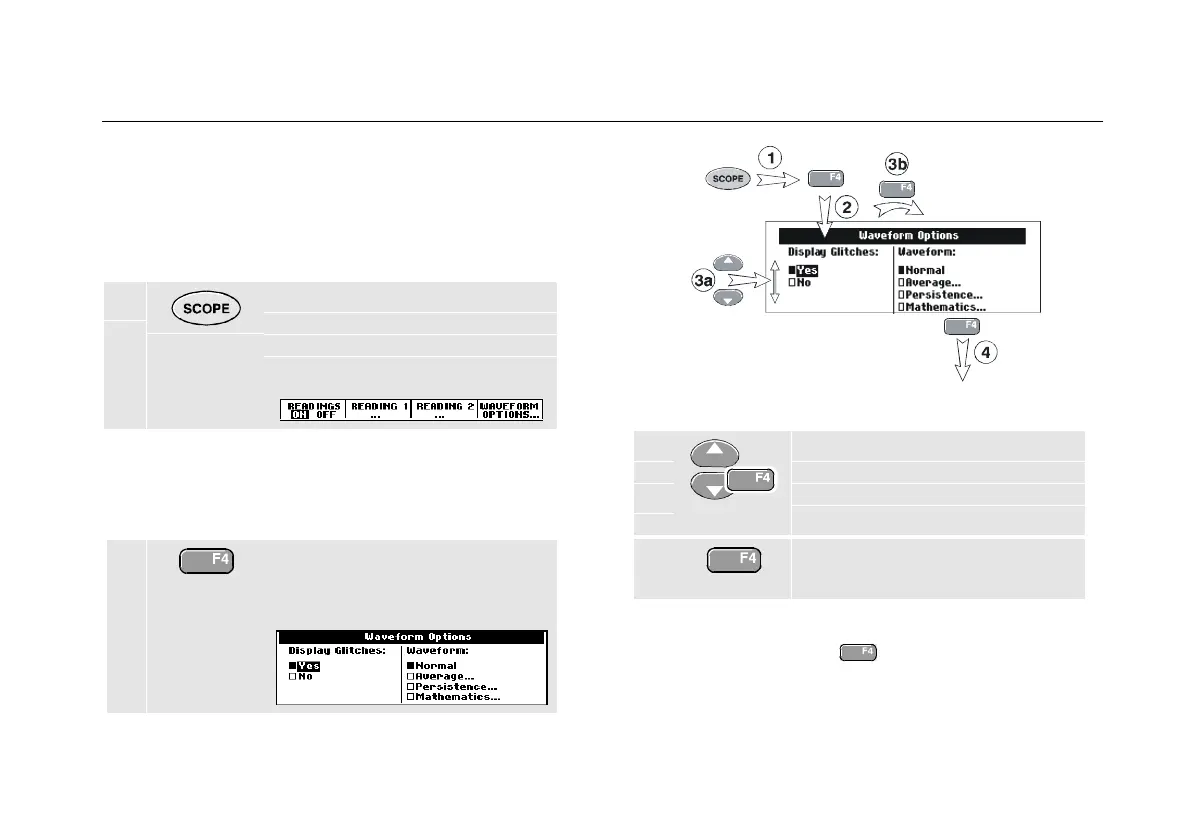
The following example shows how to use the test tool’s
menus to select a function. Subsequently follow steps
1 through 4 to open the scope menu and to choose an
item.
1 Press the SCOPE key to display
the labels that define the present
use for the four blue function
keys at the bottom of the screen.
Note
To hide the labels for full screen view, press the
SCOPE key again. This toggling enables you to
check the labels without affecting your settings.
2 Open the Waveform Options
menu. This menu is displayed at
the bottom of the screen.
Figure 4. Basic Navigation
3a
3b
Use the blue arrow keys to
highlight the item.
Press the blue ENTER key to
accept the selection.
4 Press the ENTER key until you exit
the menu.
Note
Repeatedly pressing
lets you to step
through a menu without changing the settings.









 To Next Page