l
(1) Tap or to cycle through the points.
l (2) Currently selected point is active. The point is made inactive by tapping 'Deactiv-
ate'.
l (3) Shows coupling results for selected measurement. In this example, all meas-
urement points are active.
l
(4) Tap to automatically select the point with the highest deviation within the dia-
gram. The cursor (5) springs automatically to this point. Note that the icon is inactive
when the currently highlighted point has the highest deviation within the group.
l (5) The cursor is used to highlight any point in the diagram. The selected point is high-
lighted blue.
l (6) When all measurement points are active, the standard deviation (SD) is displayed.
l (7) Currently selected point is inactive. The point is made active by tapping 'Activate'.
l (8) Shows coupling results with a measurement point deactivated. In this example, one
measurement point has been deactivated.
l (9) With a measurement point deactivated, no standard deviation (SD) is displayed.
l
(10) This icon is currently active because the measurement point is deactivated
and it is therefore, not the measurement point with the highest deviation.
l
(11) The 'undo' icon is used to reverse all changes made before saving the asset
measurement.
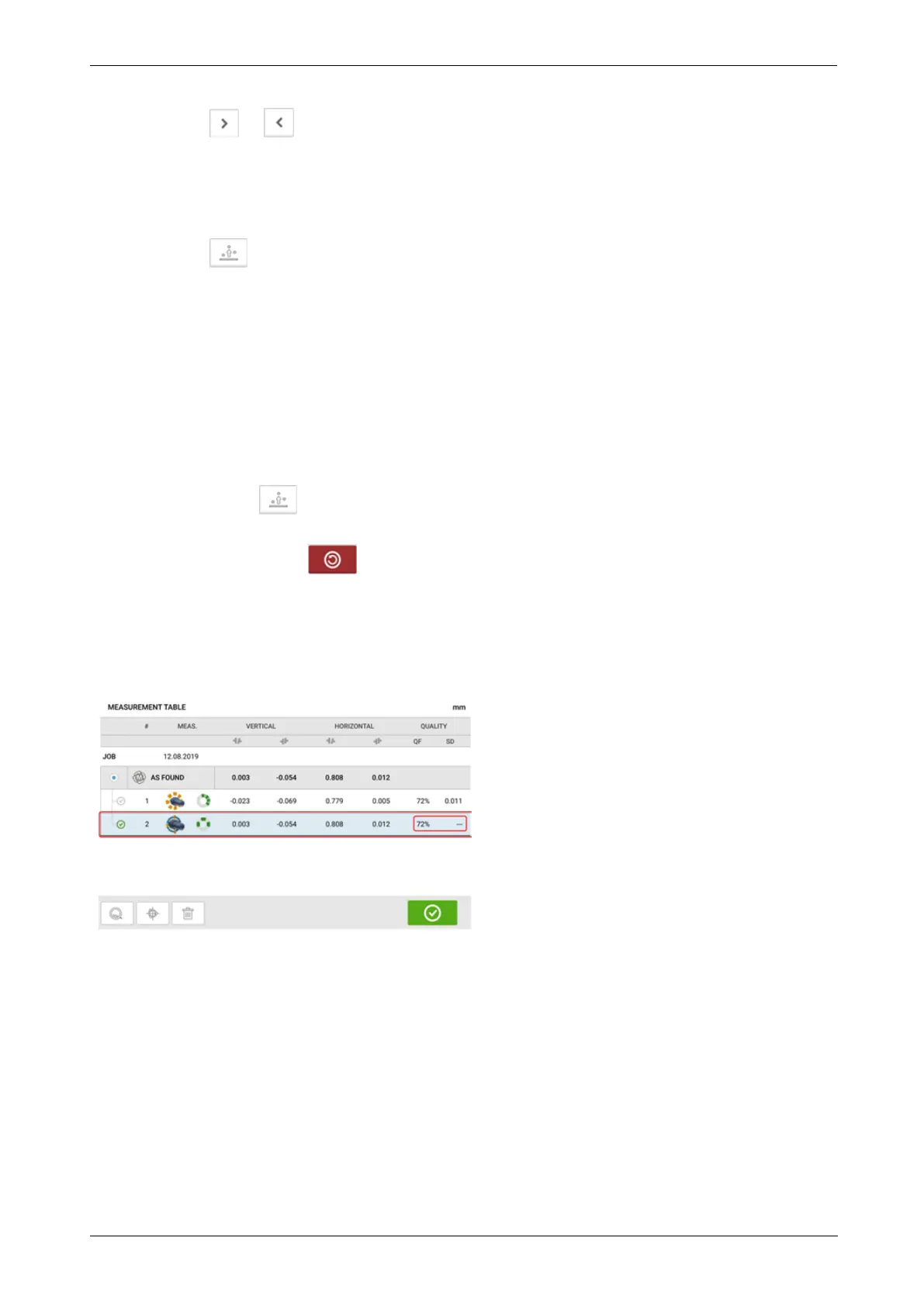
What is the effect of deactivating individual points?
Individual points are deactivated in order to lower the standard deviation value. Change in
standard deviation impacts the V and H results displayed in the results repeatabilty table.
In the above example, deactivating a measurement point has improved the quality factor from
41% to 72%.
72 Version:2.3
On-board help



 To Next Page