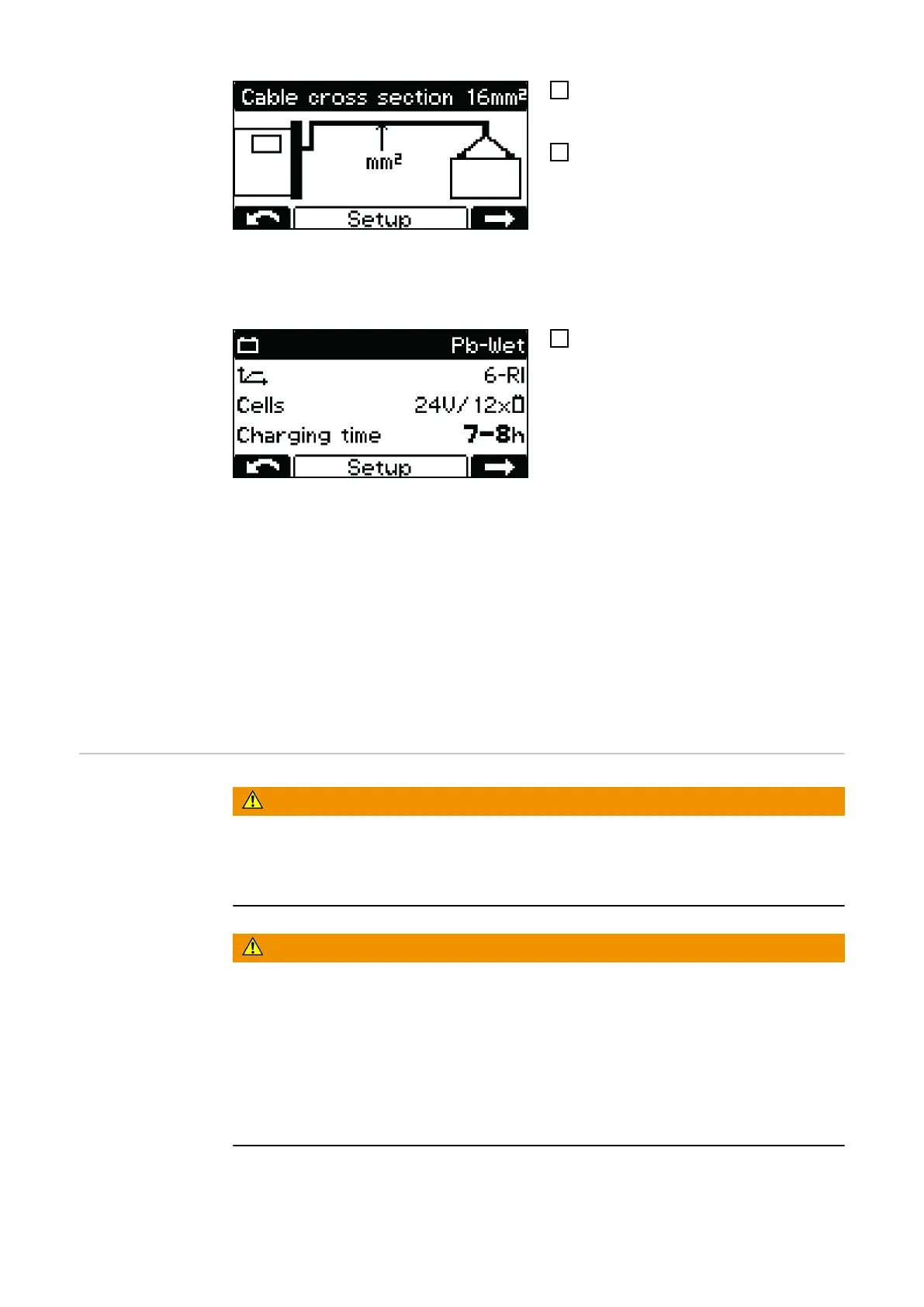
10
Use the "Up/Down" buttons to set the
appropriate charging cable cross-sec-
tion.
11
Confirm with the "Pause/Start" button.
The battery charger is configured with the
correct charging cable cross-section ac-
cording to the order.
An incorrectly set charging cable cross-
section can have a negative effect on the
charging process!
12
If the displayed charging configuration
is correct, confirm the charging config-
uration with the "Pause/Start" button.
The battery charger is pre-configured ac-
cording to the order.
If the battery charger has been ordered without an additional configuration, the following
settings are set as default:
- Type of battery Pb-WET (for PzS, GiS)
- Curve 6 - RI
- Maximum number of cells intended for the battery charger
- Charging time 7-8 h
If the configuration does not match the battery used, the parameters must be adjusted
accordingly.
Detailed information on the battery charger parameters can be found in the "Configura-
tion mode" section of the "Display" chapter.
Charging process
WARNING!
Danger from leaking battery acid or explosion when charging defective batteries.
This can result in severe personal injury and damage to property.
▶
Before starting the charging process, make sure that the battery to be charged is
fully functional.
WARNING!
Danger due to incorrect type of battery and incorrect charging settings.
This can result in severe personal injury and damage to property.
▶
Before starting the charging process, make sure that the correct type of battery is
set on the battery charger.
▶
The following settings must be made for the individual types of battery before char-
ging:
Charging curve
Nominal voltage (number of battery cells)
Battery capacity (Ah) or charging time (h)
Detailed information on the battery charger parameters can be found in the "Configura-
tion mode" section of the "Display" chapter.
26




 To Next Page