Actions (for Windows users)
144
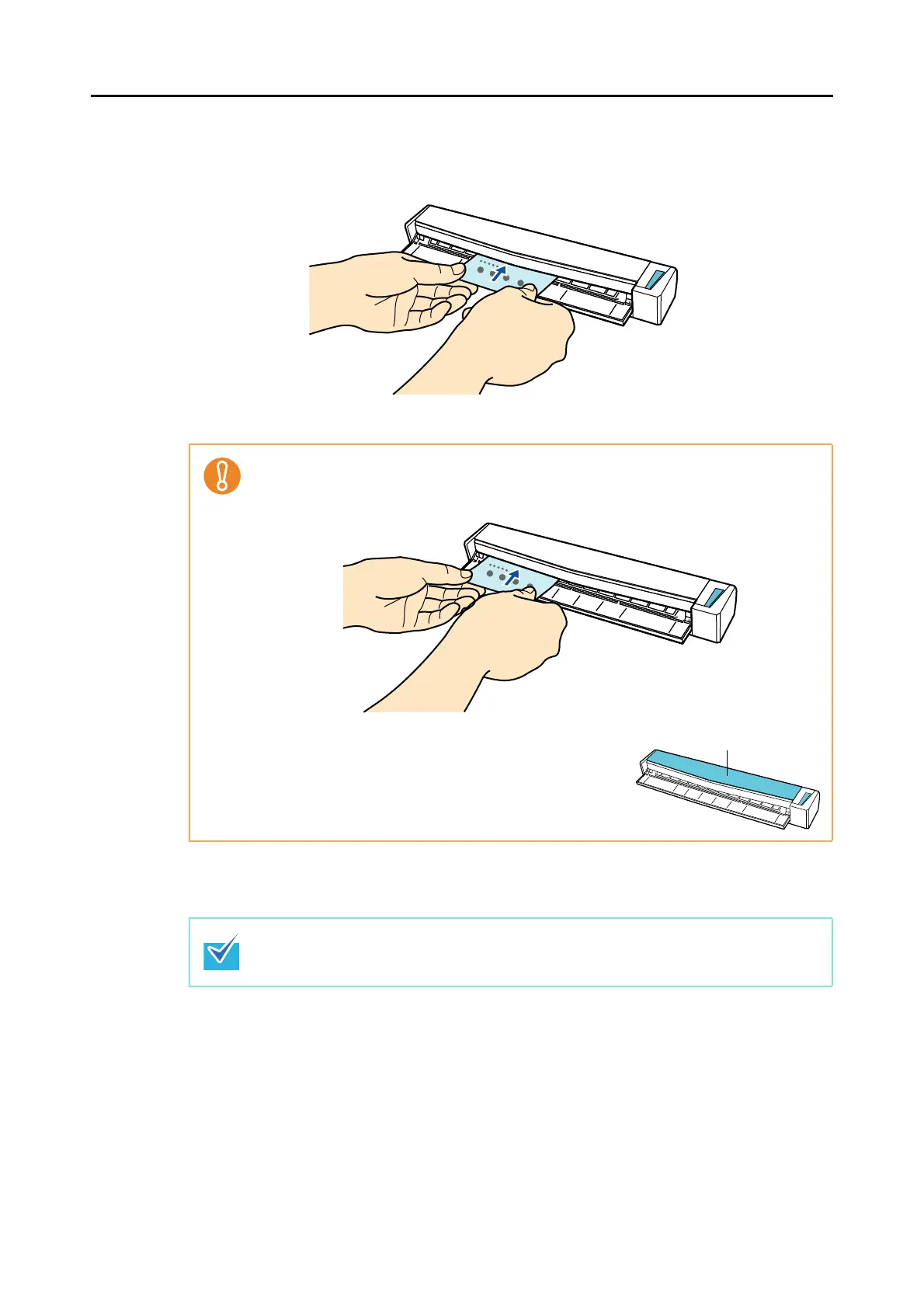
4. Insert the business card straight into the feeding section of the
ScanSnap, with the scanning side facing up.
Business card is pulled in until it is set inside the ScanSnap.
5. Press the [Scan/Stop] button on the ScanSnap to start scanning.
6. Press the [Scan/Stop] button on the ScanSnap to finish scanning.
CardMinder starts up.
z When [Business card] is specified for [Paper size] in the [Paper] tab of the ScanSnap
setup dialog box, insert the business card by aligning it with the left edge of the feeding
section.
z If you perform a scan with the output guide open, a
paper jam may occur and damage business cards.
Make sure to close the output guide when you scan
business cards.
Load another business card in the ScanSnap when you want to scan multiple business
cards. Scanning starts automatically when a business card is loaded.



 To Next Page
 Loading...













