Configuring ScanSnap Manager (for Mac OS users)
256
■ Showing the Scanning Progress
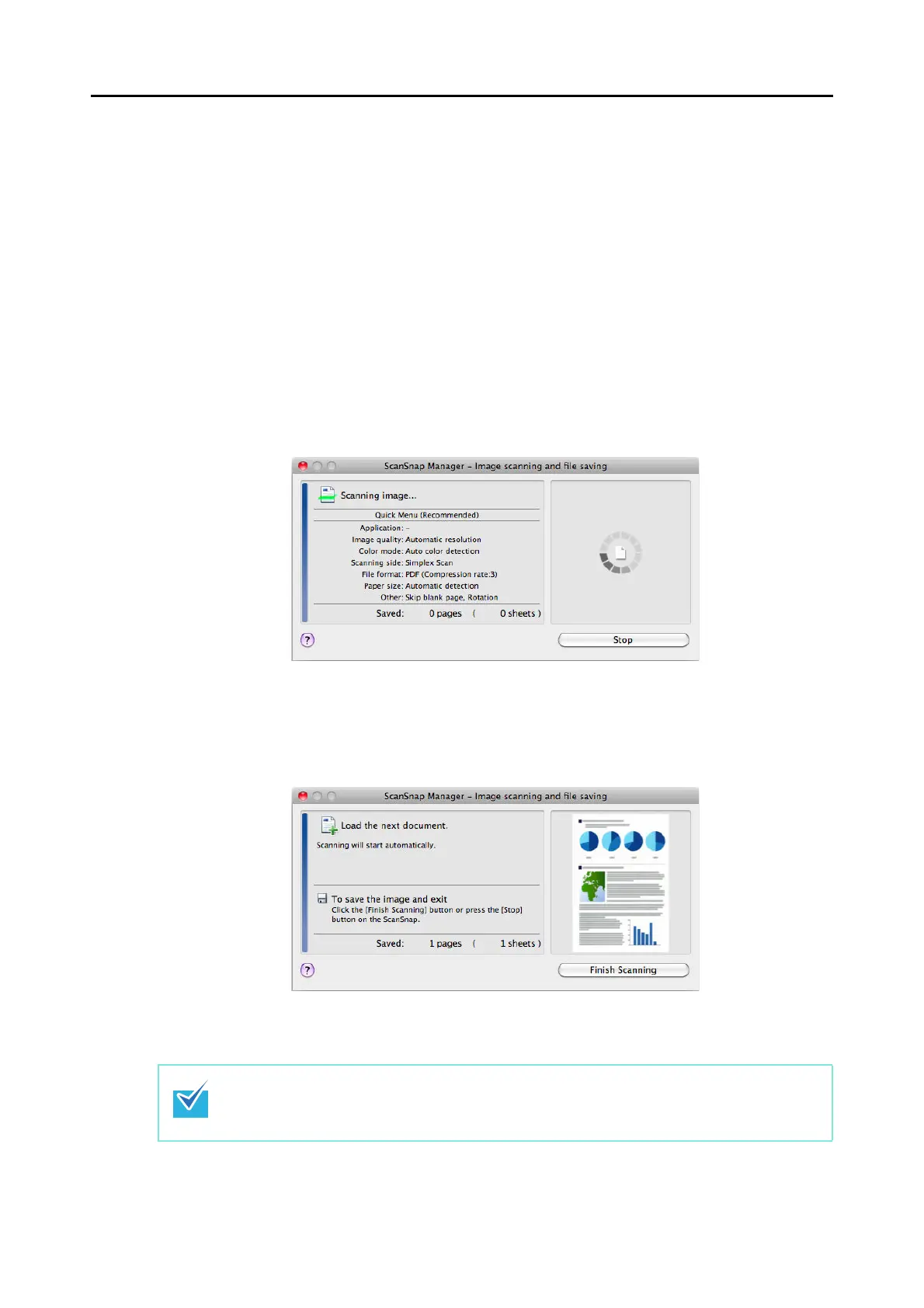
When scanning starts, the [ScanSnap Manager - Image scanning and file saving] window
appears.
The [ScanSnap Manager - Image scanning and file saving] window consists of the following:
z Scan status
z Scan settings
z Save completed
z Preview
Also, note that you can stop scanning by clicking the [Stop] button in the [ScanSnap Manager
- Image scanning and file saving] window, or by pressing the [Scan/Stop] button on the
ScanSnap.
For details about how to stop scanning, refer to
"Stopping the Scan" (page 237).
The following message appears in the [ScanSnap Manager - Image scanning and file saving]
window after the document has been scanned. Load another document in the ScanSnap
when you want to scan multiple sheets. Scanning starts automatically when a document is
loaded.
The [ScanSnap Manager - Image scanning and file saving] window closes when you press the
[Scan/Stop] button on the ScanSnap or when you click the [Finish Scanning] button.
When the [Continue scanning after current scan is finished] checkbox in the [Scanning] tab in the
ScanSnap setup window is cleared, the [ScanSnap Manager - Image scanning and file saving]
window automatically closes after saving the scanned image.



 To Next Page
 Loading...













