Using the ScanSnap in Various Ways (for Windows users)
202
■ Scanning Documents Such as Photographs and
Clippings
You can scan photographs you do not want to damage or documents that are difficult to scan
such as clippings using the Carrier Sheet (sold separately).
Change the settings to scan documents such as photographs and clippings in the following
procedure.
1. Select [Scan Button Settings] from the Right-Click Menu.
For details about the Right-Click Menu, refer to
"Right-Click Menu" (page 59).
The ScanSnap setup dialog box appears.
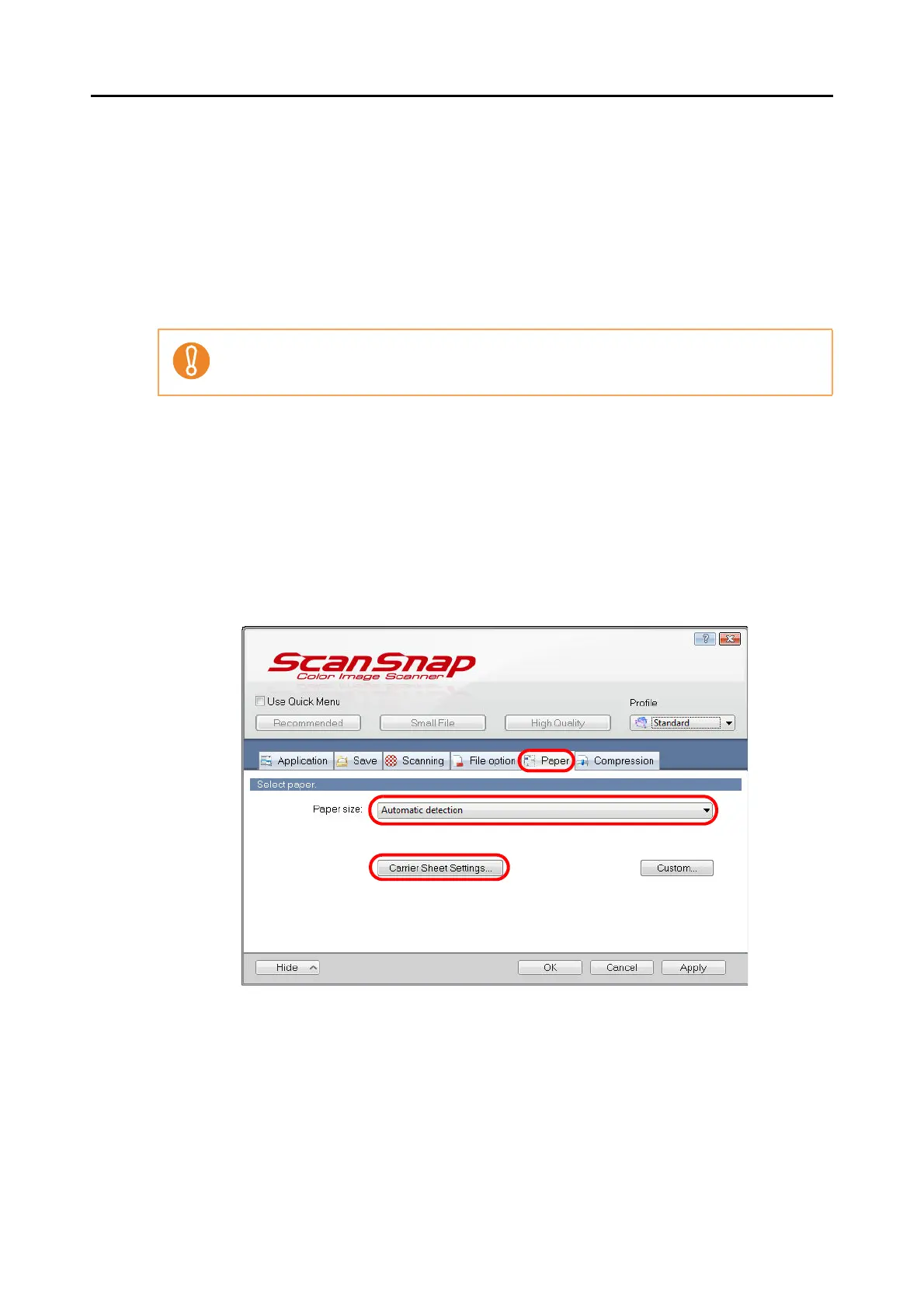
2. In the [Paper] tab, select [Automatic detection] in [Paper size], and then
click the [Carrier Sheet Settings] button.
The [Carrier Sheet Settings] dialog box appears.
In the [Scanning mode option] dialog box ([Scanning] tab [Option] button in the ScanSnap
setup dialog box), the [Correct skewed character strings automatically] check box is disabled.



 To Next Page
 Loading...













