How to Perform a Scan (for Mac OS users)
228
■ Using the Quick Menu
The following explains the procedure for scanning by using the Quick Menu.
1. Select [Settings] from the ScanSnap Manager menu.
For details about the ScanSnap Manager menu, refer to
"ScanSnap Manager Menu"
(page 224)
.
The ScanSnap setup window appears.
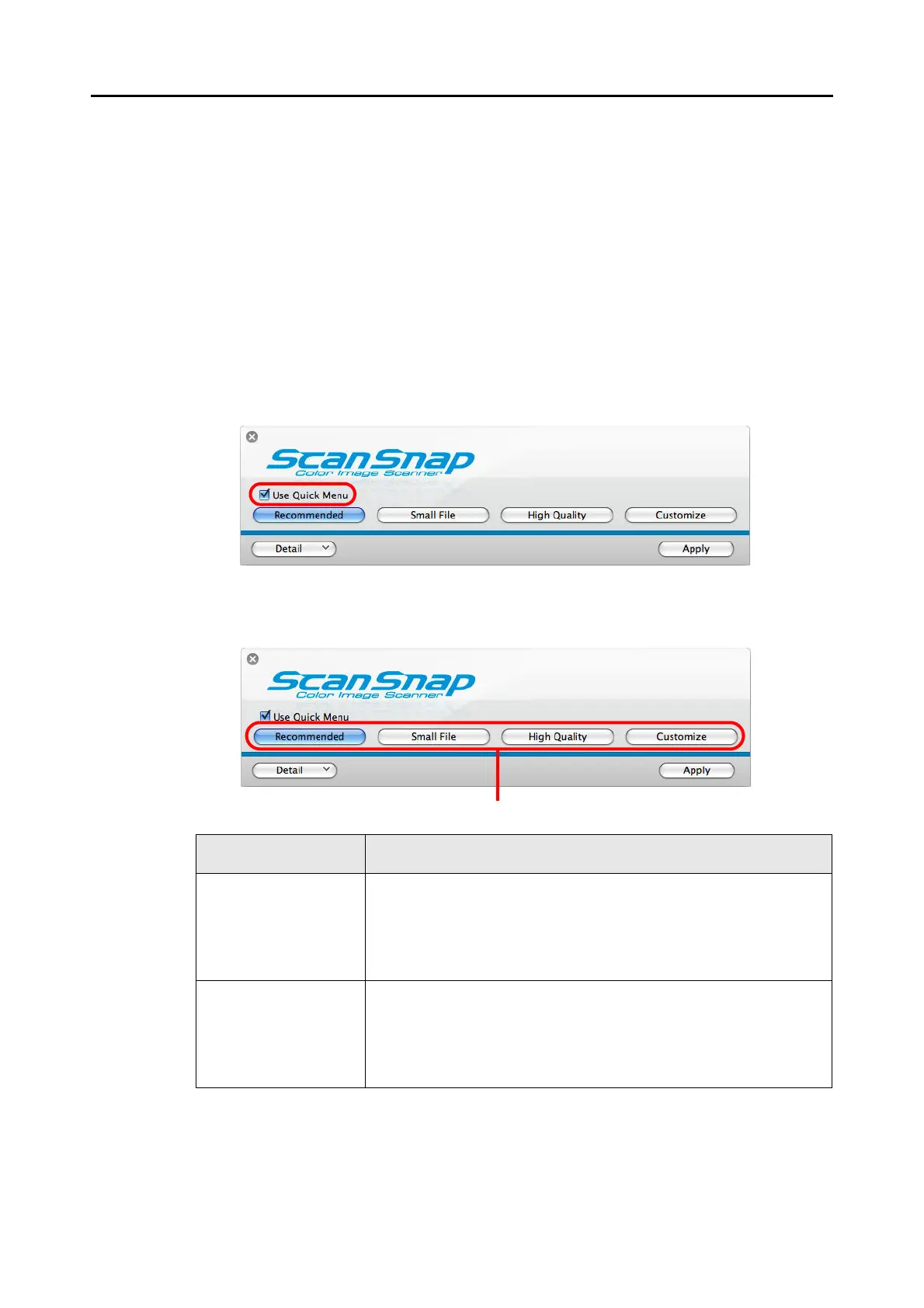
2. Select the [Use Quick Menu] checkbox.
3. Click one of the profile buttons.
Profile Button Description
[Recommended] button Settings are [Automatic resolution] for [Image quality] in the [Scanning]
tab in the ScanSnap setup window and default for other settings.
It is recommended that you select this button when you want to scan
documents in optimum quality suitable for the paper size of the
document.
[Small File] button Settings are [Normal] (Color/Gray: 150 dpi, B&W: 300 dpi) for [Image
quality] in the [Scanning] tab in the ScanSnap setup window and default
for other settings.
It is recommended that you select this button when you want to reduce
the file size.



 To Next Page
 Loading...













