Using the ScanSnap in Various Ways (for Windows users)
221
6. Press the [Scan/Stop] button on the ScanSnap to start scanning.
7. Press the [Scan/Stop] button on the ScanSnap to finish scanning.
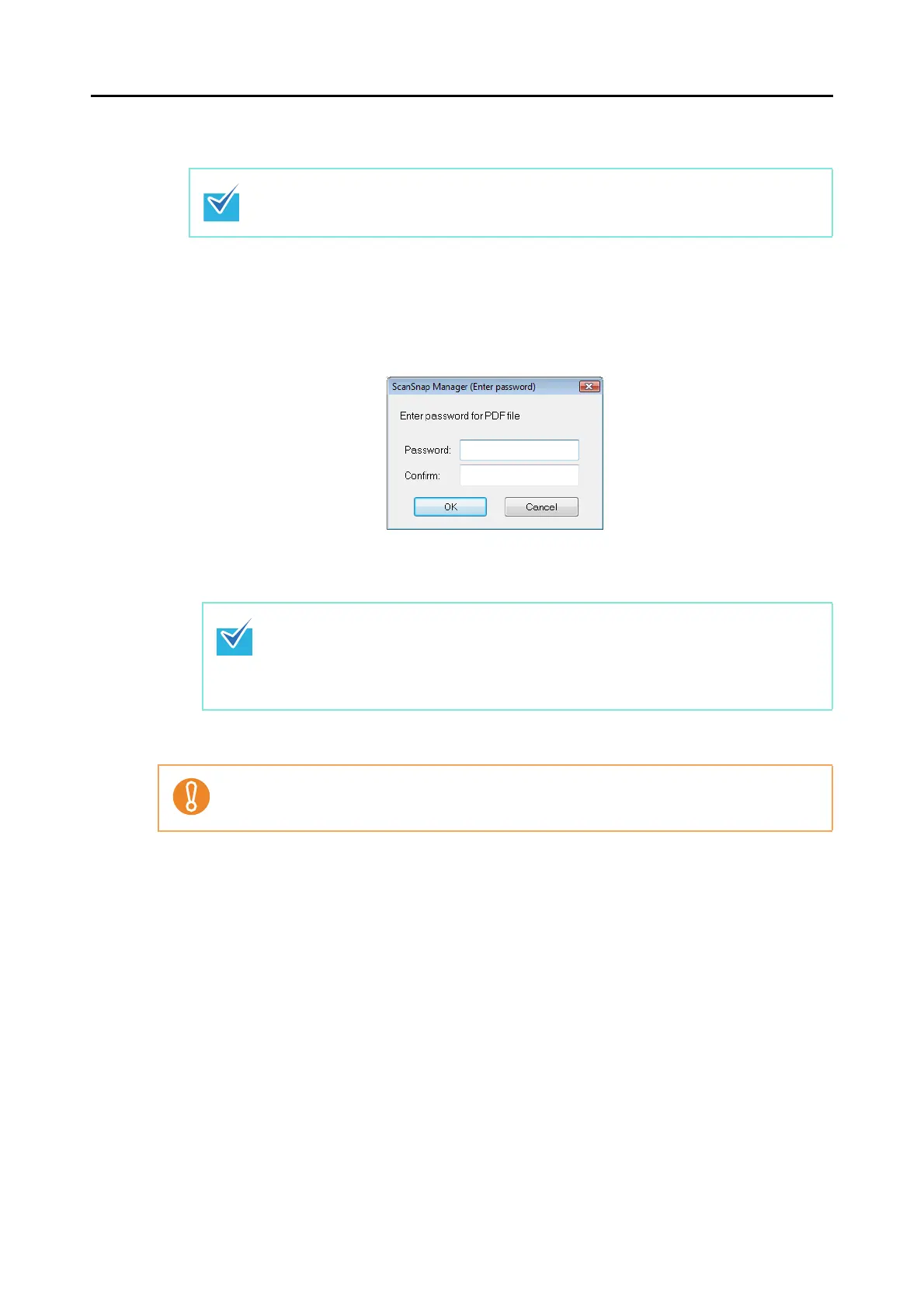
When the [Use a fixed password] check box is cleared in step
3., the following dialog
box appears after scanning is completed.
Type in the same password in the [Password] and [Confirm] fields, and then click the
[OK] button.
The scanned image is saved as a password-protected PDF file.
Load another document in the ScanSnap when you want to scan multiple sheets. Scanning
starts automatically when a document is loaded.
z The following characters can be used to set passwords:
Up to 16 characters
Alphanumeric characters: A-Z, a-z, 0-9
Symbols: ! " # $ % & ' ( ) * + , - . / : ; < = > ? @ [ \ ] ^ _ ` { | } ~
z If you click the [Cancel] button, the PDF file is saved without a password.
It is not possible to open a PDF file if you forget the password.



 To Next Page
 Loading...













