Actions (for Mac OS users)
263
Without using the Quick Menu
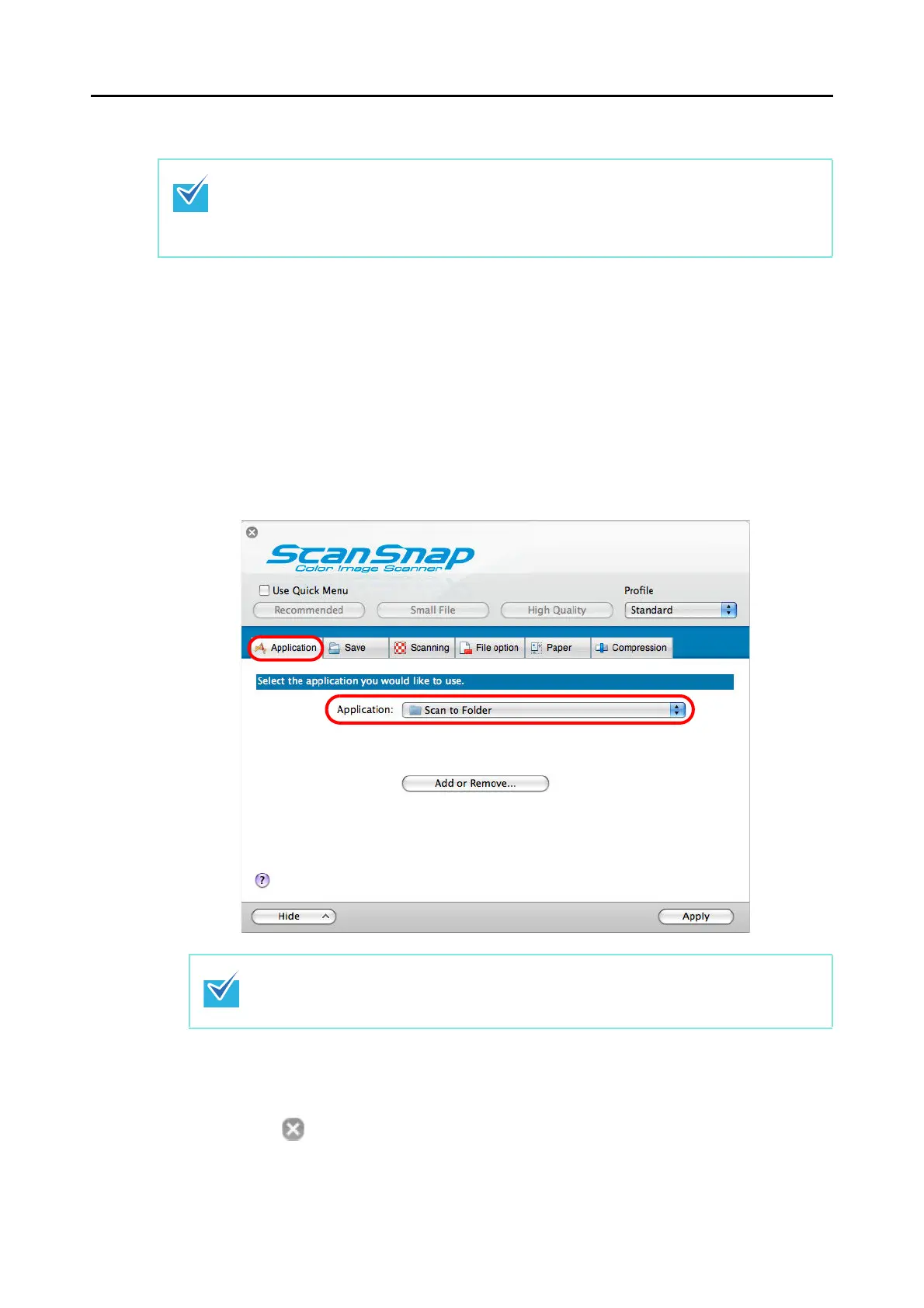
1. Select [Settings] from the ScanSnap Manager menu.
For details about the ScanSnap Manager menu, refer to
"ScanSnap Manager Menu"
(page 224)
.
The ScanSnap setup window appears.
2. In the [Application] pop-up menu in the [Application] tab, select [Scan to
Folder].
3. Click the [Apply] button.
4. Click the [ ] button in the upper left corner to close the ScanSnap
setup window.
To disable the Quick Menu, you need to clear the [Use Quick Menu] checkbox in the ScanSnap
setup window.
For details about how to perform scanning without using the Quick Menu, refer to
"Without Using
the Quick Menu" (page 233)
.
ScanSnap Manager can also link with [Scan to Folder] when you select:
z [Scan to Folder] from the [Profile] pop-up menu of the ScanSnap setup window
z [Scan to Folder] from the Profile menu



 To Next Page
 Loading...













