Actions (for Mac OS users)
293
2. Press the [Scan/Stop] button on the ScanSnap to start scanning.
3. Press the [Scan/Stop] button on the ScanSnap to finish scanning.
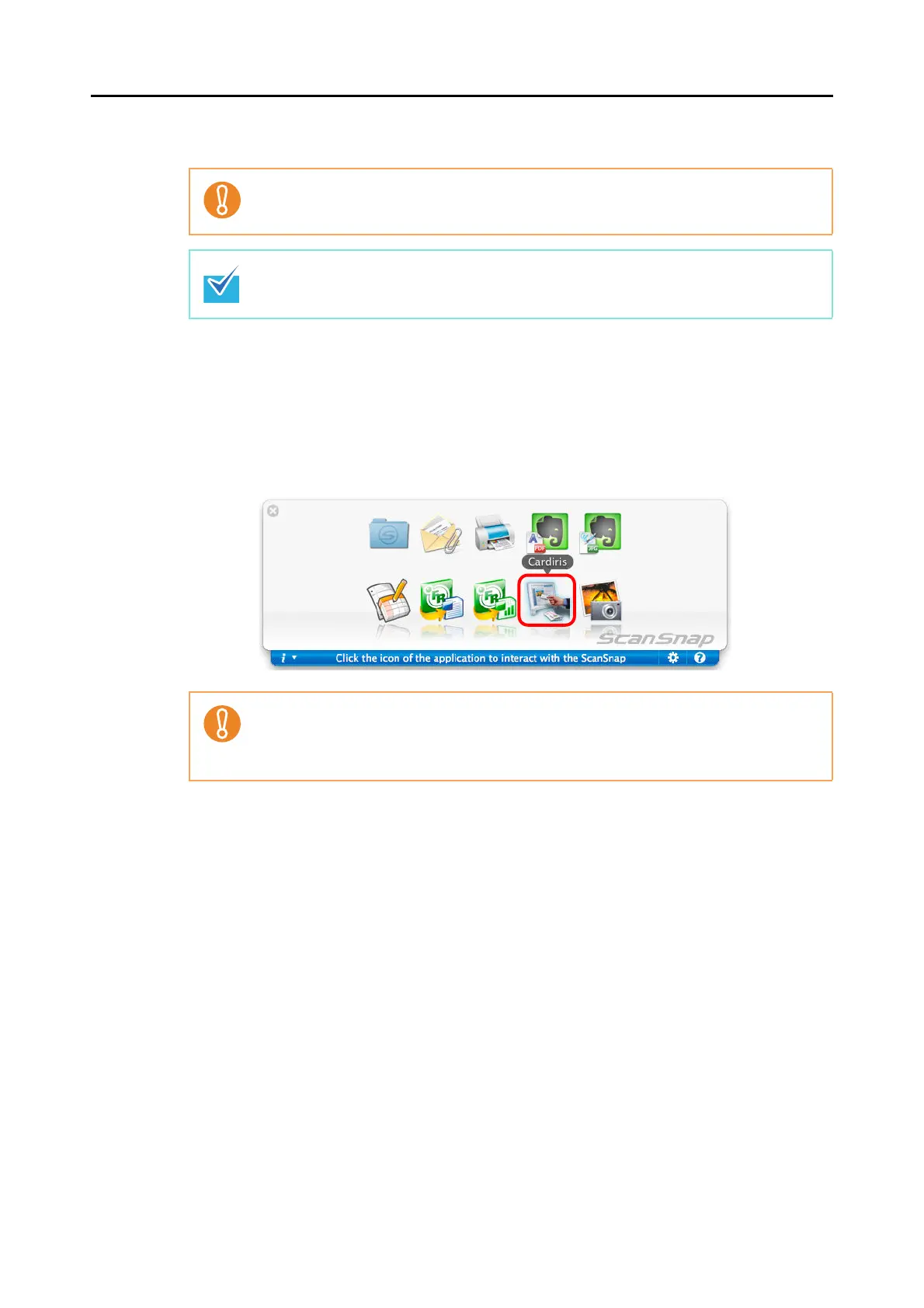
The Quick Menu appears.
4. Click the [Cardiris] button.
Cardiris starts up and the Cardiris window appears.
It is recommended to select [Automatic resolution] or [Best] for [Image quality] in the
[Scanning] tab in the ScanSnap setup window.
Load another business card in the ScanSnap when you want to scan multiple business
cards. Scanning starts automatically when a business card is loaded.
z You cannot start scanning when the Quick Menu is displayed. Wait until ScanSnap
Manager links with Cardiris before scanning another document.
z Do not move, delete, or rename the scanned image in other applications when the
Quick Menu is displayed.



 To Next Page
 Loading...













