Actions (for Mac OS users)
306
Using the Quick Menu
1. Load a document in the ScanSnap.
For details about how to load documents, refer to
"How to Load Documents" (page 30).
2. Press the [Scan/Stop] button on the ScanSnap to start scanning.
3. Press the [Scan/Stop] button on the ScanSnap to finish scanning.
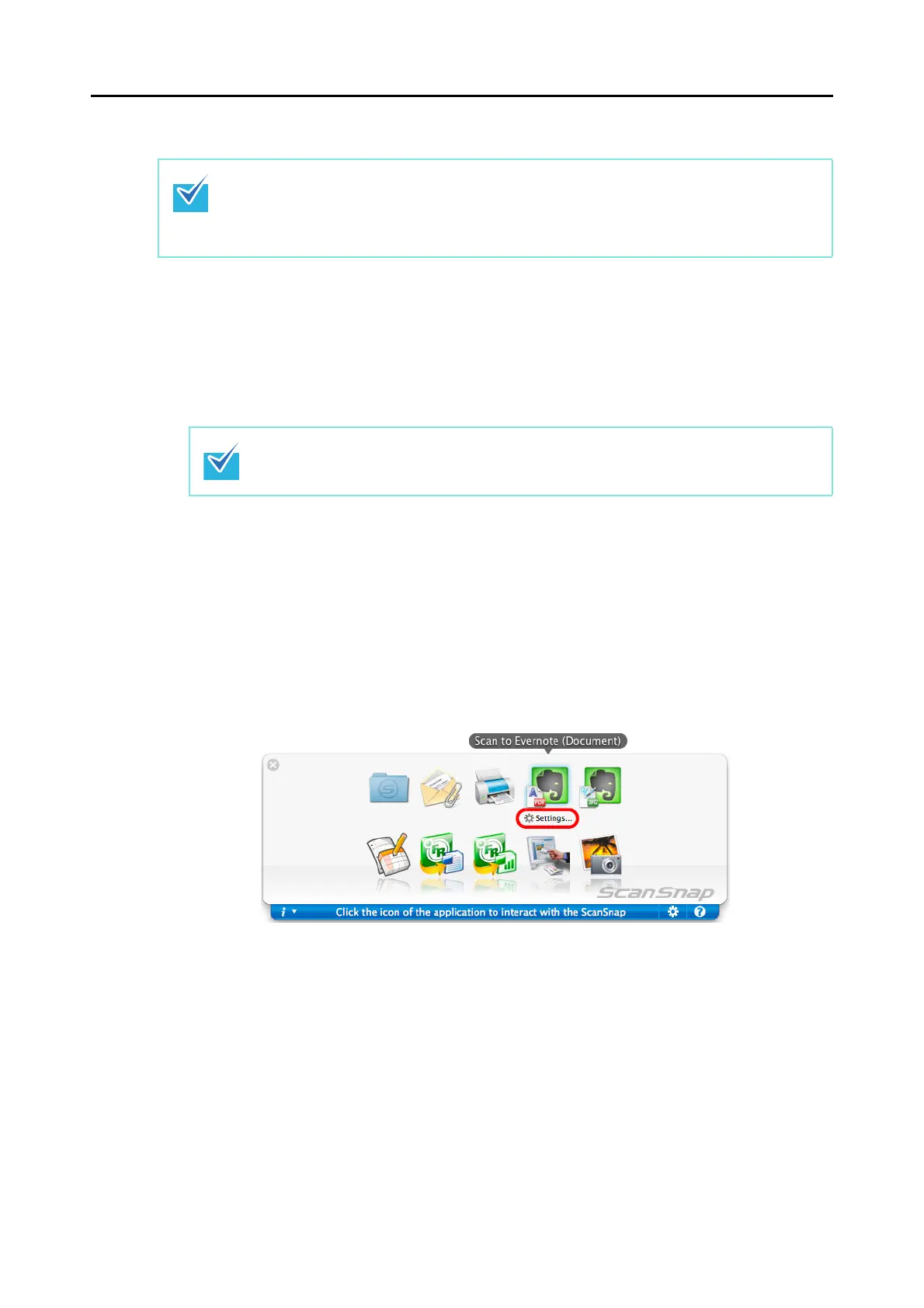
The Quick Menu appears.
4. Change settings for the [Scan to Evernote (Document)] (If you do not
want to change any settings, go to step
5.).
1. Click [Settings] under the [Scan to Evernote (Document)] icon.
The [Scan to Evernote (Document) - Options] window appears.
To use the Quick Menu, you need to select the [Use Quick Menu] checkbox in the ScanSnap
setup window.
For details about how to perform scanning by using the Quick Menu, refer to
"Using the Quick
Menu" (page 228)
.
Load another document in the ScanSnap when you want to scan multiple sheets.
Scanning starts automatically when a document is loaded.



 To Next Page
 Loading...













