
 Need help?
Do you have a question about the Furhat Robotics Robot and is the answer not in the manual?
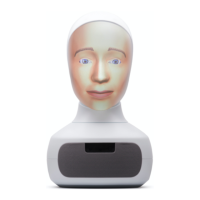
The Furhat Robot is an advanced social robot designed to interact with users through speech input and output, facial expressions, gestures, and motor movements, tapping into the full expressive power of the robot. It serves as a guide for users, covering setup, features, controls, interfaces, care instructions, skills, troubleshooting, and support.
The Furhat Robot is a versatile device that can be configured for various applications, ranging from production to research. It supports different software functionalities, including access to a library of voices from Acapela and Amazon Polly, and a Camera Feed feature. The robot's Web-Console provides a comprehensive interface for managing its settings and operations.
The robot's core functionality revolves around its ability to engage in natural human-robot interaction. It can speak IP addresses, manage WLAN connections, display installed skills, create WiFi hotspots, reset passwords, and reboot. It supports external input devices like keyboards and external screens/touch panels for enhanced control and data entry.
The robot operates with FurhatOS, with versions ranging from 1.15.0 to 1.22.0 and later, and is compatible with Furhat Robot Generation 2, Rev A and later. It includes a built-in rotary controller for audio volume and LED ring brightness adjustment. For speech recognition, it leverages Google Cloud Speech and Microsoft Azure Cognitive Services Speech-to-Text cloud services. Speech synthesis features utilize Amazon Polly and Acapela voices.
The physical deployment of the robot requires specific considerations. It is designed for indoor office/business premises environments, with an ambient temperature range of 5-25° C / 41-77° F and a ventilation clearance of 200mm behind the robot unit. Optimal interaction distance is 1 meter between the robot and users. The robot's face projection is highly visible in medium and darker indoor lighting conditions and less vivid in bright direct sunshine.
The robot includes a USB connected external microphone for optimal performance, with placement considerations of 10-15 cm from the robot. It also features multiple physical I/O ports at the rear. The robot's internal components include finely calibrated optics, projection, and mechanical components.
Getting Started: The robot comes packaged in a protective hardshell case with a Furhat Robot Unit, a standard adult mask model, a robot power supply, an AC mains cable, and a USB microphone. Unboxing involves removing packaging, placing the case on a firm, flat surface, lifting the robot unit, and connecting the USB microphone and power supply.
Start Up & Shut Down: To start, push the Power button on the rear of the robot. The robot's face will illuminate, and natural face movements will display after a few seconds. To shut down, push the Power button on the rear again, and disconnect the robot from its AC power source.
Rotary Controller & On-Face Menu: The built-in rotary controller manages audio volume and LED ring brightness. The on-face menu provides access to features like speaking the IP address, managing WLAN, viewing skills, creating WiFi hotspots, resetting passwords, and rebooting the robot.
External Input Devices: An external keyboard can be connected to a USB port for controlling the on-face menu and entering data. An external screen/touch panel can be connected via USB-C and USB-A ports to access the Web-Console and enable data entry via touch or a virtual keyboard.
Network Connection: The robot supports both fixed Ethernet and WiFi connections. It can fetch network parameters via DHCP. For WiFi, users can select and connect to available networks, or the robot can create a WiFi hotspot for accessing the Web-Console.
Running Skills: Skills are applications that run on the robot, enabling interaction through speech input/output, facial expressions, gestures, and motor movements. Skills can be viewed, started, stopped, installed, and uninstalled via the on-face menu or the Web-Console.
Operating Your Robot Using Web-Console: The Web-Console is a web-based interface for accessing controls and configuring the robot. It can be accessed via a computer, tablet, or mobile device. The default password for login is "admin," which can be changed.
Home Tab: This tab provides basic remote control features and high-level configuration options. It displays information on running skills, user account options (logout, restart system), and a console log for important messages.
Video Panel: Shows live video from the robot's onboard camera, with marker boxes indicating user presence in the interaction space.
Gaze Control: Allows remote direction of the robot's gaze via mouse movements on the video panel.
Roll Control: Adjusts the robot's roll angle from -20 to +20 degrees of vertical.
Speech Output Panel: Enables users to enter text for the robot to speak using its speech synthesis features.
Speech Recognition Panel: Tests microphone function and speech recognition. The robot indicates when it's listening, and transcribed speech appears on the panel.
Home Settings Panel: Provides access to frequently used settings, including Mask Model (face geometry), Texture (face texture set), Voice (speech synthesis voice), and Speaker (audio output device).
Gesture Panel: Enables remote control of built-in gestures like smile, blink, frown, raise brow, express anger, express disgust, express fear, gaze away, nod, express ohh, close eyes, open eyes, roll, shake, surprise, and look thoughtful.
Skills Tab: Manages installed skills, allowing users to view, import, delete, start, and stop skills.
Dashboard Tab: Monitors and inspects running skills, displaying information in the Attention Panel and Skill Log Panel.
Attention Panel: Tracks user presence using the robot's onboard camera and sensory perception features. It provides a graphical representation of user attention and supports viewing the model from top, plan, and side views.
Skill Log Panel: Displays key details of interaction flow and states, actions, and utterances.
Wizard Tab: Offers similar features to the Dashboard Tab but provides more freedom for skill developers to control the layout of buttons and controls.
Settings Tab: Allows viewing and changing operator level settings.
Face & Neck Settings Panel: Configures face and neck parameters, including relative room scale, up/down, horizontal scaling, vertical scaling, tilt, roll, left/right eye centering, and top-mask adjustments. It also allows editing of lower-level face configuration attributes expressed as a JSON document.
Microphone Settings: Manhatages connected microphones, allowing users to refresh the list, select active microphones, and check audio levels.
Recognizer Settings: Configures speech recognizers, supporting Google Cloud Speech and Microsoft Azure Cognitive Services Speech-to-Text. Users can enter API keys and credentials for these services.
Voice Settings Panel: Selects the default voice for speech output from available voices (Amazon Polly, Acapela, Cereproc) and configures the output speaker.
Asset Management Panel: Manages face models and textures, allowing users to upload custom models/textures and edit existing ones.
Network Settings Panel: Configures wireless (WiFi) and wired (Ethernet) network connections, allowing users to connect, disconnect, forget, and add networks.
Security Settings Panel: Manages the robot's password, allowing users to change the default password.
Support Panel: Provides access to support resources, including a support ticket system, technical support, bug reporting, feature suggestions, and community forums.
Update Panel: Manages FurhatOS updates, displaying the current version and allowing users to upgrade.
Camera Panel: Enables or disables the camera feed, which streams live video from the robot's camera via the network.
Caring For Your Robot: The robot is designed for reliable service. It requires exercise care when using electrical, audio, and data ports. Users should use controls such as the rotary controller and on/off switch with care to maximize service lifetime. Mechanical shocks and vibrations should be avoided. Removing power from the robot should be done by shutting down the robot first. Software updates should be regularly applied via the Web-Console.
Cleaning & Periodic Maintenance: Regular cleaning tasks include rubbing down/dusting the robot with a clean lint-free cloth, checking for adequate ventilation clearance behind and around the unit, inspecting the rear ventilation grill for obstructions, and checking power, audio, and data cables for good condition.
Transportation: The robot contains sensitive components. It comes in a protective case for maximum protection during transport. When flying, the robot should be checked in as special baggage, and fragile labels should be added. Special handling by airlines or airports may be required.
Troubleshooting: The manual provides a comprehensive troubleshooting guide for common issues, including network connectivity, input device problems, robot movement, speech recognition, and other operational concerns. Each issue is accompanied by detailed instructions for resolution.
 General
| Brand | Furhat Robotics |
|---|---|
| Model | Robot |
| Category | Robotics |
| Language | English |

 To Next Page