Files and then continuing with the Textures
Select the desired asset sub-part from the list.
Use the Expand, Add and Edit buttons to modify the selected asset sub-part.
Network Settings Panel
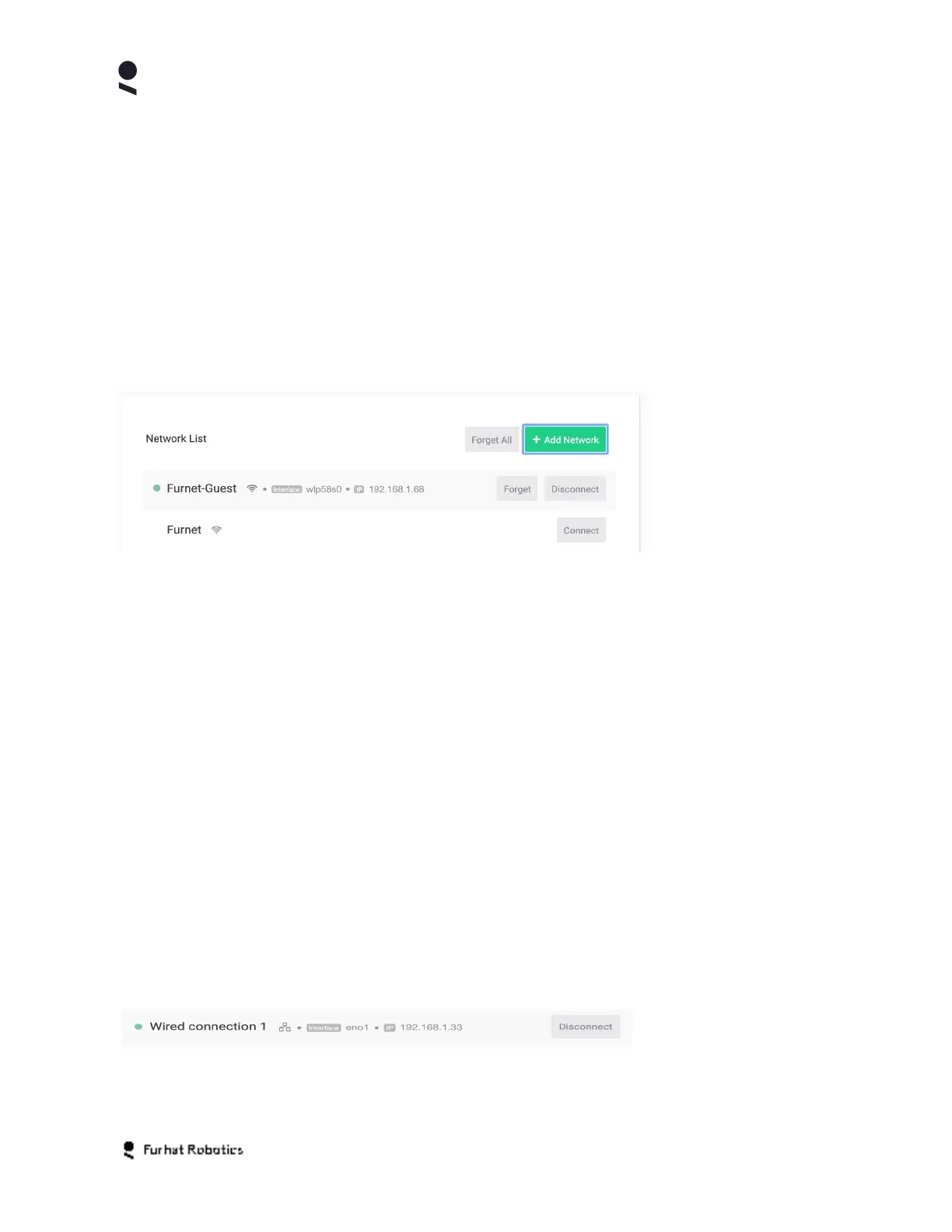
Your robot supports both wireless (WiFi) and wired (wired ethernet). You can configure your
network connection both in the On-Face Menu accessed via the rotary controller, as well as on
the Network Settings panel.
The currently connected network is denoted with a green dot. Information is provided on the
(network) interface on your robot to which this network is attached, as well as the IP
address that has been allocated by the network to your robot.
You can use the Disconnect button to disconnect from the current network and connect to an
alternative network using the appropriate Connect button.
You can use the Forget button to remove the network and its specific settings from your robots
network settings database. This includes any associated security settings and credentials.
You can use the Forget all button to remove all of the displayed networks and their
respective settings, this can be useful for example if you have been travelling extensively or
experimenting with different network configurations on your robot.
You can use the Add Network button to add a network that is not automatically discovered by
your robot. This is generally only required for wireless networks that are configured to explicitly
not broadcast their network name (SSID)
Copyright Furhat Robotics AB © 2020 - Commercial In Confidence


 To Next Page