Once you have received your license, you will need to restart your robot in order for the license
to take effect and the Acapela voices to be available.
Depending on your contract, your robot may ship with a predefined set of Amazon credentials. If
you do not have a predefined account, or you wish to change to an alternative account, then
you can acquire and configure your own account and substitute the credential into the Secret
and Key field as appropriate, then use the Save Credentials button to confirm the changes.
You can test your settings using the Test the speech recognizer function on the Home Tab
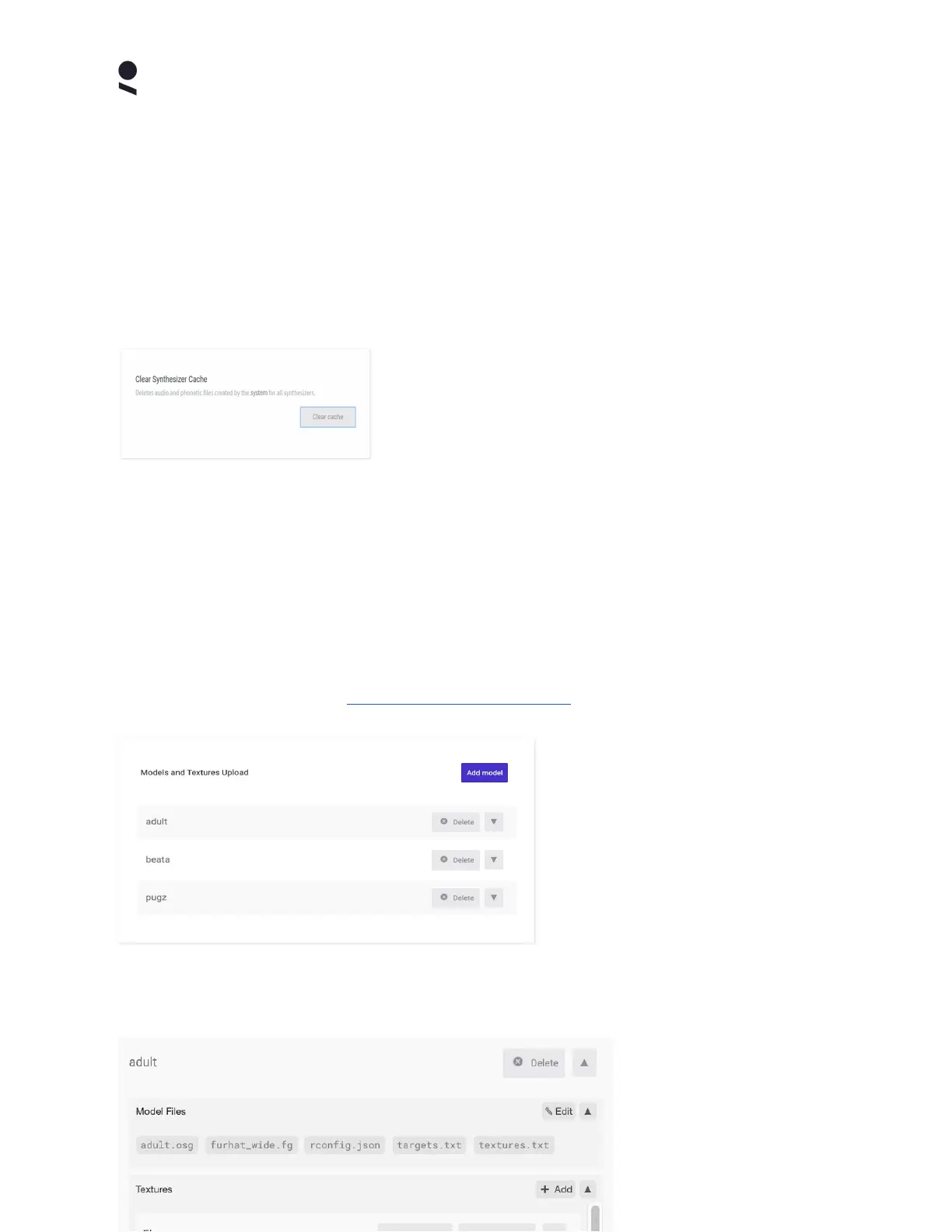
Your robot caches speech output locally as an efficiency
and performance measure. Depending on your use case,
you may consider the contents of the speech synthesizer
cache to be sensitive and private. You can delete the
contents of the speech synthesizer cache at any time using
the Clear Cache button.
Asset Management Panel
Your robot ships with a set of preloaded Face Models and Textures that fit with the default
physical mask. You can select the currently active model and mask in the Home Tab. It is also
possible to upload your own custom models/textures using the Asset Management Panel.
Defining a new model and textures is a technical task that requires basic graphical modelling
skills and tools. You can find information on the different parts of an asset bundle, as well as
example asset bundle(s) here: https://docs.furhat.io/textures/
The Asset Management Panel shows
a table of the currently installed face
models.
Use the Add Model button to upload
a new model to your robot.
Use the Delete button to delete a
model from your robot.
If you wish to edit a model already installed on your robot then you can do so using the expand
button and then navigating to the asset sub-part and using the edit button on the sub-part.
The expanded asset view
lists the asset sub-parts
starting with the Model
Copyright Furhat Robotics AB © 2020 - Commercial In Confidence


 To Next Page